
Downloads
Download audio from YouTube and other sites straight to a folder of your choice. How to paste links, manage the queue, decide whether finished downloads join your library, configure output format and quality, and keep the download engine up to date.
Downloads lets you pull audio from YouTube and other sites onto your Mac. Paste one or more links, confirm, and the tracks land in your downloads folder. Adding them to your MacAMP library is a separate, opt-in step — see Joining your library.
macOS only. The Downloads feature requires spawning a child process, which iOS does not support. The queue, view models, and protocol contracts live in the shared
PlayerCorepackage, so an iOS port only needs a new engine conformer rather than a full reimplementation.
Pasting links
Click the + button in the Downloads toolbar (or choose File > Add Download from the menu bar) to open the paste sheet.
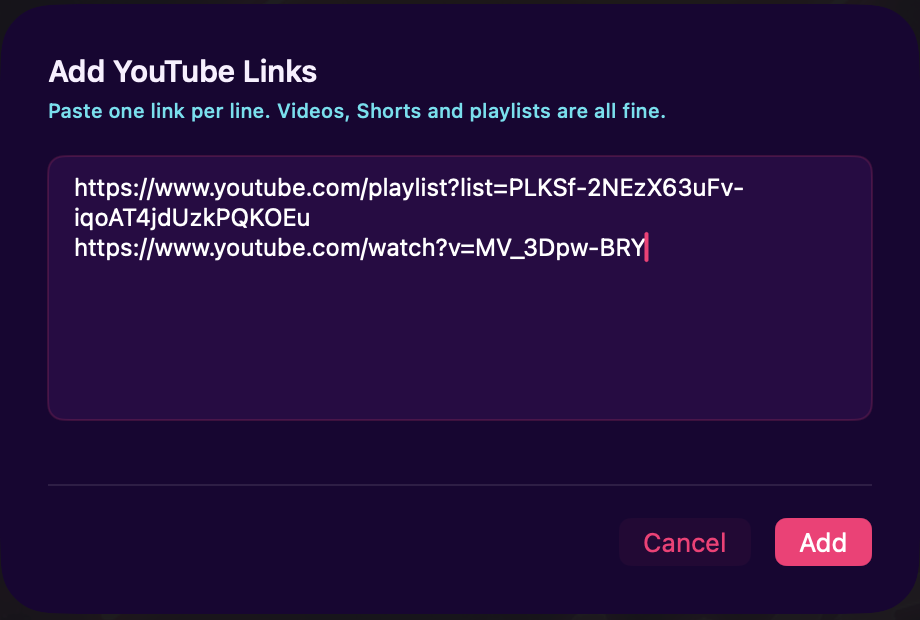
- Paste one or more YouTube URLs into the text area — one per line.
- MacAMP checks each link and shows a summary: how many it recognized, how many it skipped (duplicates, unrecognized format, or already in the queue).
- Press Add to confirm.
Playlist links. If you paste a playlist URL, MacAMP fetches the real track count before adding anything. A confirmation sheet shows the exact number of tracks so you can decide before they enter the queue. Playlists are capped at 500 tracks; if a playlist is longer, MacAMP offers to add the first 500 and tells you so — it never silently truncates.
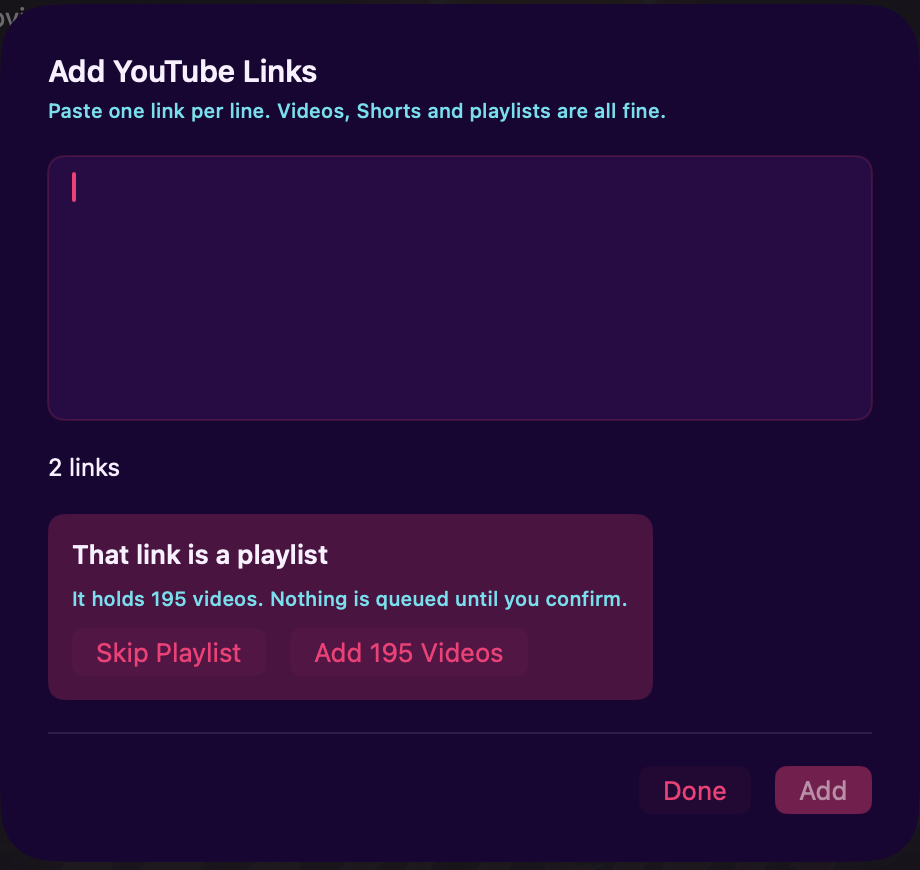
Mixed pastes. You can paste individual video links and playlist links in the same batch. MacAMP expands them all and deduplicates by video ID, so the same video appearing in two playlists only downloads once.
Titles and thumbnails. After you press Add, MacAMP fetches each video's title, uploader, and thumbnail from YouTube in the background via a keyless oEmbed lookup. They appear as queue-row decoration in the Queue tab — not inside the paste sheet itself. Links appear in the queue immediately by canonical video ID; the title and thumbnail fill in asynchronously as the lookups complete. A lookup that fails or times out leaves the raw URL as the row title. This decoration is cosmetic — it never gates or delays the queue entry.
Previously downloaded. After you press Add, MacAMP checks your download history and shows a notice if any of the pasted links match a previous download (for example, "You already downloaded 2 of these"). This is advisory only — those links are still added to the queue normally.
The download queue
Open Downloads — the last row of the Library section in the sidebar — to see two tabs: Queue and History.
Queue tab
The Queue tab shows everything in progress and waiting.
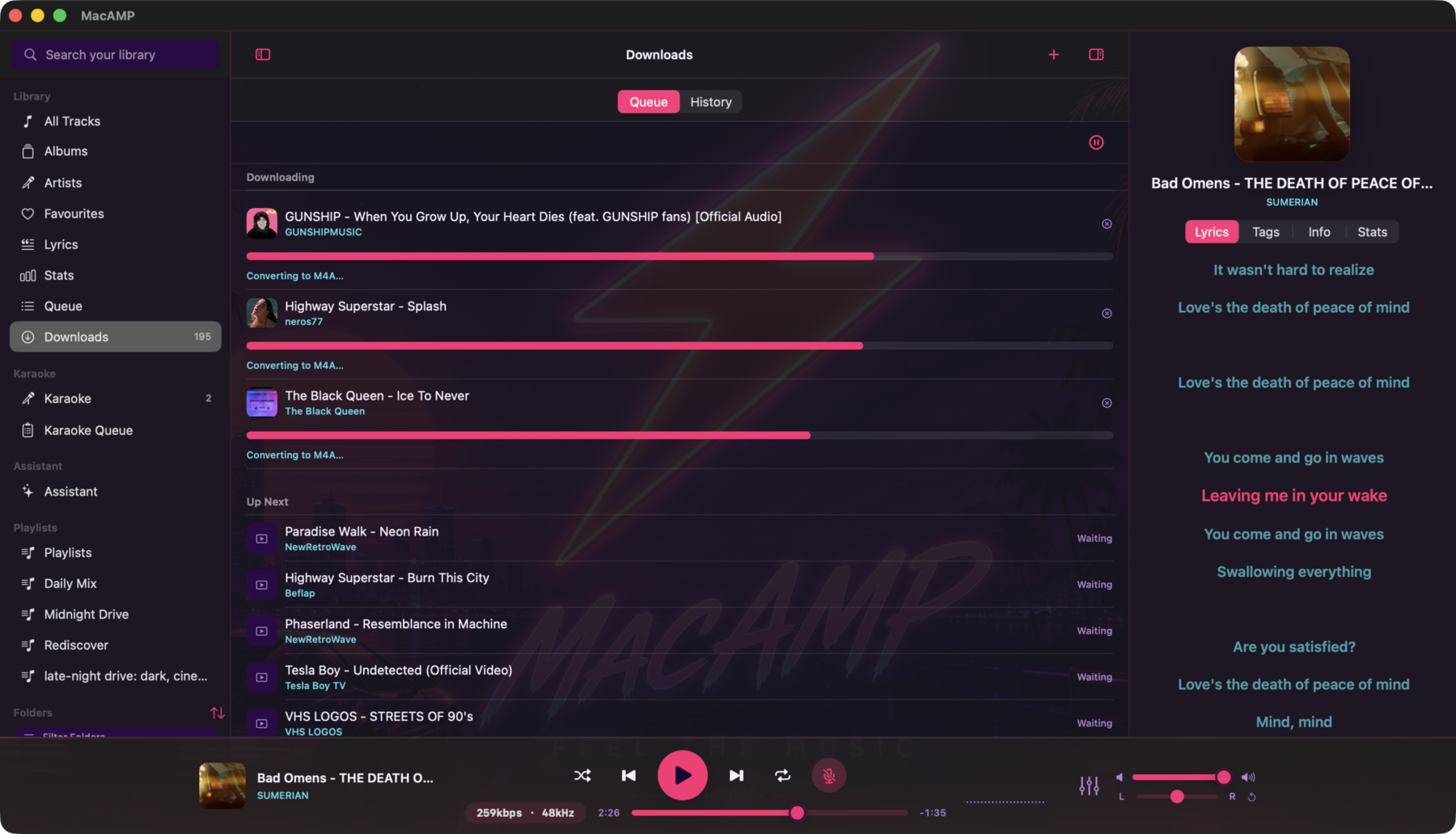
- In progress. Multiple downloads can run at the same time (see Simultaneous downloads below). Each active row shows its title, progress bar, speed, and estimated size. When a conversion step follows the download (for example, converting from webm to M4A), the progress bar shows a real percentage once MacAMP has enough data — before that it shows a short label like "Converting…" so you always know what stage the download is in.
- Pending tracks. Tracks waiting their turn appear below the active rows. Drag to reorder them. Right-click a pending row for options including Remove.
- Pause / resume. Press Pause in the queue header to hold the queue. New downloads will not start; active ones finish what they are doing. Press Resume to continue. The queue is in-memory — it resets when you quit MacAMP.
- Cancel active. Each in-progress row has its own ✕ cancel button on the right. Press it to stop that download immediately — the others keep going. The partial download is discarded; nothing is saved. (Right-click is for pending rows only.)
History tab
The History tab lists every completed download, newest first. For each row you can:
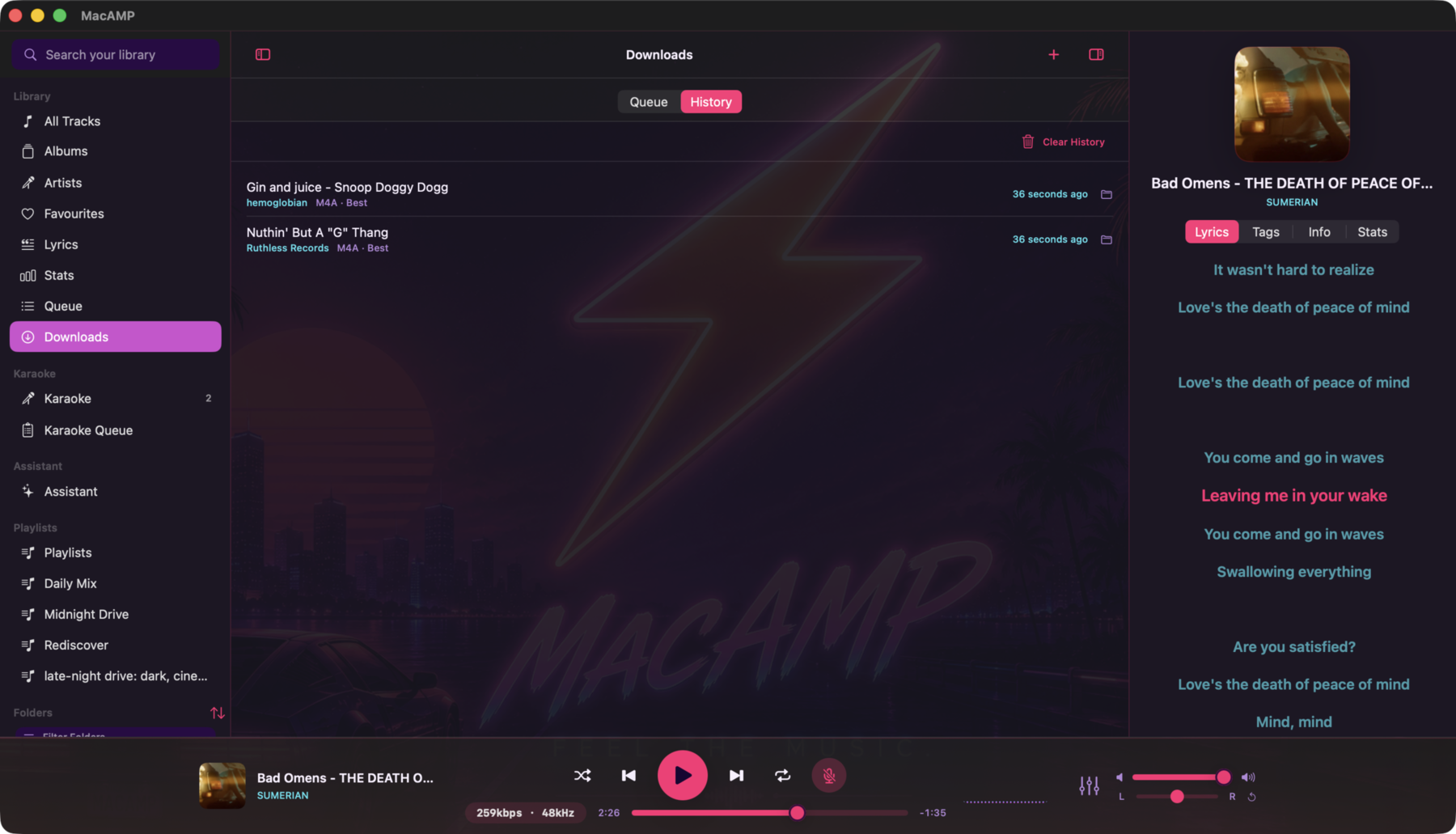
- Reveal in Finder — opens the folder containing the downloaded file.
- Re-download — re-enqueues the original URL. The existing file is not deleted first; yt-dlp decides what to do if a file already exists at the destination.
- Delete row — removes the history record. The file on disk is not touched.
- Clear All — wipes all history records. Files on disk are not touched.
History is stored locally and is never synced.
Simultaneous downloads
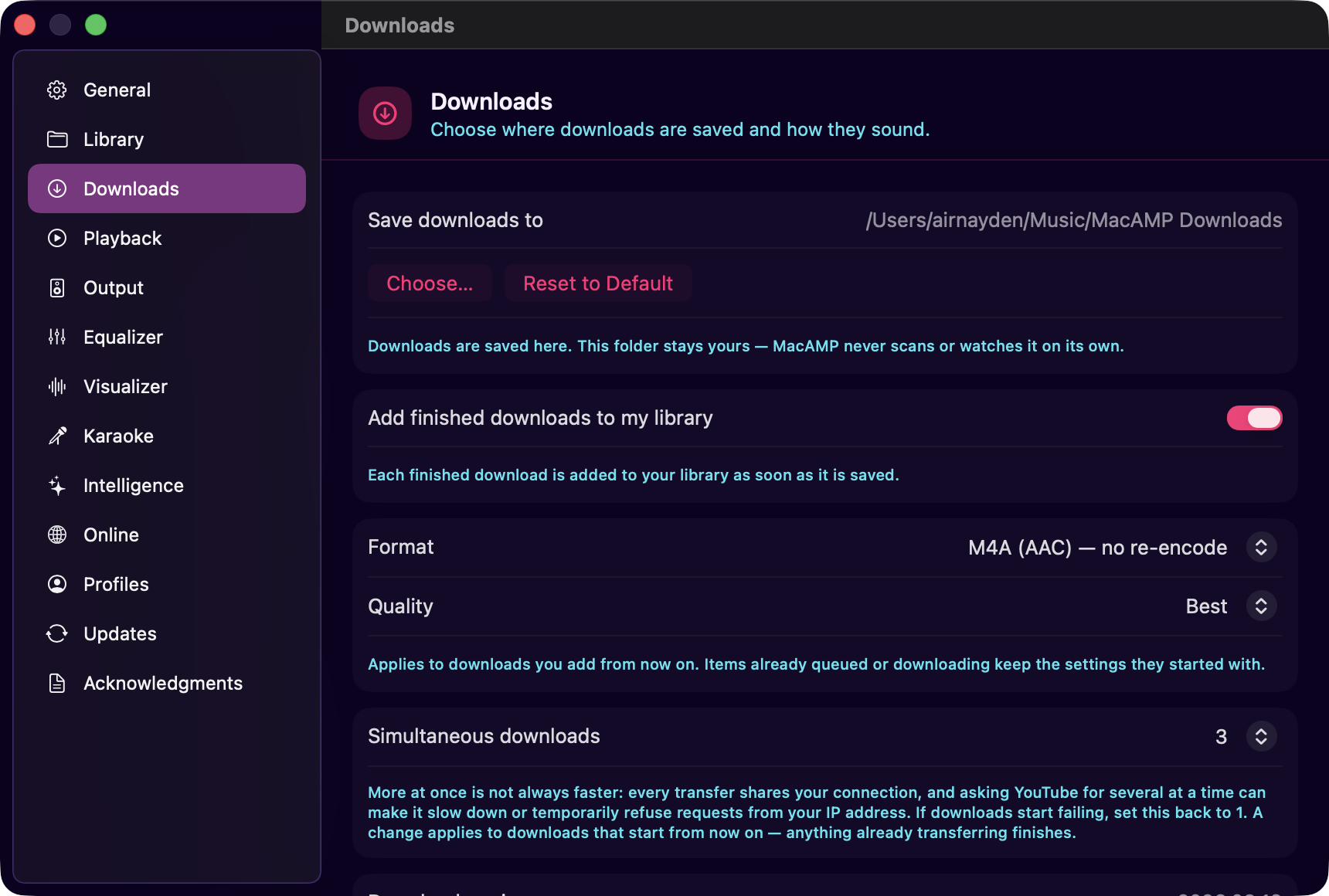
MacAMP can download multiple tracks at the same time. Open Preferences > Downloads and adjust Simultaneous downloads (1 to 4, default 3) to control how many run in parallel.
A higher number gets through a queue faster, but some sites rate-limit aggressive download patterns. If you see frequent failures or slow speeds, try lowering it to 1 or 2.
Engine updates are deferred while any download is active. Finish or cancel the current downloads before updating the engine.
Where downloads land
Downloaded files go to the folder set in Preferences > Downloads > Destination
folder (default: ~/Music/MacAMP Downloads). That folder stays yours — MacAMP
never scans or watches it on its own, so existing files in it are not affected.
Changing the destination only affects future downloads. Files already downloaded stay where they are; MacAMP finds them again if they are in a folder that is part of your library.
Joining your library
Downloads do not join your library unless you ask them to. A download is a file you asked for, not a library decision, so this ships switched off.
To turn it on, open Preferences > Downloads and enable Add finished downloads to my library. From then on each finished download is imported on its own the moment it is saved, and shows up under All Tracks just like any other file. MacAMP imports each file individually rather than watching the folder.
With the switch off, downloads are still saved to the destination folder — they simply do not appear anywhere inside MacAMP. There are two ways to reach them:
- Turn the switch on. It applies to downloads that finish from then on, not to ones already on disk.
- Add the destination folder as a library folder in Preferences > Library. MacAMP then scans and watches it like any other library folder, which also picks up everything already in it. See Importing Music.
Either way the file itself lands in the destination folder; the switch only decides whether MacAMP scans it.
Output format and quality
Open Preferences > Downloads to choose how MacAMP encodes downloads.
| Container | Quality options | Notes |
|---|---|---|
| M4A (default) | Best / High / Medium | Re-encoded as AAC. Widely compatible. |
| MP3 | Best / High / Medium | Re-encoded as MP3 via libmp3lame. |
| Opus | Best / High / Medium | Note: when YouTube already serves a track as opus, the file is remuxed rather than re-encoded, so the quality setting has no effect for those tracks. |
| FLAC | Lossless only | Quality picker is disabled; FLAC is always lossless. |
These settings apply to new downloads. Files already in your library are not re-encoded when you change the format.
Engine updates
MacAMP bundles yt-dlp and ffmpeg directly. As sites change their APIs,
yt-dlp releases updates to keep downloads working. MacAMP can update the engine
without a full app update.
Check for updates. Open Preferences > Downloads and look at the engine version row. Click Check for Updates to see if a newer version of yt-dlp is available.
Update engine. If an update is available, click Update Engine. MacAMP downloads the new binary, verifies its checksum, and swaps it in. The old binary is kept as a fallback — if the new one fails its own version check, MacAMP rolls back automatically.
A few things to know about engine updates:
- Updates are refused while a download is in flight. Finish or cancel the current download first.
- The update is per-user, not per-app. The updated engine lives in
~/Library/Application Support/MacAMP/Tools/and takes precedence over the bundled version. A MacAMP app update may replace it again if it ships a newer pinned version. - Rollback is automatic. If the downloaded binary fails a
--versioncheck, MacAMP restores the previous version and reports the failure.
Downloads from the AI assistant
The AI assistant can send tracks directly to this queue. When you ask it for specific songs and some aren't in your library, those appear as suggestion rows in the chat with checkboxes. Ticking rows and pressing Download selected queues them here exactly like a manual paste — and if your request named a playlist, successfully imported tracks are automatically added to it once each finishes.
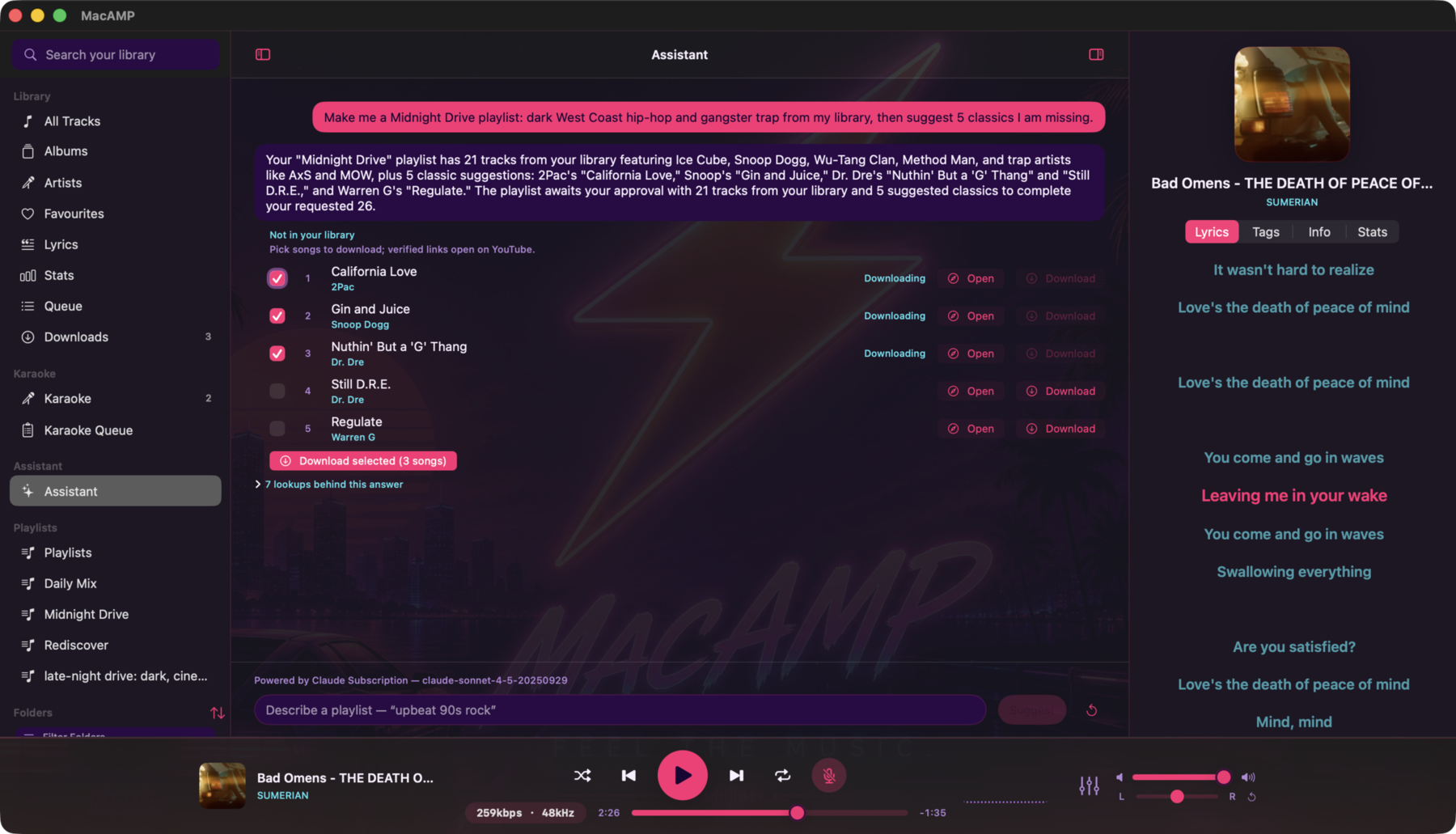
See Downloading missing tracks for the full details, including how verified and unresolved songs differ, and what the library import setting means for playlist appending.
A note on terms of service
MacAMP's download feature is a general-purpose tool. Whether downloading a particular piece of content is permitted depends on the rights holder and the site's terms of service. MacAMP does not make that determination.
Use this feature only for content you have the right to download — for example, content you own, content released under a permissive license, or content where the rights holder has explicitly granted permission for offline use.
Troubleshooting
"Download failed" for a specific track. The most common cause is a site API change that the current yt-dlp version does not yet handle. Try Check for Updates in Preferences > Downloads to see if a newer engine is available.
The destination folder is rejected. MacAMP refuses a destination that overlaps
with the karaoke instrumental cache or with the app's own internal folders. Pick a
different folder — for example, a subfolder of ~/Music.
Downloads disappear from the queue after quitting. The queue is in-memory. Quitting MacAMP cancels any in-progress download and clears the queue. Re-paste the links when you relaunch.
A download finished but doesn't appear in the library. This is expected when Add finished downloads to my library is off — which is how MacAMP ships. The file is in your destination folder, and Joining your library covers the two ways to bring it in. If that switch is already on and the track still does not appear, the destination folder is intentionally never a library root, so re-check it in Preferences > Downloads; you can always drag the file from Finder into the MacAMP window to import it manually.
Karaoke Mode
Remove vocals from your tracks and sing along. How to enable karaoke mode, create karaoke versions on demand, pick a quality, manage the cache, find ready tracks, remove karaoke versions, and what the current limitations are.
AI Features
How MacAMP's AI assistant works, how to chat with your library, what tool-activity rows mean, how to pick a provider, and how to troubleshoot common issues. AI features are macOS only.