
Playback, Queue, and Transport
Playing music, managing the queue, gapless playback, and the transport controls on macOS and iOS.
macOS — the main window
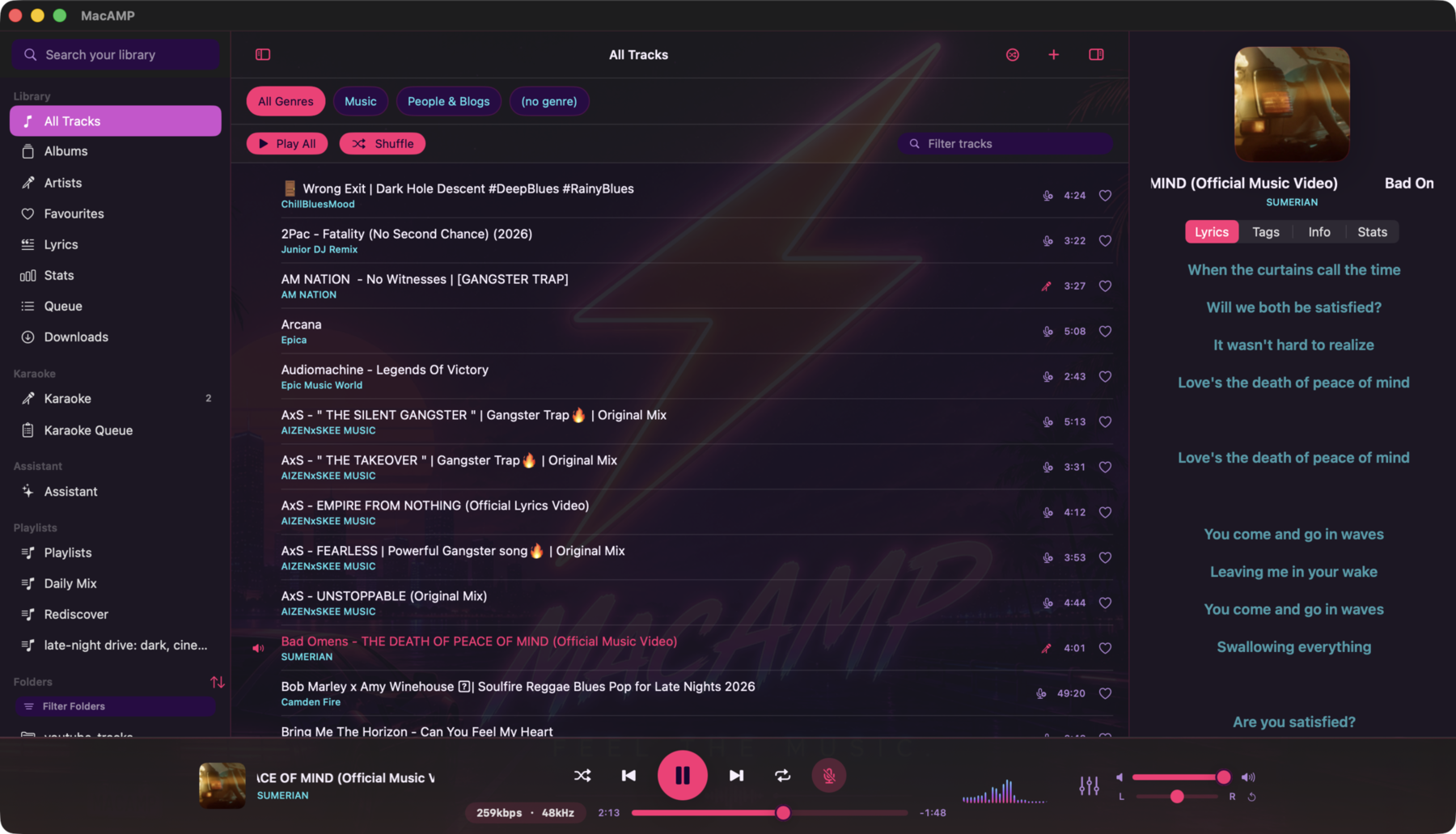
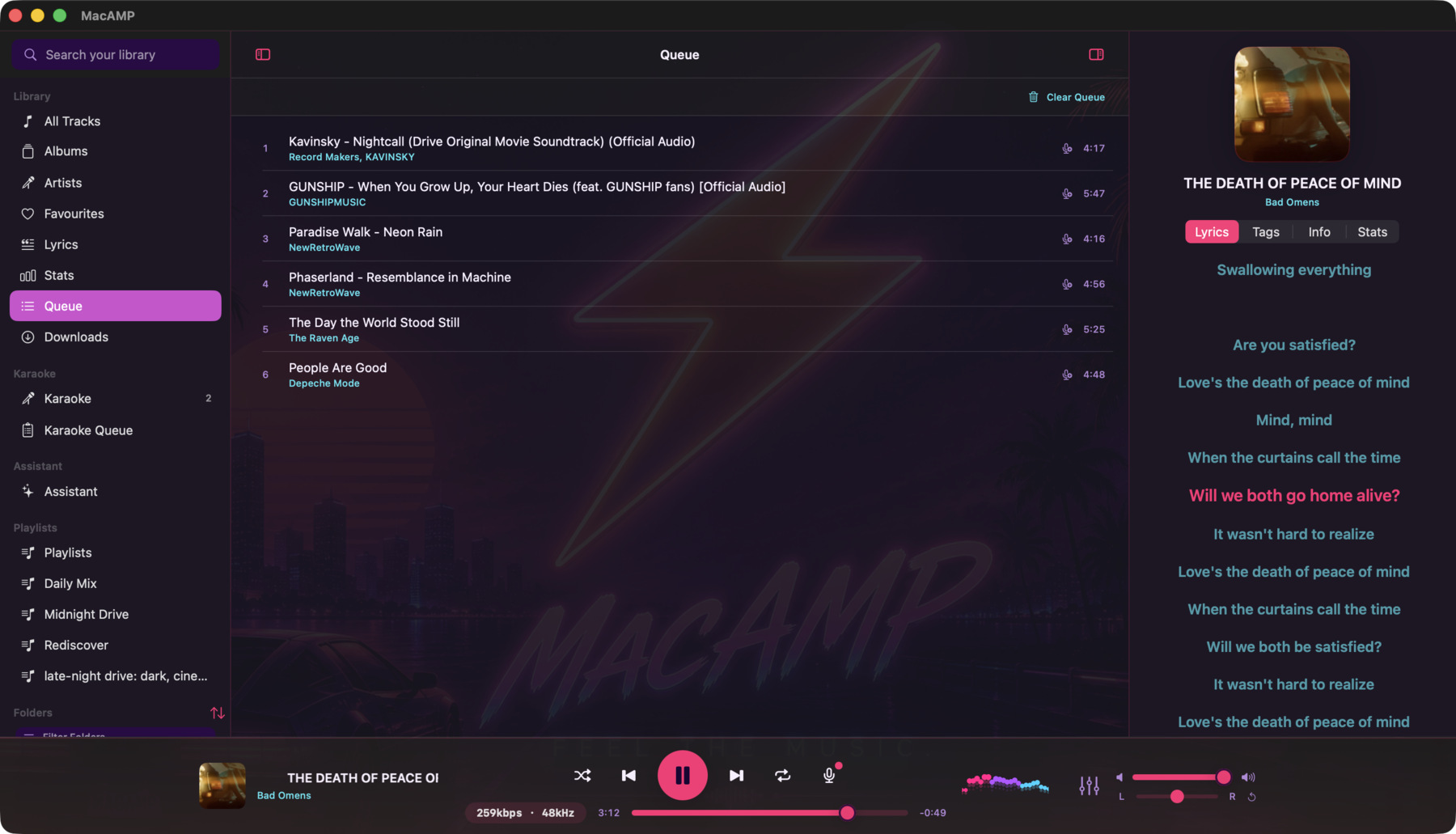
The main window uses a three-column Spotify-style layout:
- Left sidebar — library sections (All Tracks, Albums, Artists) and your playlists, expandable inline.
- Center content pane — the track list, album grid, artist grid, search results, or playlist view for whatever is selected in the sidebar.
- Right panel — a collapsible inspector with Lyrics, Tags, Info, and Stats for the current track.
The persistent player bar runs across the bottom of the window.
Playing tracks
- Double-click a row to play that track and set the queue to the visible list.
- Right-click one or more rows for the context menu:
- Play — replace the queue and start immediately.
- Play Next — insert after the current track.
- Add to Queue — append to the end of the queue.
- Add to Playlist — submenu listing your playlists; select one to add the track(s).
- Edit Tags — open the tag editor for the selected track(s).
The player bar
A persistent transport bar sits at the bottom of the window. It shows:
- Album art thumbnail — click to expand the player over the main window.
- Track title and artist.
- Previous / Play-Pause / Next buttons.
- A seek scrubber with elapsed and remaining time.
- Volume and stereo balance controls.
- The Equalizer button beside the volume control.
The bar tints subtly around the current album art.

The right panel
Use Toggle Right Panel in the toolbar to show or hide the inspector. See Now-Playing Surfaces for the four tabs.
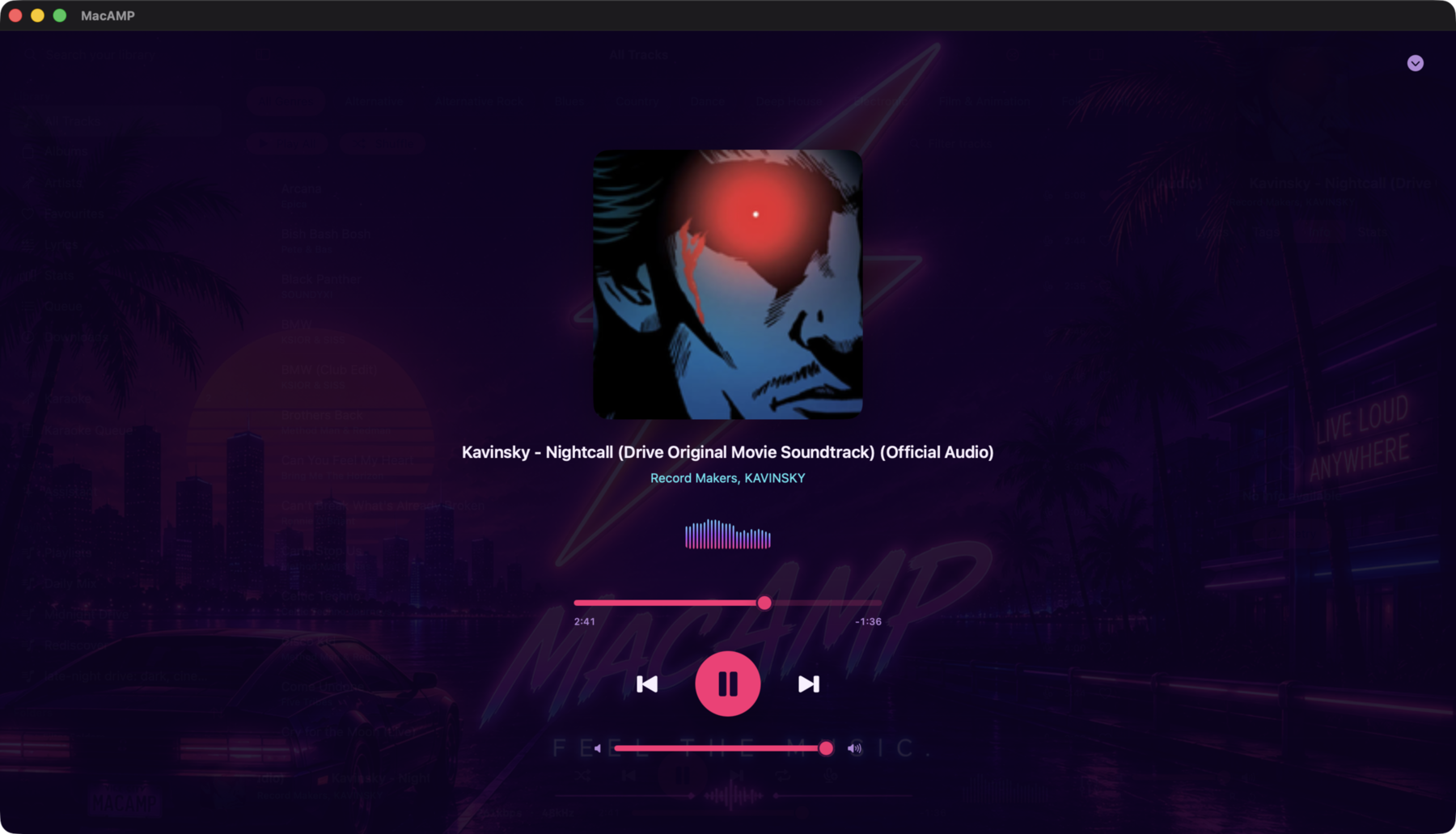
Expanded player
Click the album art or track title in the player bar for larger artwork, transport, and volume controls. Click the down chevron in the upper right to return to the library.
Keyboard shortcuts (macOS)
| Shortcut | Action |
|---|---|
| Space | Play / Pause |
| ⌘ → | Next track |
| ⌘ ← | Previous track |
| ⌘ ↑ | Volume up (+5%) |
| ⌘ ↓ | Volume down (−5%) |
Media keys (F7 / F8 / F9 or Touch Bar) and Control Center controls also work.
iOS — the Now Playing screen
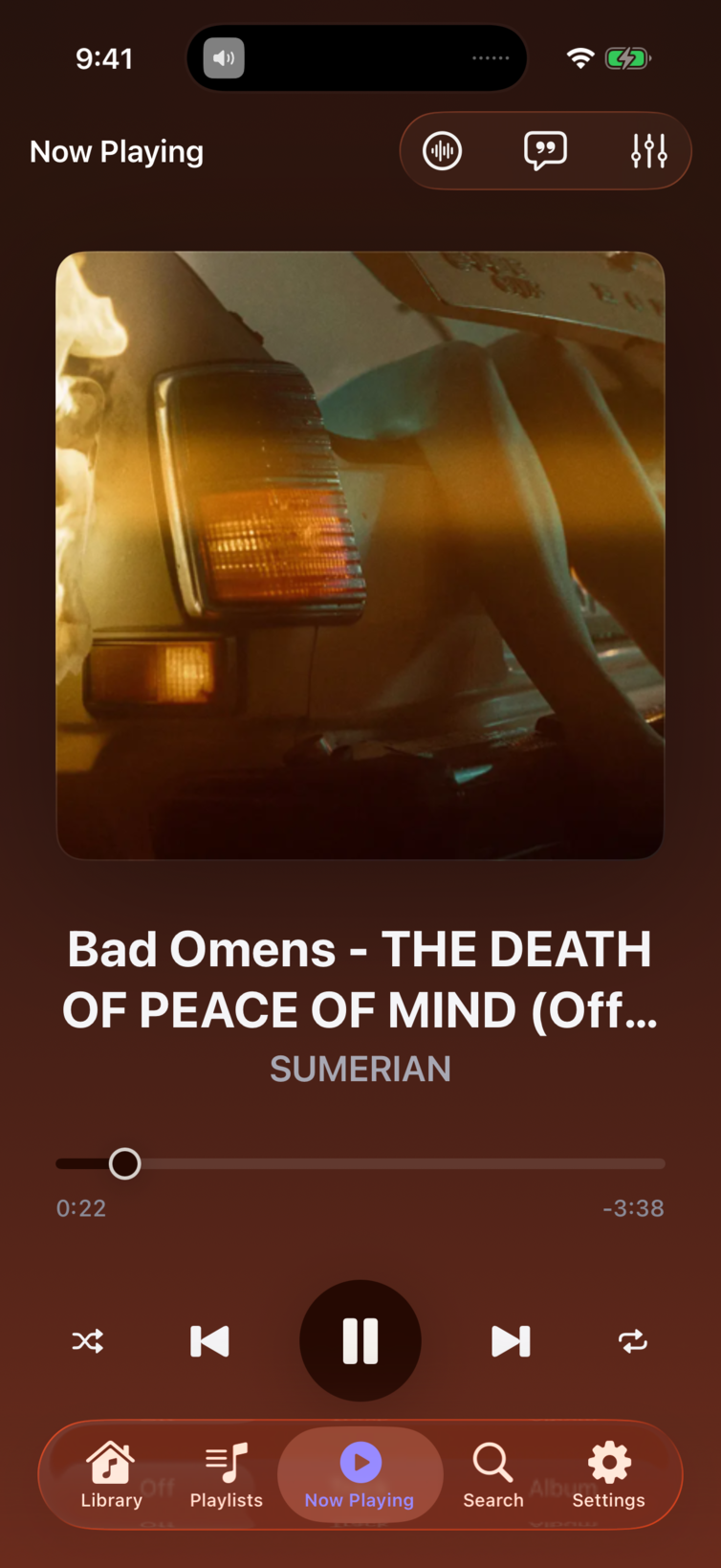
Tap the Now Playing tab (play circle icon). With a track selected, the screen shows:
- Large album art (up to 360 pt wide).
- Track title and artist.
- Seek scrubber with elapsed and remaining time.
- Transport row: Shuffle / Previous / Play-Pause / Next / Repeat.
- ReplayGain mode picker (segmented control).
Toolbar buttons in the top-right open sheets for the Visualizer, Lyrics, and Equalizer.
iOS — browsing and editing
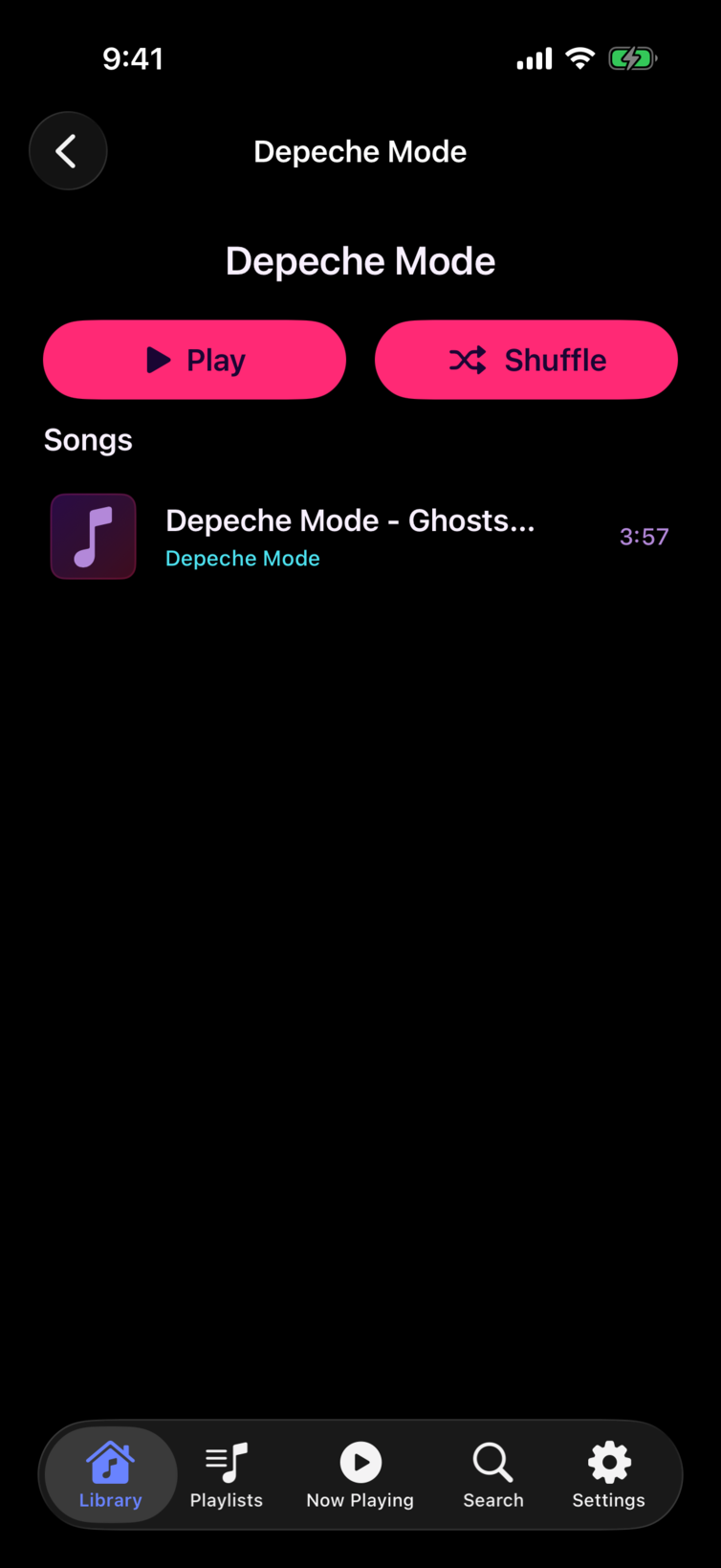
The Library tab switches between Songs, Albums and Artists. Tap an artist to see their songs with Play and Shuffle.
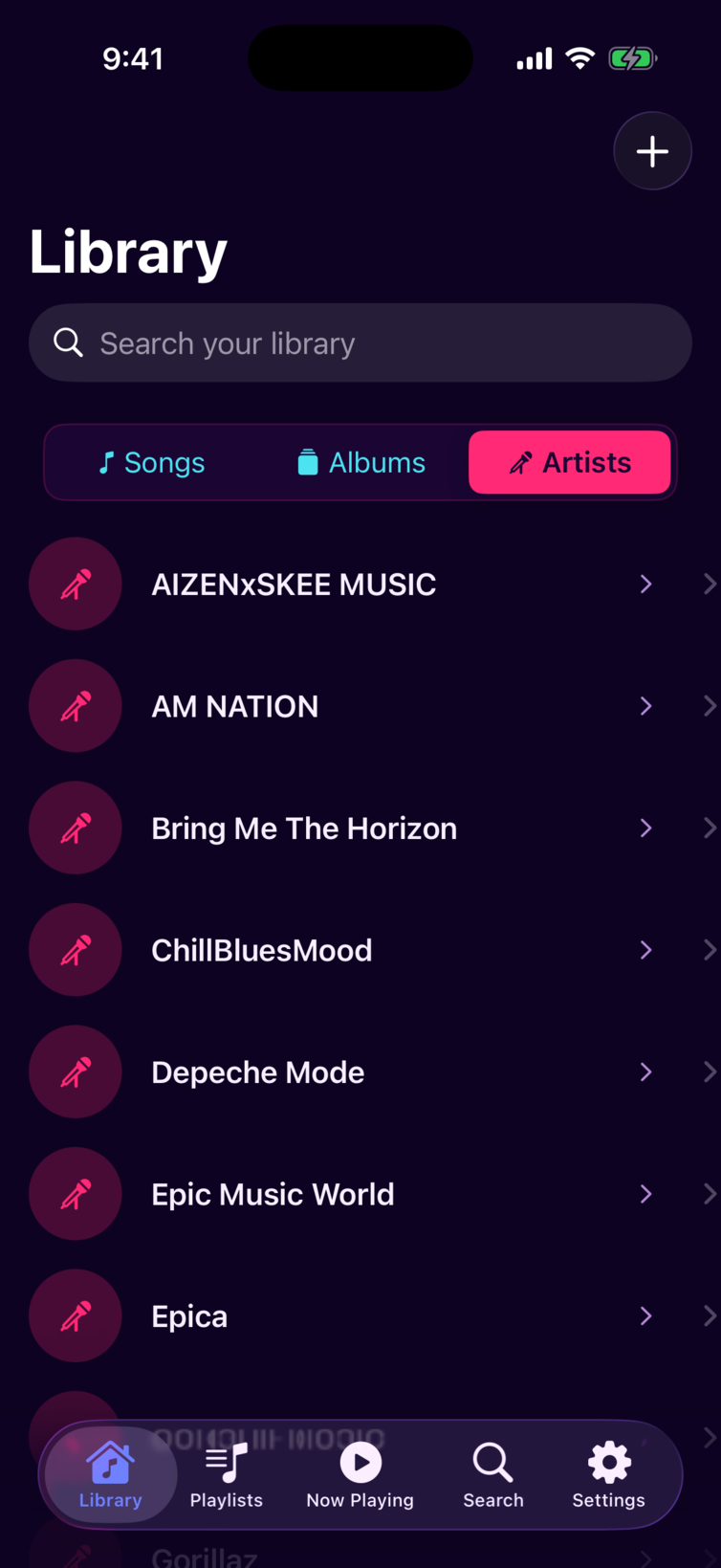
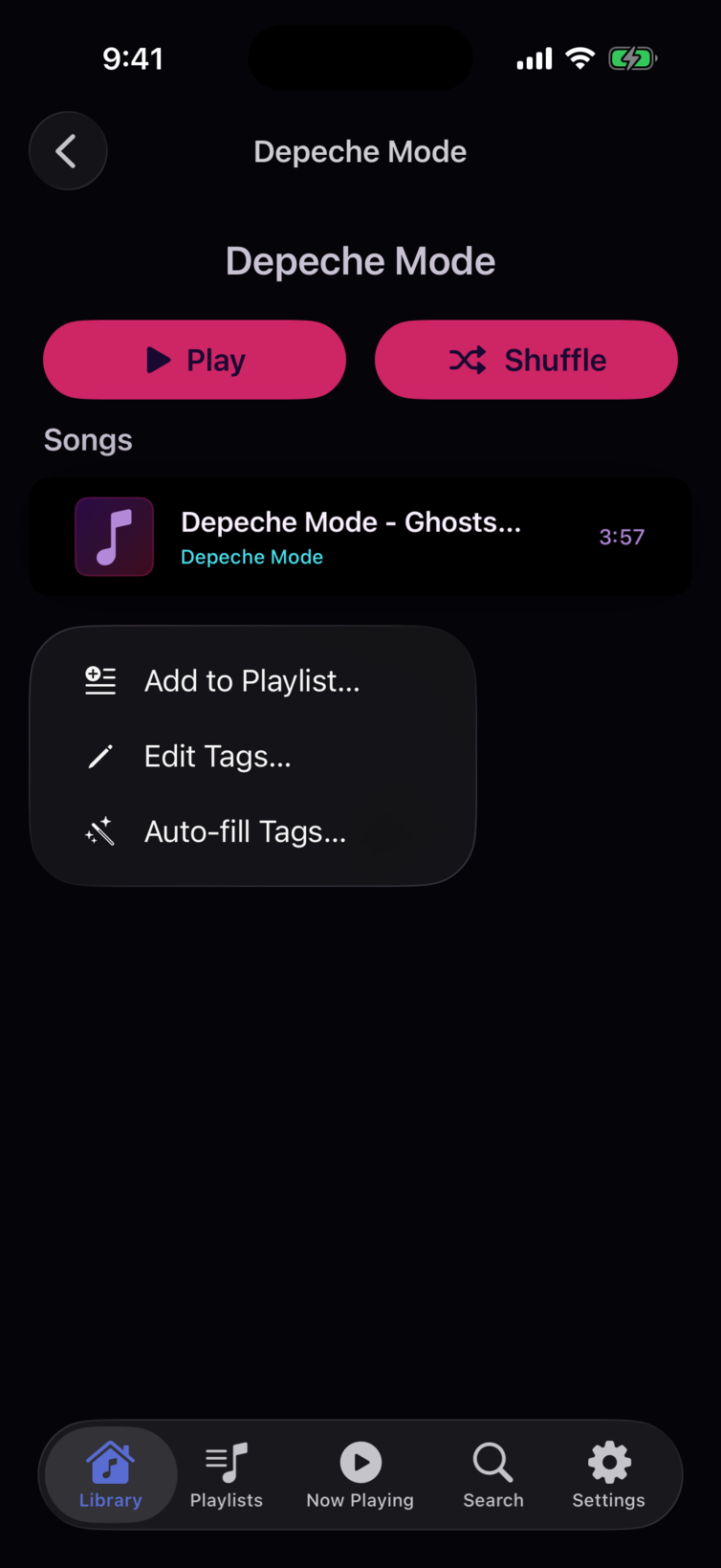
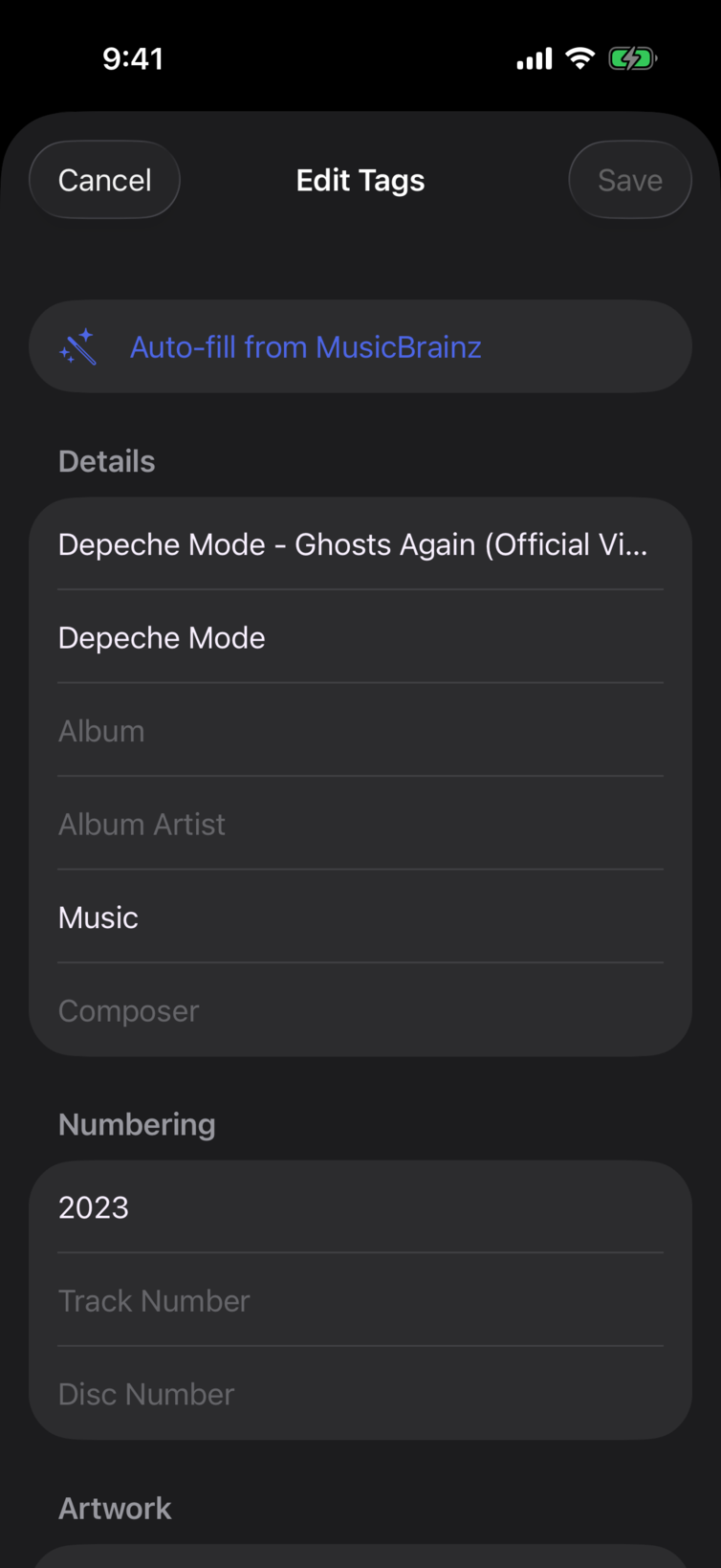
Press and hold any track for Add to Playlist…, Edit Tags… and Auto-fill Tags….
Transport controls
Both platforms share the same transport model:
| Control | Action |
|---|---|
| Play / Pause | Toggle playback |
| Previous | Restart current track; tap again within 3 s to go to the previous track |
| Next | Skip to the next track in the queue |
| Shuffle | Toggle shuffle mode (active = highlighted) |
| Repeat | Cycle: Off → Repeat All → Repeat One (shown with a "1" badge) |
Queue
The queue is the ordered list of tracks MacAMP will play through. You build it from the library browser:
- Play replaces the entire queue.
- Play Next inserts tracks immediately after the current position.
- Add to Queue appends tracks to the end.
On macOS, choose Queue in the left sidebar to see and manage the live queue. Double-click a track to jump to it, drag to reorder, or right-click to remove.
Shuffle randomizes the remaining queue order. Repeat All loops the queue; Repeat One loops the current track.
Gapless playback
MacAMP pre-schedules the next track before the current one ends, so back-to-back tracks play with no silence between them. Gapless is on by default. You can toggle it in Settings > Playback (macOS).
DSD64 files (.dsf, .dff, .dsdiff) play directly, decoded to PCM on the fly. DSD128 and DSD256 are refused rather than silently downsampled.
Signal path
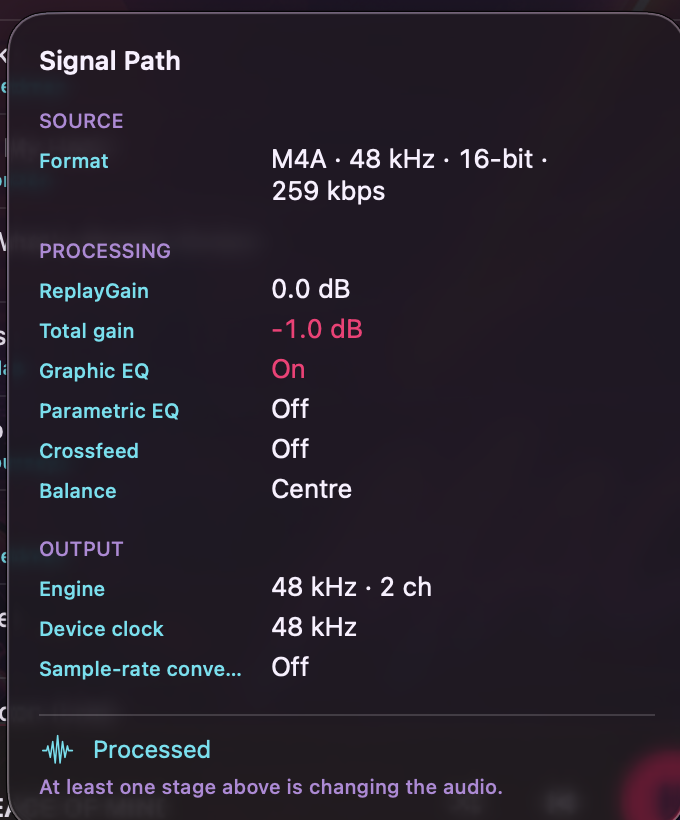
Click the format capsule in the player bar — the small pill showing the file's bitrate and sample rate, such as 320kbps 44.1kHz — to open the signal-path panel. The panel shows exactly what is happening to the audio between the file and your speakers.
Source
The source row shows the decoded format: codec, sample rate, bit depth, and bitrate where available. DSD files carry a DSD badge in the panel header.
Processing
Each active stage is highlighted; inactive stages show their neutral state.
| Row | What it shows |
|---|---|
| ReplayGain | The gain applied for the active ReplayGain mode, in dB |
| Total gain | The composed gain from all contributors (ReplayGain + EQ preamp + headroom trim) |
| Graphic EQ | On (any band non-zero) or Flat |
| Parametric EQ | On or Off |
| Crossfeed | On or Off |
| Balance | The current balance value, or "Centre" when centred |
Output
| Row | What it shows |
|---|---|
| Engine format | The format the audio engine hands to the device |
| Device rate | The output device's current nominal sample rate |
| SRC | On (amber) when the source rate differs from the device rate, Off otherwise |
When SRC is on, a brief note explains why: the device rate did not match the source and no retune was performed (either because auto sample rate is off, or because the track started via gapless pre-scheduling rather than an explicit play).
Direct path badge
The bottom of the panel shows either a Direct path badge or a Processed label. "Direct path" means all processing stages are at their neutral values — no EQ boost or cut, no crossfeed, no gain offset. It does not mean bit-perfect output. The system mixer, the OS volume control, and the device's own signal path are all outside MacAMP's reach, and the panel makes no claims about them.
Search
macOS: Search your library in the toolbar searches across your library. Clear it to return to the previous view. Filter tracks, Filter albums, and Filter artists narrow the list or grid you are viewing.
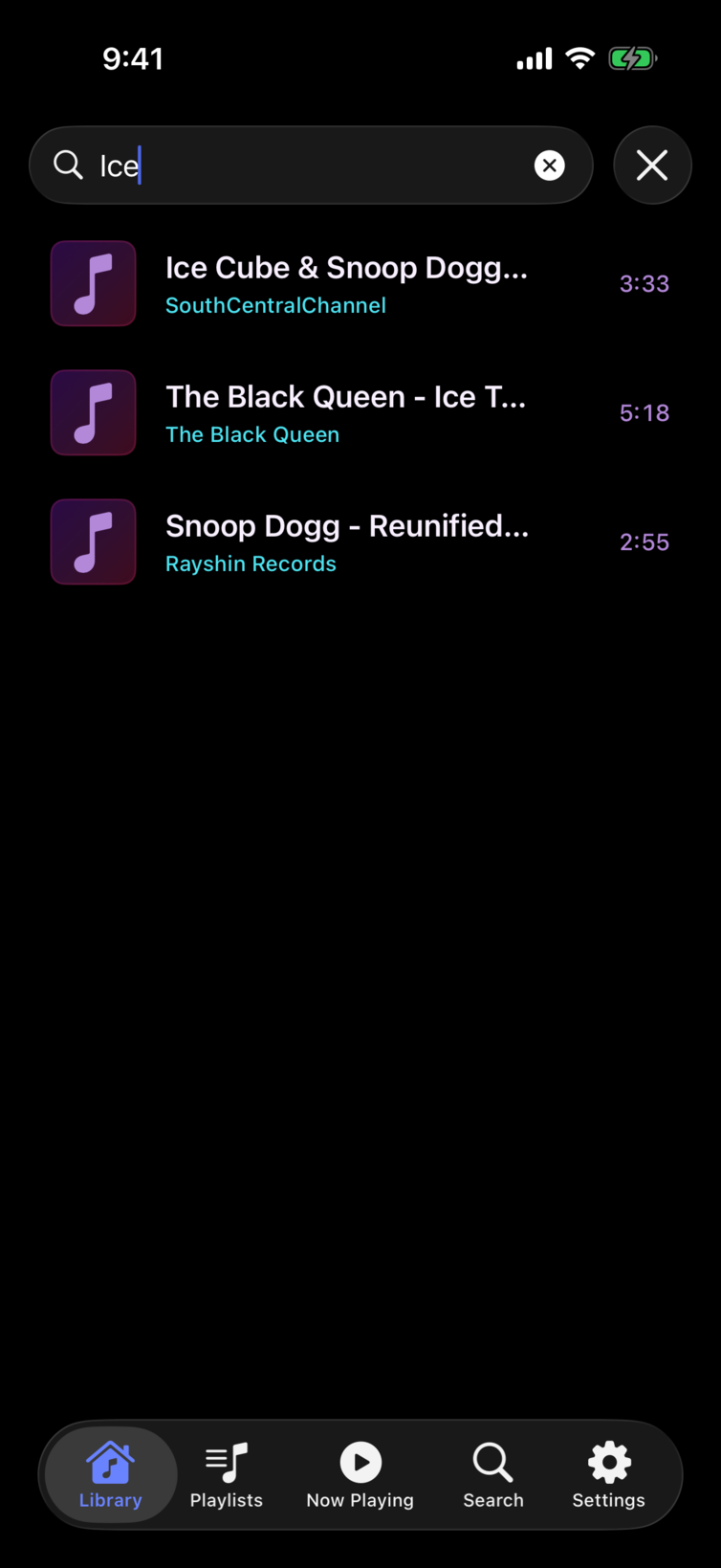
iOS: A search field appears at the top of the Library screen. While a query is active, the track list is replaced by search results. Clear the field to return to the browser.
Search covers track title, artist, and album. Results are keyset-paginated — scroll to load more.