
Equalizer and ReplayGain
The 10-band graphic EQ, parametric EQ, crossfeed, presets, and ReplayGain normalization modes.
10-band graphic EQ
MacAMP includes a 10-band graphic equalizer covering the standard ISO octave center frequencies:
| Band | Center frequency |
|---|---|
| 1 | 32 Hz |
| 2 | 64 Hz |
| 3 | 125 Hz |
| 4 | 250 Hz |
| 5 | 500 Hz |
| 6 | 1 kHz |
| 7 | 2 kHz |
| 8 | 4 kHz |
| 9 | 8 kHz |
| 10 | 16 kHz |
Each band has a ±12 dB range. The preamp value shown at the bottom is read-only and reflects the gain applied by the active preset.
macOS — EQ panel
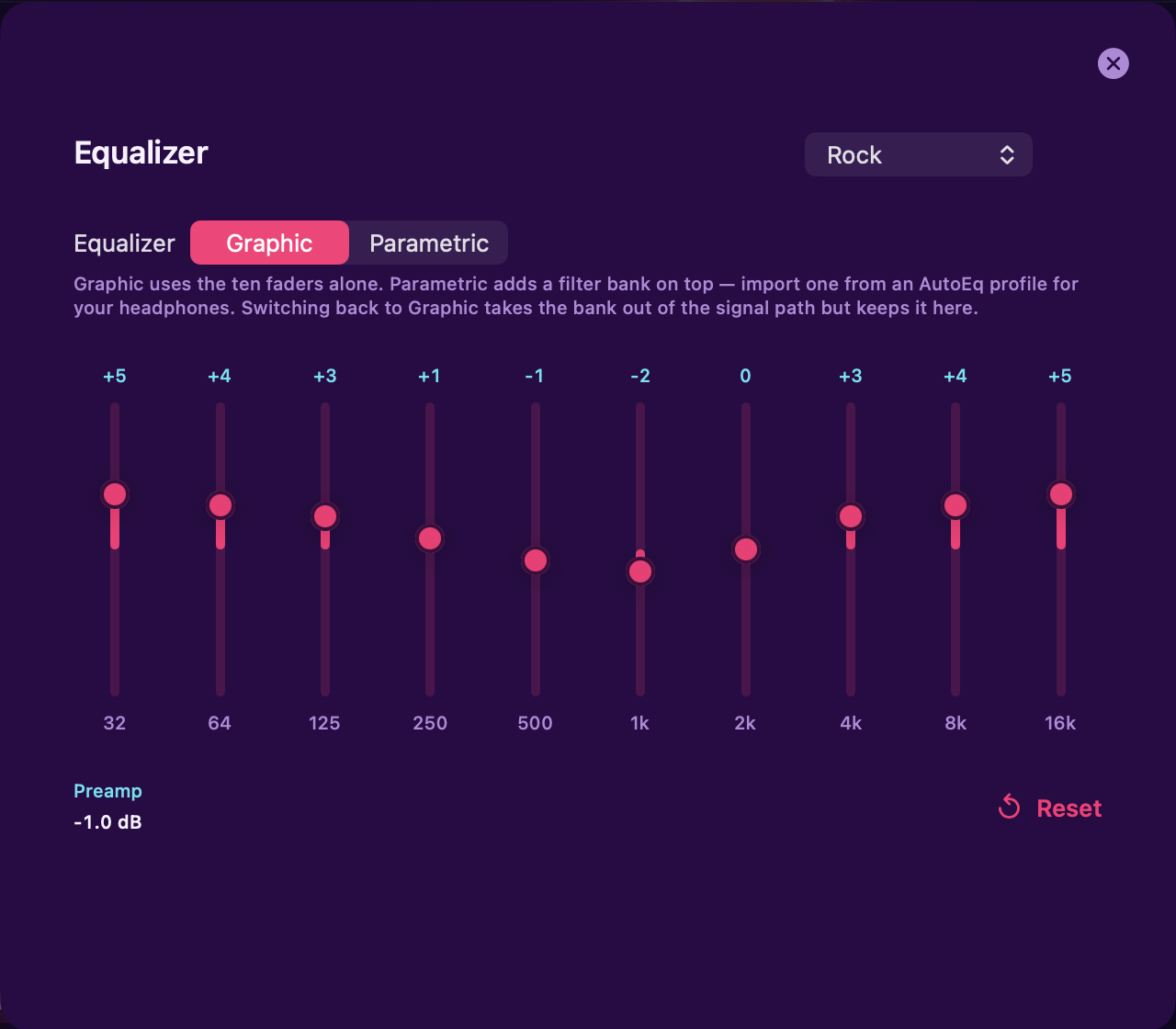
Click the Equalizer button beside the volume control in the player bar. Choose Graphic at the top of the panel to adjust the ten bands.
- Ten vertical faders, one per band. Drag up to boost, down to cut.
- The gain value above each fader updates as you drag.
- A Preset picker in the top-right lets you apply a named preset instantly. All faders animate to the preset shape.
- Reset (arrow counterclockwise icon) returns all bands to 0 dB.
iOS — EQ sheet
From the Now Playing screen, tap the EQ button (slider icon) in the toolbar.
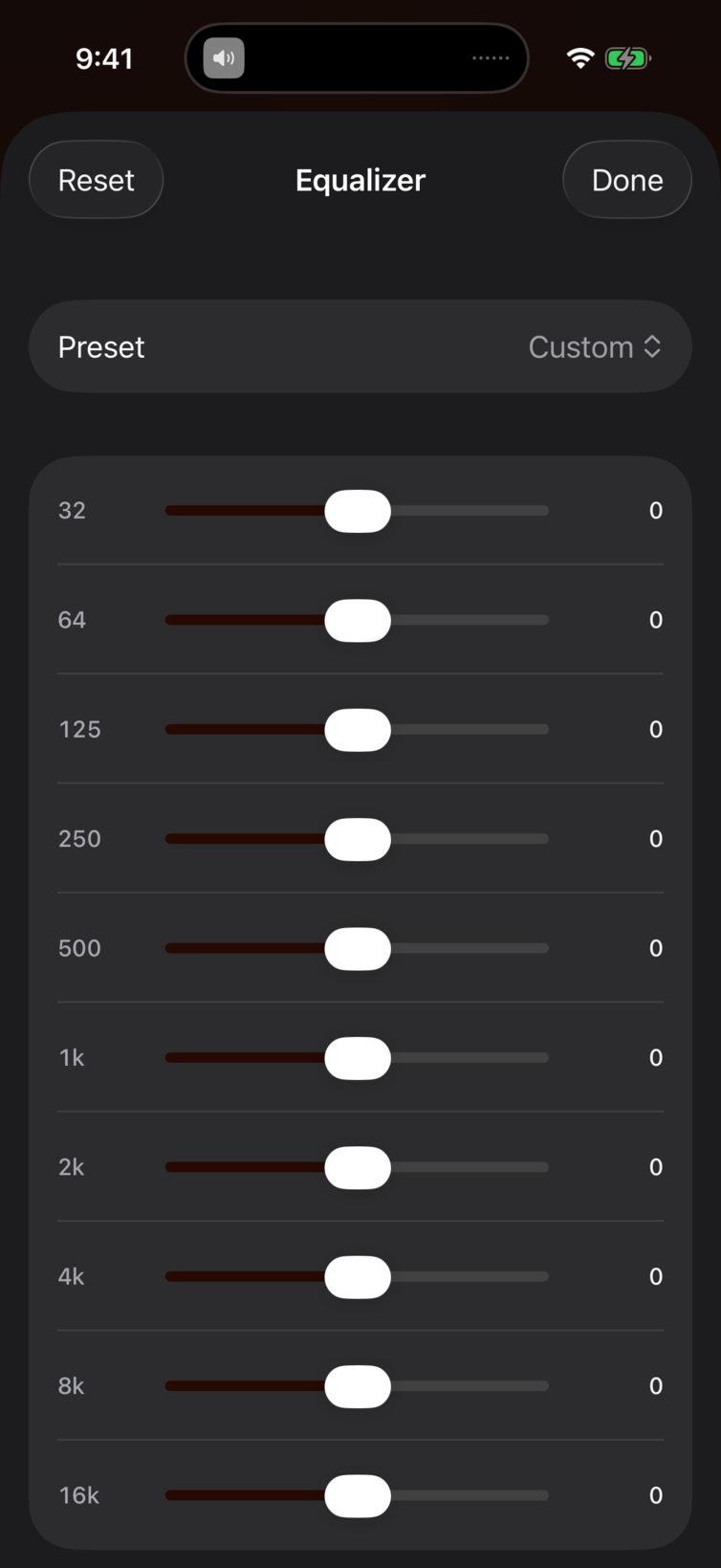
- A Preset picker at the top of the sheet.
- Ten horizontal sliders, one per band, labeled with the center frequency on the left and the current gain value on the right.
- Reset button in the top-left of the navigation bar.
- Done button in the top-right to dismiss the sheet.
EQ presets
MacAMP ships a set of built-in presets covering common listening scenarios (Flat, Bass Boost, Treble Boost, Vocal, Classical, Rock, Electronic, and others). Select a preset from the picker and the EQ adjusts immediately.
When you move any fader away from a preset's shape, the picker shows Custom. Your custom settings persist until you apply another preset or reset.
The default preset applied at launch is configurable:
- macOS: Settings > Equalizer > Default Preset.
- iOS: Settings > Equalizer > Default Preset.
ReplayGain
ReplayGain normalizes loudness across tracks so you don't have to reach for the volume knob between albums. MacAMP applies gain through the EQ's global gain stage, clamped to −96…+24 dB.
Modes
| Mode | Behavior |
|---|---|
| Off | No gain adjustment |
| Track | Normalizes each track independently to a reference loudness |
| Album | Normalizes to the album's average loudness, preserving relative dynamics between tracks |
Anti-clip is always active when ReplayGain is on. If the track peak would cause clipping after gain is applied, MacAMP reduces the gain to keep the output below full scale.
Changing the mode
macOS: Choose Settings > Playback > ReplayGain.
iOS: On the Now Playing screen, use the segmented control below the transport row.
The mode can also be set as a launch default:
- macOS: Settings > Playback > ReplayGain.
- iOS: Settings > Playback > ReplayGain.
Parametric EQ
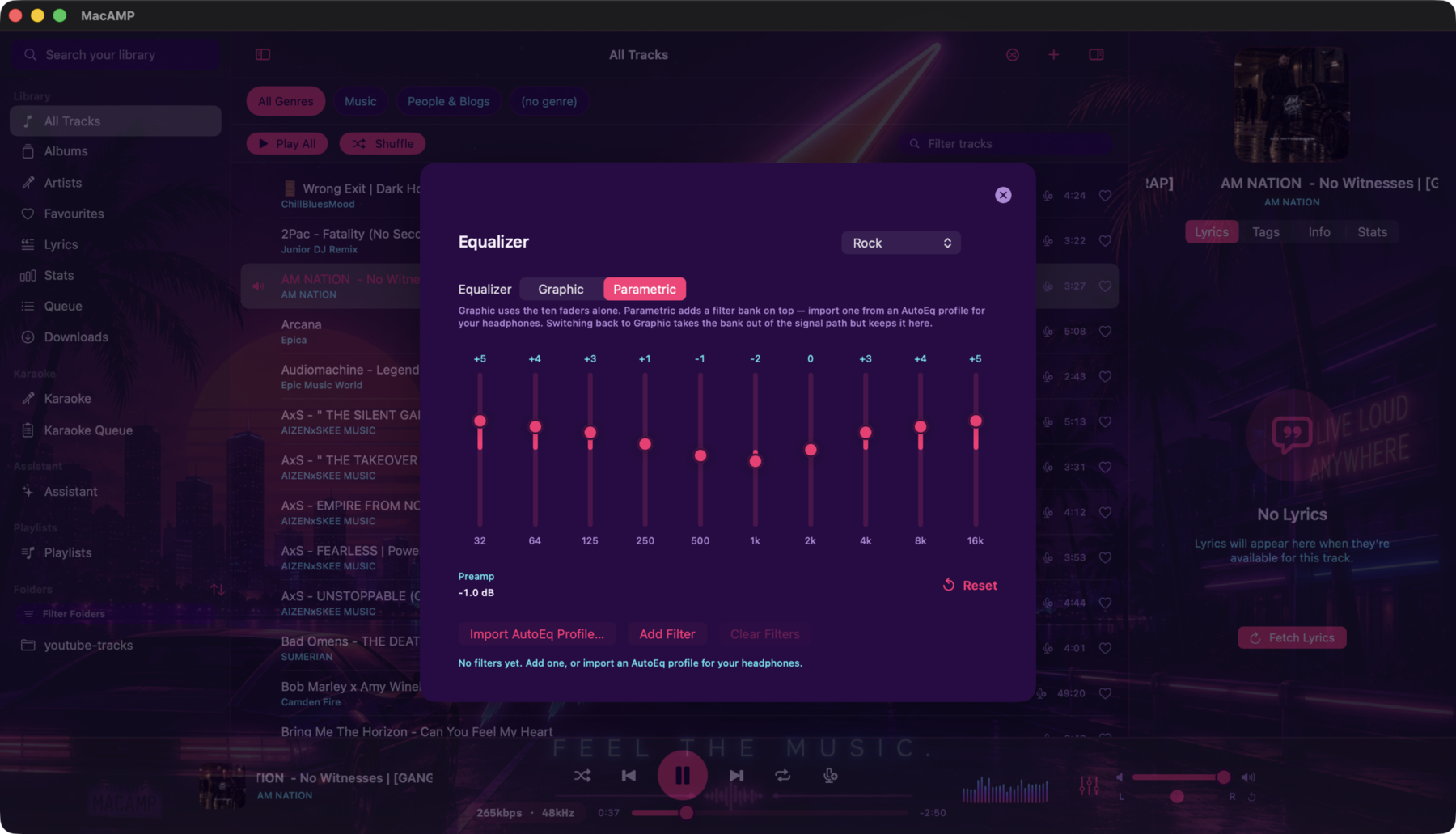
The macOS EQ panel includes a Graphic | Parametric mode selector above the band controls. Parametric adds a second filter stage alongside the ten graphic bands. Switching back to Graphic bypasses the parametric stage and keeps its settings. To use only the parametric filters, start with the graphic EQ set to Flat.
macOS only. The iOS EQ sheet remains the 10-band graphic equalizer.
Band editor
- Add Band — adds a new filter. Up to 16 bands.
- Remove (trash icon on each row) — removes that band.
- Each band has four fields: Type, Frequency (Hz), Gain (dB), and Q factor.
| Type | Description |
|---|---|
| Peaking | Boost or cut a frequency range, width controlled by Q |
| Low Shelf | Boost or cut all frequencies below Fc |
| High Shelf | Boost or cut all frequencies above Fc |
- Preamp — a global gain trim applied before the filter bank, routing through the gain composer alongside ReplayGain.
- Reset — clears all bands and resets the preamp to 0.
Presets
A preset list below the band editor lets you save your current configuration under a name, load it later, or delete it.
Importing an AutoEq profile
Import Profile opens a file picker for a plain-text AutoEq .txt file. AutoEq is a community project that publishes headphone-correction EQ profiles for hundreds of headphone models. MacAMP reads the Filter N: lines and the optional Preamp: line and builds the band list from them. A malformed or unrecognised file shows a clear error; nothing is changed.
Crossfeed
Crossfeed blends a small amount of each stereo channel into the other, at frequencies below a cutoff. The effect reduces the exaggerated stereo width of hard-panned recordings — the kind where the bass guitar sits entirely in one ear on headphones. On speakers, the room mixes the channels naturally; crossfeed approximates that on headphones.
The controls live in Settings > Playback. See Settings for the full pane.
| Setting | Options | Default |
|---|---|---|
| Crossfeed | On / Off | Off |
| Preset | Default / Chu Moy / Jan Meier / Custom | Default |
| Cut frequency (Custom only) | 300–2000 Hz | — |
| Feed (Custom only) | 1–15 dB | — |
Default, Chu Moy, and Jan Meier are the three canonical profiles published by the bs2b library. Custom lets you dial the exact cutoff frequency and feed level; selecting it reveals two sliders below the preset picker.
An In effect readout at the bottom of the section shows the cutoff and feed the engine actually programmed. If the stage failed to install, it reads "not in path" even when the toggle is on.
macOS only.