
Listening Stats
What MacAMP tracks about your listening, how long it keeps the data, how stats survive library changes, the scrubber heat overlay, and how to export and import your stats with a profile archive.
What gets captured
Every time you finish or skip a track, MacAMP writes a play event. Each event records:
- Track identity — title, artist, album, and genre, copied at the moment of capture. This snapshot means the event survives even if you later delete the song, remove the folder, or rename the file.
- When you listened — the UTC timestamp plus your local UTC offset at that moment, so "plays at night" means your night, not a server's.
- How much you listened — seconds played and a completion fraction (0–1). A completion fraction below 0.5 on a user-initiated skip marks the event as a skip.
- Where you started it — the surface you played from: library, playlist, album, artist, favourites, search, stats view, or the manual queue.
- Shuffle state — whether shuffle was on when the track started.
MacAMP also tracks which parts of a track you replay (see Replay heatmap below).
How long stats are kept
MacAMP keeps two tiers of data:
- Raw play events — the full per-play log, kept for 24 months from the date of each event.
- Monthly rollups — once a month's raw events age past the 24-month window, MacAMP compacts them into a permanent monthly summary (plays, listened seconds, skips, completions per artist and genre). Rollups are never deleted.
This means your top-artist and top-genre history is permanent, while the per-play detail (which track, what time of day, completion fraction) is available for the most recent two years.
Replay heatmap
MacAMP samples the playhead once per second while a track is playing. Over time, those samples accumulate into a replay heatmap: 100 relative buckets covering the track from start to finish, each counting how many times you've listened through that section.
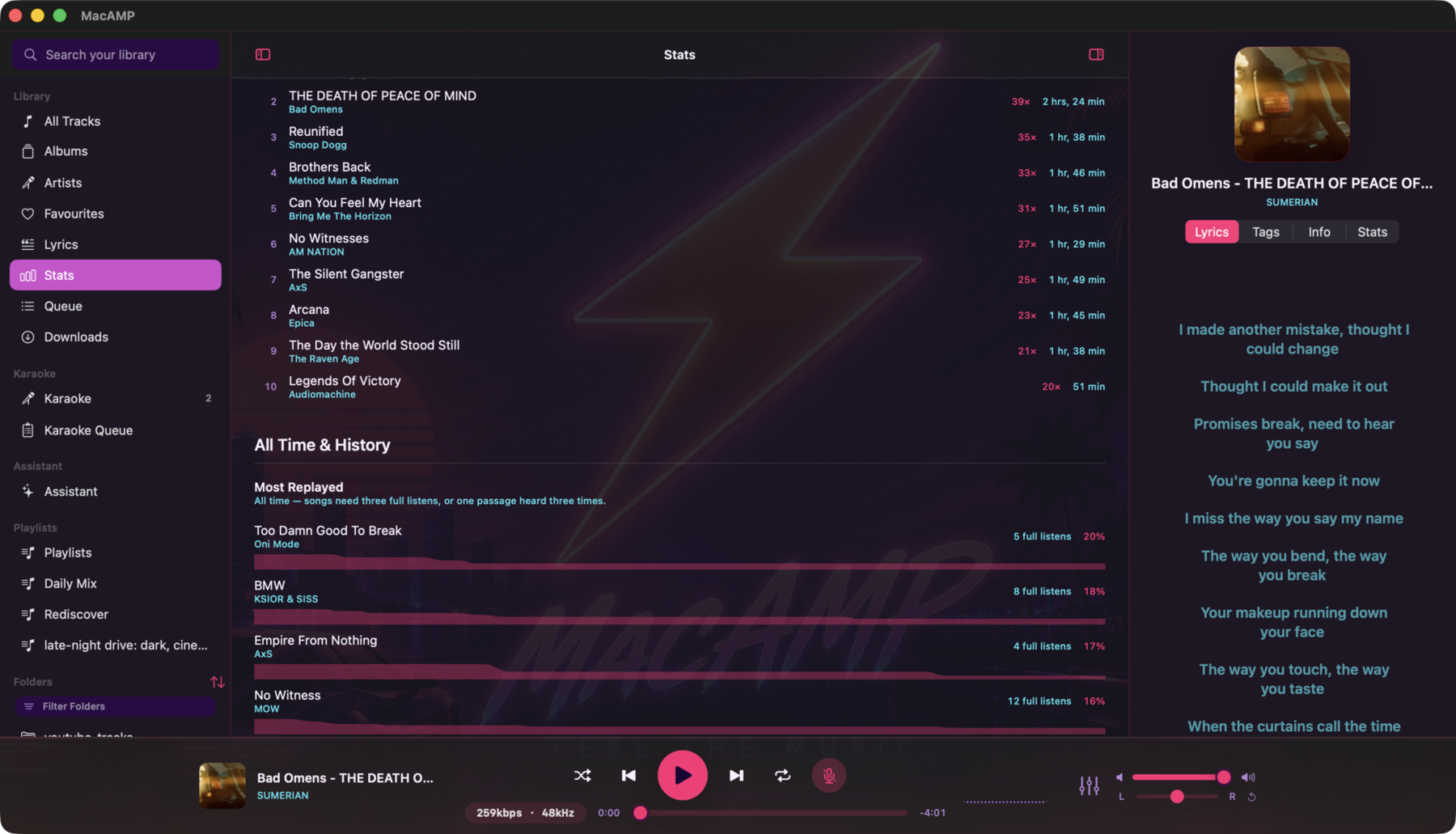
The heatmap is per-track and per-profile. It survives track deletion the same way play events do — the artist, title, album, and genre are stored alongside the bucket counts.
Scrubber heat overlay
On macOS, hover over the player-bar scrubber or drag it to reveal the replay heatmap as a curve behind the seek track. The curve's height at each position reflects how often you've replayed that section relative to the track's peak. Sections you replay most appear tallest.
The overlay appears in five places:
- The compact player-bar scrubber — revealed on hover or drag.
- The full-player scrubber — same behavior.
- The expanded Now Playing overlay — same behavior.
- The menu-bar mini player — same behavior.
- The Stats tab in the right panel — a fixed-height replay map that stays visible whenever the Stats tab is open and the current track has enough history.
All five surfaces need a little corroboration before they show anything: either three completed listen passes, or a single passage you've actually heard three or more times. So one long sitting spent rewinding to the same chorus is enough — but a track you've simply played through once or twice won't display a curve yet.
Naming the curve
So the shape is never a mystery, each scrubber tells you what it is — but only while a curve is actually on screen. A label over an empty scrubber would name something that isn't there, so nothing is shown for a track without enough history.
- The full player and the expanded Now Playing overlay show a small "Most Replayed" caption above the scrubber, aligned to its leading edge.
- The player bar and the menu-bar mini player show a "Most Replayed" tooltip on hover instead. The player bar's scrubber row is too slim for a caption, and the mini player is a compact popover with no other text labels — a caption there would read as a heading for the whole popover.
The caption fades in and out with the curve itself — no motion, so it behaves identically with Reduce Motion turned on, and the scrubber never shifts position when it appears.
iOS doesn't show the curve at all: the reveal is driven by hovering, and there is no hover on a touchscreen.
Stats survive library changes
Deleting a song, removing a library folder, or clearing a playlist never removes your listening stats. Play events and replay heatmaps store a snapshot of the track's metadata at capture time, so the digest can reconstruct your history without touching the live library.
The only thing that changes when you remove a track is that the track no longer appears in your library. Its stats remain and continue to count toward your top-artist and top-genre summaries.
Exporting and importing your stats
Your listening stats travel with your profile. Open Preferences > Profiles, select a profile, and choose Export Profile to save a .macampprofile file. The archive contains:
- Your full play-event log and monthly rollups.
- Your replay heatmaps.
- Your per-track favourites, play counts, and custom positions.
- Optionally, your settings and EQ presets (you choose at export time).
What the archive does not contain: your PIN (always stripped), your library folder paths, your karaoke cache location, or any file paths to audio files or instrumentals.
Importing on another Mac
Choose Import Profile in the Profiles pane and select a .macampprofile file. Import always creates a new profile — it never overwrites an existing one. MacAMP attempts to match archived tracks to your local library by title, artist, album, and duration. Matched tracks get their stats linked to the local file; unmatched tracks keep their stats as historical data that still feeds your top-artist and top-genre summaries.
If the archive includes settings and EQ presets, MacAMP asks whether to apply them. Settings apply globally; EQ presets are added to your preset list (renamed if a preset with the same name already exists).
Where to see your stats
Stats dashboard
Select Stats in the sidebar to open the listening dashboard. At the top, a segmented period filter lets you choose between Last 7 Days, Last 30 Days, Last 12 Months, and All Time. Switching the filter costs no database work — the page loads all windows at once, so the switch is instant.
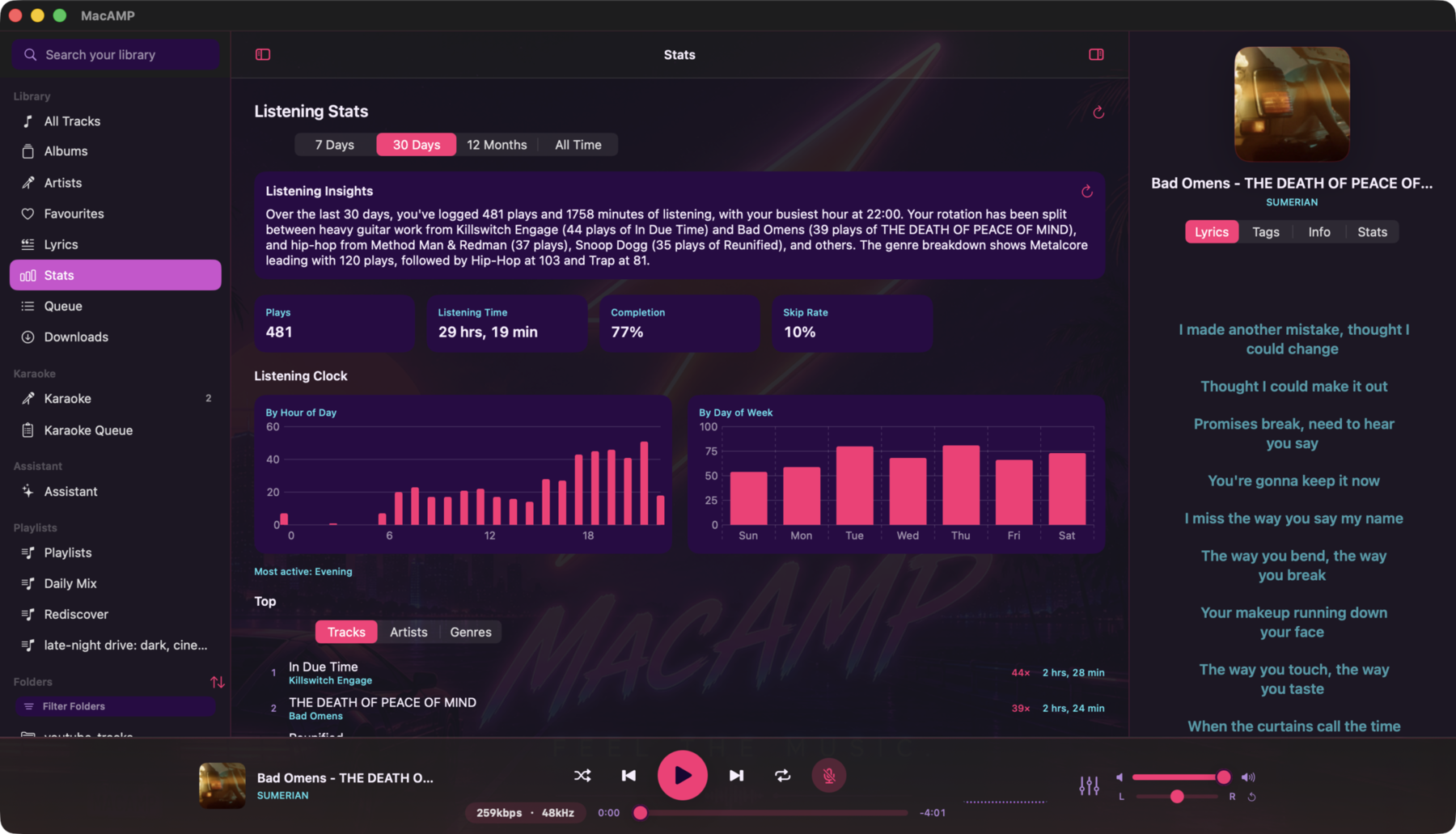
When you pick All Time, a caption appears below the filter explaining that per-track and time-of-day detail (the listening clock and top tracks) covers the most recent 24 months of raw events, while artist and genre totals are permanent. This matches the two-tier retention described in How long stats are kept.
The dashboard is split into two groups:
Group 1 — the selected period. Everything here answers "in the last N days":
- Overview cards — four at-a-glance figures: Plays, Listening Time, Completion rate, and Skip Rate.
- Listening Clock — hour-of-day and day-of-week bar charts showing when you listen most, with a "Most active: morning/afternoon/evening/night" caption.
- Top section — a Tracks / Artists / Genres sub-picker. Top Tracks shows your most-played tracks for the window; Top Artists and Top Genres draw on both raw events and permanent rollups, so they reflect your full history even on All Time.
Group 2 — All Time & History. These figures ignore the period filter entirely:
- Most Replayed — tracks ranked by replay affinity: how much of each song you keep going back to, not just how many times you've played it. Each row shows the track title, artist, full-listen count, affinity percentage, and a mini replay curve that matches the shape you see on the scrubber. The section only appears for tracks with three full listens, or with one passage you've heard three or more times.
- Recent Plays — your last 50 plays, newest first, with relative timestamps, listened duration, and a skip badge for plays you cut short.
- Lifetime Most Played — your all-time play-count ranking, drawn from the library's per-profile counters.
Playing from your history. Double-click any row in the Top Tracks, Most Replayed, or Recent Plays sections to start playback — but only for rows whose track is still in your library. A track you've deleted or moved out of your library folders keeps its stats and stays visible in the list; it just can't be played until you add it back. Rows for missing tracks appear de-emphasised and have no hand cursor or context menu.
Right-panel Stats tab
The Stats tab in the right panel shows numbers for the track that's playing right now, not your whole library. It has three blocks:
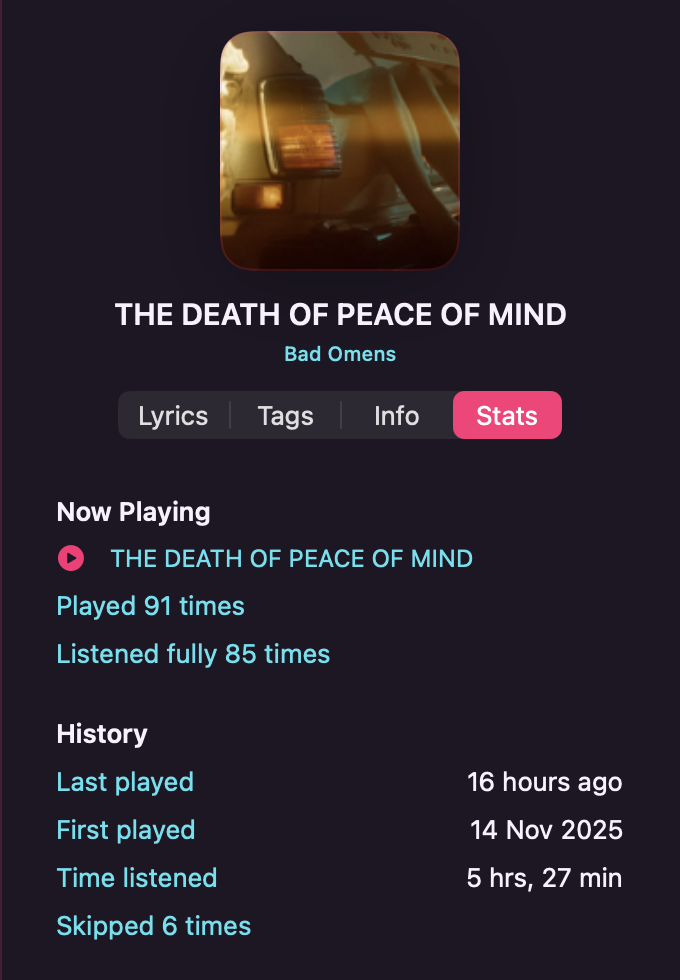
- Now Playing — the track's lifetime play count and full-listen count, drawn from your per-profile counters.
- History — shown only when MacAMP has recorded play events for this track (requires at least one play since the v15 stats log was introduced). Rows: Last played (relative), First played (calendar date), Time listened (total), and Skips.
- Replay Map — the same heatmap curve the scrubber shows, at panel scale. Appears after three full listen passes, or once one passage has been heard three or more times.