
AI Features
How MacAMP's AI assistant works, how to chat with your library, what tool-activity rows mean, how to pick a provider, and how to troubleshoot common issues. AI features are macOS only.
MacAMP's AI assistant can build playlists from a plain description, hold a back-and-forth conversation about your library, rediscover music you haven't played in a while, suggest names and themes for playlists you already have, and flag library issues worth cleaning up. Everything is opt-in, and nothing is sent anywhere until you choose a provider and agree to what it may see.
macOS only. AI features are available in the macOS build of MacAMP. The iOS app does not include the assistant or any of the AI actions described here.
Privacy first: you choose who answers
MacAMP doesn't ship with an AI provider switched on. You pick one in Choosing a provider:
- Ollama on your own Mac keeps everything local. Nothing leaves your Mac and no account is needed.
- Claude, ChatGPT or OpenAI use an account or API key you already have. Before anything is sent, MacAMP shows you exactly what that provider may see, and file paths, audio, artwork and lyrics are never included.
Turning AI on
- Open MacAMP > Settings (or press ⌘,) and select the Intelligence section.
- Toggle Use Intelligence features on.
Until you connect a provider, MacAMP's built-in matcher answers single requests on your Mac: you get a playlist, just without a language model behind it. Multi-turn chat, web suggestions and the richer actions need a provider; see Choosing a provider.
Each of the six AI features has its own switch under Features. They're all on by default when you enable Intelligence. Turn any of them off individually to hide that feature from MacAMP's interface.
| Feature | What it does |
|---|---|
| NL Creation | Turns a plain text request into a playlist. Powers both the single request and the multi-turn chat in the Assistant pane. |
| Auto Mixes | Surprise Me button in the toolbar — a mix seeded from forgotten favourites. |
| Organization | Organize actions on playlists: suggest a name, reorder by energy, split by theme, remove duplicates. |
| Rediscovery | Highlights music you own but haven't played in a while. |
| Insights | Contextual notes about artists and albums in the right-panel Info tab. |
| Hygiene | Library Health analysis and the "Things worth reviewing" card in the assistant. |
A separate Playback Control toggle sits below the feature list. When it's on (the default), the assistant can start playback, pause, skip tracks, and read what's currently playing — in addition to searching and proposing playlists. Turn it off if you want a read-only assistant that can find and recommend music but never touch the player.
A separate Web & Music Suggestions section, further down the same pane, is off by default and lets the assistant recommend music you don't own yet. It has its own disclosure — see Web & music suggestions.
Chatting with your library
Click Assistant in the sidebar to open the assistant pane. The text field accepts both one-off requests and the start of a back-and-forth conversation.
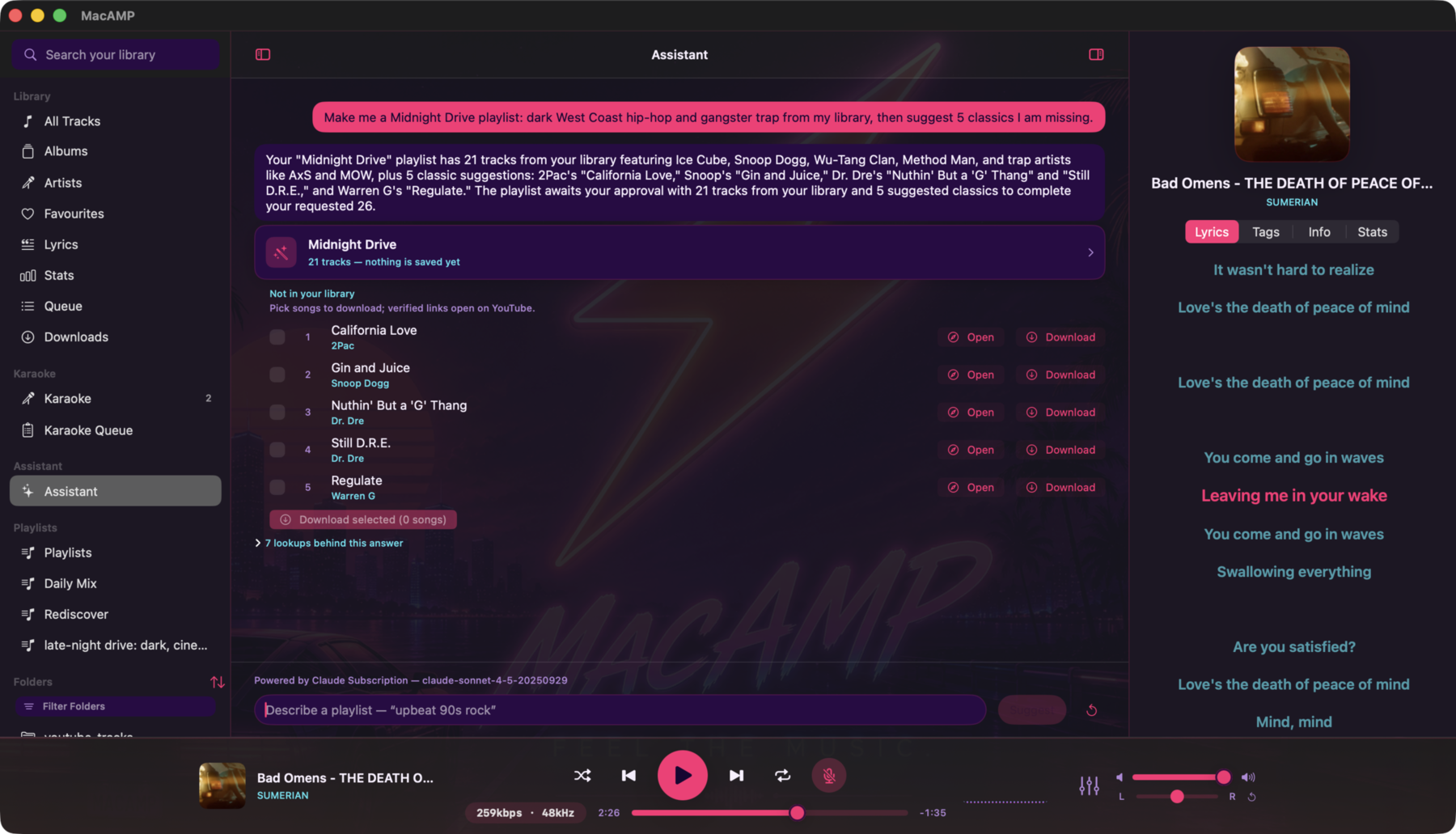
Type a question or request and press Return. You can keep going:
"What jazz do I have?" "Anything with trumpet?" "Make a playlist from those."
Each follow-up lands in the same conversation thread. MacAMP remembers what was said earlier in the thread, so you can refer to previous results without re-describing them.
What happens behind the scenes
When you send a message, MacAMP gives the model access to a set of library tools it can call to look things up. As it works, you'll see tool-activity rows in the transcript — for example "Searched your library — 4 results" or "Read your genre list — 2 results". Each row names what the model looked at; when the answer was a list, it also shows how many items it found. The model may call several tools in sequence before giving you an answer.
Once it has enough information, the model replies in the thread. If the reply includes a playlist proposal, a card appears in the thread. Click the card to open the review sheet.
Controlling playback from the chat
When the Playback Control toggle is on (it is on by default — see Turning AI on), the assistant can do more than suggest music. You can say things like "play it", "pause", or "what's playing?" and it will call the playback tools rather than just describing what it would do.
The assistant only reports what it actually did. It calls the tool first, then reads the result — so if a track isn't in your library, it says so rather than claiming it started playing. Playback changes are immediate and reversible: press pause or pick a different track at any time.
To turn this off, go to Settings > Intelligence and toggle Playback Control off. With that toggle off, the assistant can still find and propose music; it just can't start or stop playback.
What the model can do
Every provider (Ollama, Claude, OpenAI and the subscription tiers) gets the same toolkit. The model has access to all ten library tools and the full depth of results each one can return. It can browse deeper into your track list, pull detailed audio features, and inspect playlists — browsing happens in iterative rounds (up to 20 per reply), each one calling whichever tool the model decides it needs next. When the Playback Control toggle is on, all four control tools are added alongside them, for fourteen in total. Any MCP servers you add under Preferences ▸ Intelligence ▸ MCP Servers publish their own tools on top of these, so the real number a cloud model sees depends on what you have configured.
Deeper browsing requires a second consent step beyond the one-time setup consent. See Library-browsing consent below.
This is also the only path on which Web & music suggestions can run, if you have turned that separate setting on.
Proposals and review
Regardless of which path produced the answer, nothing is saved until you review and apply it. When a reply includes a proposal, the review sheet opens with every suggested track ticked by default. Untick any you don't want before clicking Apply. A running count shows how many are selected; Apply is disabled if you untick everything.
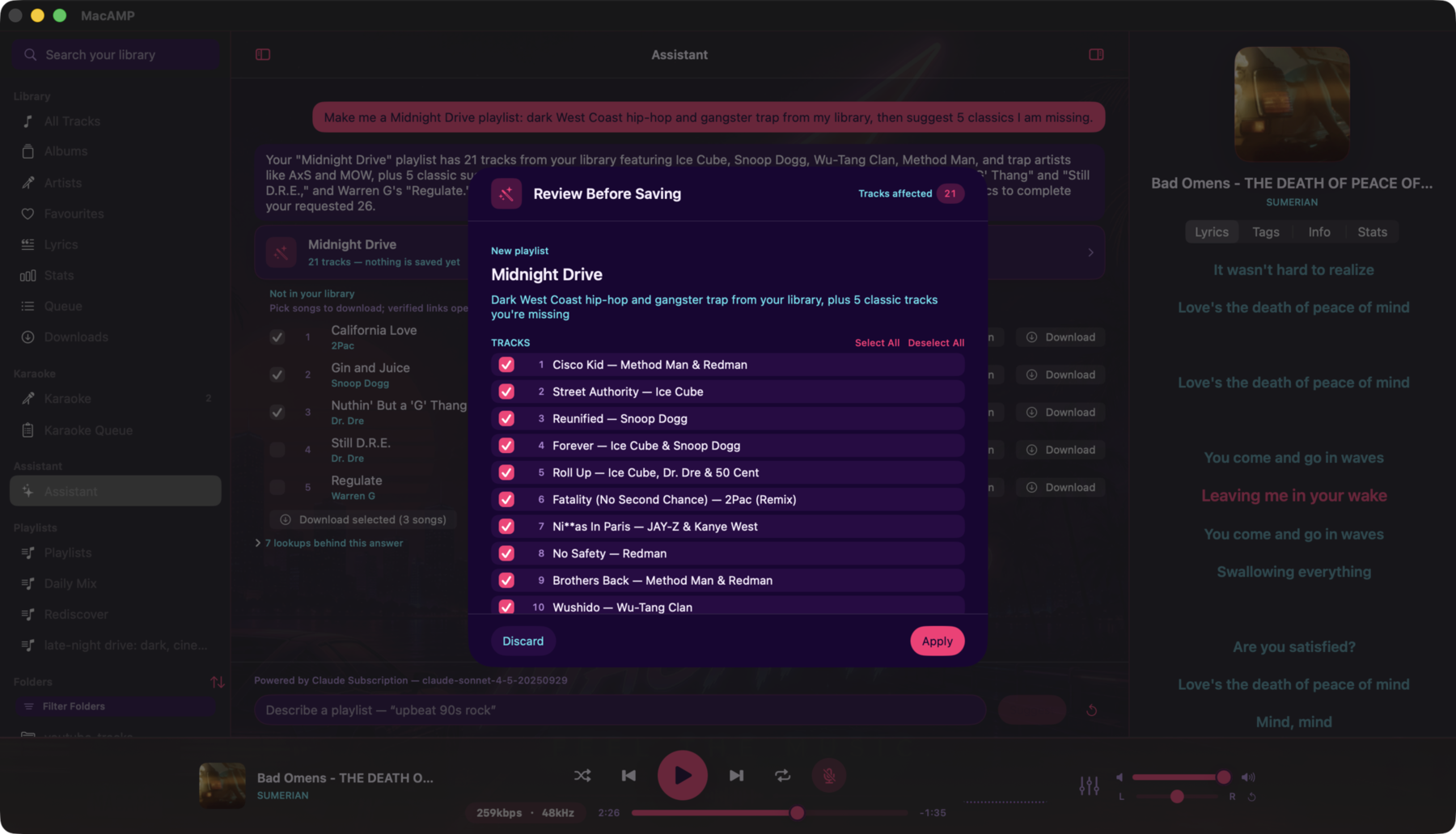
Long proposals cap the previewed list, but tracks beyond the visible portion stay included — a note beneath the list says so. Only the ticked tracks are saved.
If something goes wrong writing the playlist, a banner appears with the reason and the proposal stays open so you can try again.
Long playlists, and how the model asks for one
A proposal can hold up to 500 tracks — five times what any other part of the assistant will handle in one go, because a proposal is something you review rather than something the model reads back.
There are two ways the model can ask for one:
- By naming the tracks — it lists the exact track IDs it wants, in order.
- By describing them — it names a genre and, optionally, how many tracks it wants, and MacAMP picks the tracks itself.
Those two — genre and count — are the only criteria. There is deliberately no keyword or free-text criterion, so every caller of the tool (the in-app assistant and external agents alike) gets the same predictable behaviour. If you want a themed selection that a genre can't express, ask for the tracks by name — the conversation can search your library first and then propose from what it found.
The described form is worth knowing about because it behaves predictably:
- It's ordered by title, not by the model's whim.
- It only includes tracks that are actually there. Files that have gone missing or live on an offline external drive are left out.
- It's repeatable. The same request twice produces the same tracks.
- If nothing matches, nothing is filed. You won't get an empty playlist to dismiss; the assistant says so and can check your library's own genre spellings instead.
If the model asked for more tracks than it managed to gather, the proposal still appears — MacAMP tells the model both numbers so it can extend the offer or explain the shortfall, rather than silently handing you a short playlist.
Starting over
The reset button (top-right of the pane) clears the thread and starts a fresh conversation. Both the on-screen messages and the model's memory of the thread are discarded. Prior proposals that are still pending review move to the Waiting for you section at the top of the feed — they don't disappear.
Waiting for you
The top of the assistant feed shows a Waiting for you section whenever there are proposals that were generated but haven't been accepted or discarded yet. This includes proposals from a conversation you reset, from a session you navigated away from, and from external agents connected via the MCP server. Click any card to open its review sheet.
Library-browsing consent
When you use a provider for a chat conversation, the model can browse your library across multiple tool calls per reply. Before the first conversation with any connector, MacAMP shows a disclosure sheet that explains what that provider may see during a session:
- Track metadata — title, artist, album, genre, year, duration, tempo, and energy values for tracks the model asks about. Caps: up to 50 rows per lookup, up to 8 KB of text per tool result.
- Genre vocabulary — the genre names in your library (up to 50 listed at once).
- Listening stats — your listening digest: top tracks, artists, genres, and time-of-day patterns for the selected window. Stats are denormalized (artist and title text) — no live database rows.
- Playlist names and membership — names of your playlists and the tracks in any playlist the model requests.
What the model never sees, regardless of provider or how many tool calls it makes:
- File paths or folder names.
- Audio data, artwork, or lyrics.
- Any field not listed above.
This is enforced in the code: every tool result is built by a rendering layer that never reads file paths, and an automated privacy sweep over every tool × every tier confirms it on every build.
This disclosure is separate from the one-time setup consent you gave when you first connected the provider. That earlier consent covered a single structured request (600 characters of your question, plus a snapshot of genres and top artists). A conversation is different: the model decides which tools to call and how many times, so the browsing scope isn't fixed in advance. The two consents are independent — accepting one doesn't imply the other.
Declining is session-local. If you tap Cancel on the disclosure, MacAMP remembers that for the current pane visit and won't show it again on that same visit. If you navigate away and come back, or launch the app again, the sheet reappears the next time you try a chat conversation with that provider. Declining doesn't affect single-shot requests — those still work as before, with the original setup consent.
Once accepted, the provider's browsing consent is stored alongside its credentials. You can reset it by removing the provider (click Set Up… then Remove) and reconnecting.
Web & music suggestions
Everything described so far stays inside your own library. Web & Music Suggestions is the separate, opt-in setting that lets the assistant recommend songs you don't own yet and attach a link you can use to listen to each one.
Find it under Settings > Intelligence > Web & Music Suggestions. It is off by default.
Turning it on
Flipping Suggest music beyond my library on opens a disclosure sheet before anything is enabled. It tells you:
- What leaves your Mac — only the titles and artists of songs that are not in your library, sent to a web search provider to find them, and to YouTube to find and verify a link that actually plays.
- What never leaves — your files, file paths, playlists, and listening history. None of that is part of these lookups.
- When it happens — only while a cloud provider is answering.
- That it is reversible — you can switch it back off at any time and remove a saved key with it.
The switch and the disclosure are recorded separately. Turning the switch on is not consent by itself: if you choose Not Now, nothing is saved, nothing is sent, and the feature stays off. That also means MacAMP can tell "you declined" apart from "you were never asked" after a restore.
It works with any connector — including free local Ollama
You do not need a paid provider for this. Web suggestions ride on whichever provider is answering, and Ollama running on your own machine counts: point MacAMP at your local Ollama server, accept the browsing consent, and web suggestions work exactly as they do with Claude or OpenAI. The only lookups that leave your Mac are the song titles and artists being searched for.
Two links, two different promises
Songs the assistant suggests that aren't in your library appear as links beneath the lookup that produced them. There are two kinds, and they are drawn differently on purpose:
| Link | What it means |
|---|---|
| Video (play icon) | MacAMP found a YouTube video, confirmed it exists and is embeddable, and confirmed its title genuinely matches the song. The link opens that video. |
| Search (arrow icon, tagged "search") | No video was verified. The link opens a YouTube search built from the song's title and artist. It may find nothing. |
A verified video means a matching video — not a certified official upload. A cover, a live take, or a lyric video can legitimately pass the check. MacAMP never claims a link is "the official video", and neither should you read it that way.
Verification asks YouTube's public oEmbed endpoint about the video. MacAMP never
fetches or parses youtube.com/watch pages.
Why some rows are search links and others are videos
A video link has to be earned; the search link is what a song falls back to. MacAMP tries two sources, in this order:
- The provider that suggested the song. It has just named the track, so it is usually asked for that video's id directly. This costs nothing against any search quota.
- The web search provider, for whatever the first step could not supply.
Whatever comes back is then checked the same way, whichever source produced it. A song ends up as a search row whenever that check does not pass — most often because:
- The free search quota ran out for the day. The keyless search tier has a daily cap. Once it is reached, every remaining song in that answer falls back to a search link. This is the usual reason a single answer shows a mix of video and search rows.
- The video cannot be embedded, is region-locked, or was taken down — the oEmbed check refuses it.
- Nothing matching was found, or what was found was a different song.
Adding a key (below) is the direct fix for the first case.
Right-click any link row and choose Copy Link to put its exact address on the clipboard.
Optional API keys — what they do and don't change
Both services work without a key, in a rate-limited free mode. That is the default and it is a complete, working configuration.
Adding your own key raises the provider's rate limit and nothing else. It does not change what is sent, who receives it, or what the assistant is allowed to do. Keys are stored in your Keychain, never in a preferences file, and you can remove either one from the same section.
The practical effect of the free tier's daily cap is described above: when it is reached, suggested songs stop resolving to videos and appear as search links instead. Nothing breaks and nothing is lost — but if you see that regularly, a key for either service is what restores the video links.
About the YouTube key specifically. Since June 2026, YouTube's Data API gives
search.list — the only call MacAMP would use a key for — its own dedicated
bucket of 100 calls/day, billed at 1 unit each and separate from the general
10,000-unit daily pool
(YouTube Data API — Getting started).
So a personal key is worth having, but be honest about the size of it: a
dedicated 100-call/day bucket is a modest-fidelity option — roughly a hundred
link lookups a day — not a bulk allowance. Past that, the keyless path takes over
again. If you never add a key, nothing breaks.
Downloading missing tracks
When you ask the assistant to find specific songs and some aren't in your library, those misses appear as suggestion rows in the chat beneath the lookup that reported them. Each row the assistant could name carries a checkbox. Tick one or more and press Download selected (N) to send them to the download queue — the same queue you'd reach by pasting a link in the Downloads tab.
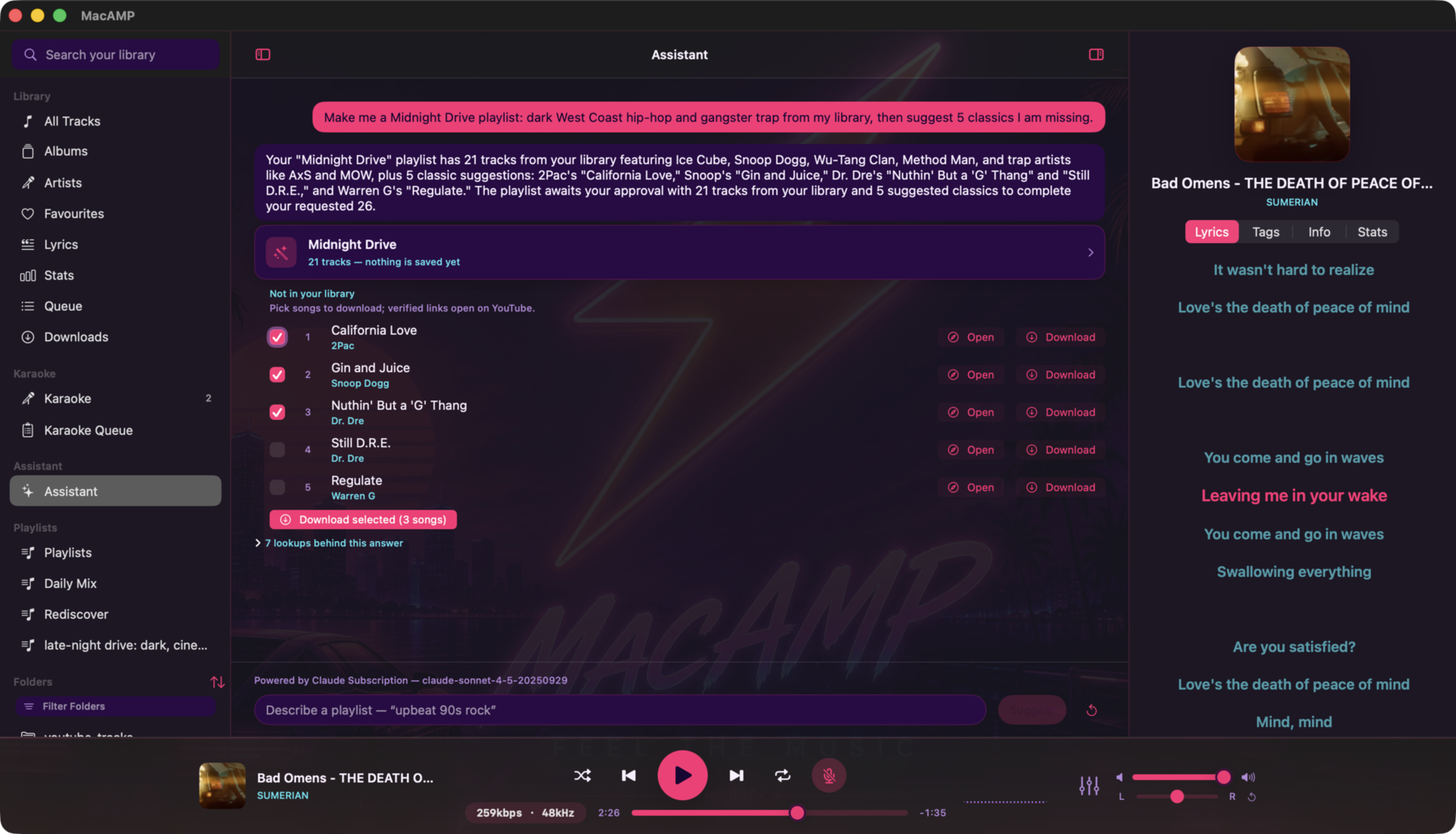
Verified and unresolved songs
Not every missed song arrives with a confirmed video link. The difference matters for what happens when you press the button:
| Row appearance | What it means | Download behavior |
|---|---|---|
| Play icon (▶) | MacAMP confirmed the video exists and title genuinely matches the song | Download starts immediately |
| Search icon (↗ search) | No confirmed link yet | MacAMP looks one up at download time. If a confident match is found, the download starts. If not, the row shows "Not found" and nothing is queued. |
Songs with a confirmed link come from the web suggestions enrichment step — either proposed by the provider that named the miss, or found through a web search (see Web & music suggestions). Unresolved rows are still downloadable; they just cost one extra lookup.
Playlist connection
If your request named a playlist — for example, "add some jazz I don't have to my Late Night playlist" — tracks that finish downloading and land in your library are automatically appended to that playlist. The row in the chat shows its own live status: queued, downloading, converting, then added to the playlist. A toast confirms the outcome once the batch settles.
If the conversation named no playlist, a caption below the Download selected button says so: "This conversation named no playlist, so these downloads won't be added to one." Those downloads land in your downloads folder the usual way.
Library import requirement
The automatic playlist append requires each file to reach your MacAMP library first. If Add finished downloads to my library is off — which is how MacAMP ships — the file is saved to disk but not scanned, so it can't be added to any playlist. A warning caption appears below the download button before you press it:
Downloads won't appear in your library until you turn on "Add finished downloads to my library" in Settings ▸ Downloads, or add your downloads folder to your library.
You can fix this in either place. See Joining your library for the two options.
Status and toasts
Each suggestion row updates in place as its download progresses. Once a batch completes, MacAMP shows a toast naming the playlist and how many tracks were added ("Added 3 tracks to "Late Night""). When something goes wrong — a lookup found nothing, the download failed, or the playlist was deleted before the file arrived — a separate toast says what happened. The Downloads queue shows the full per-row progress the way it does for any other download.
Asking for a playlist (single request)
You can also send a single plain-language request without starting a conversation. Type your request and press Return. If a conversation is available, MacAMP routes it as the first turn of a chat. If not (for example, the cloud consent hasn't been given), the request runs through the single-shot path instead — you still get a result, and a notice tells you which path was used.
Examples that work well:
- "upbeat 90s rock for a road trip"
- "quiet piano pieces for late-night reading"
- "jazz with some funk, nothing too slow"
The proposal review flow is the same as in a conversation.
Other AI actions
More Like This
Right-click any track in your library or a playlist and choose More Like This (track name). MacAMP proposes a playlist seeded from that song. The menu item names the track it uses, so it's clear what it's working from when you have multiple songs selected.
Surprise Me
Click the Surprise Me button in the main toolbar (the dice icon). MacAMP builds a rediscovery mix from music you own but haven't played recently. Requires the Auto Mixes feature bundle to be on.
Organize a playlist
The four Organize actions operate on a whole playlist at a time. You'll find them in two places:
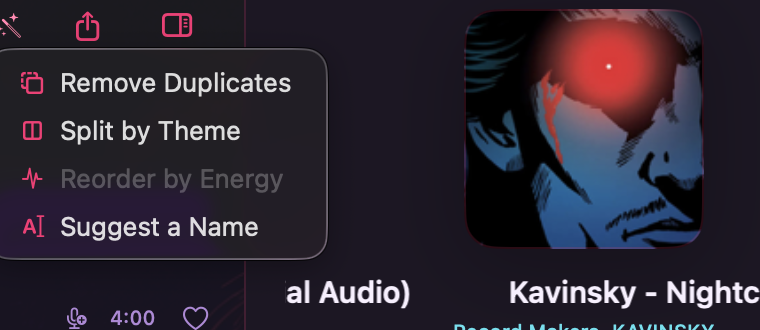
- Right-click a playlist in the sidebar — choose Organize… from the context menu, between Rename and Delete.
- Inside a playlist's detail view — the Organize… button sits in the toolbar beside Export.
The four actions are:
| Action | What it proposes |
|---|---|
| Suggest a Name | A title based on the playlist's content. |
| Reorder by Energy | A running order that flows well based on audio analysis. Requires enough tracks to have been analysed first (see Audio analysis). |
| Remove Duplicates | Removes repeated entries from the playlist — not from your library. |
| Split by Theme | Proposes splitting the playlist into two or more smaller ones by mood or genre. |
Each action shows a proposal for your review before anything changes. Requires the Organization feature bundle.
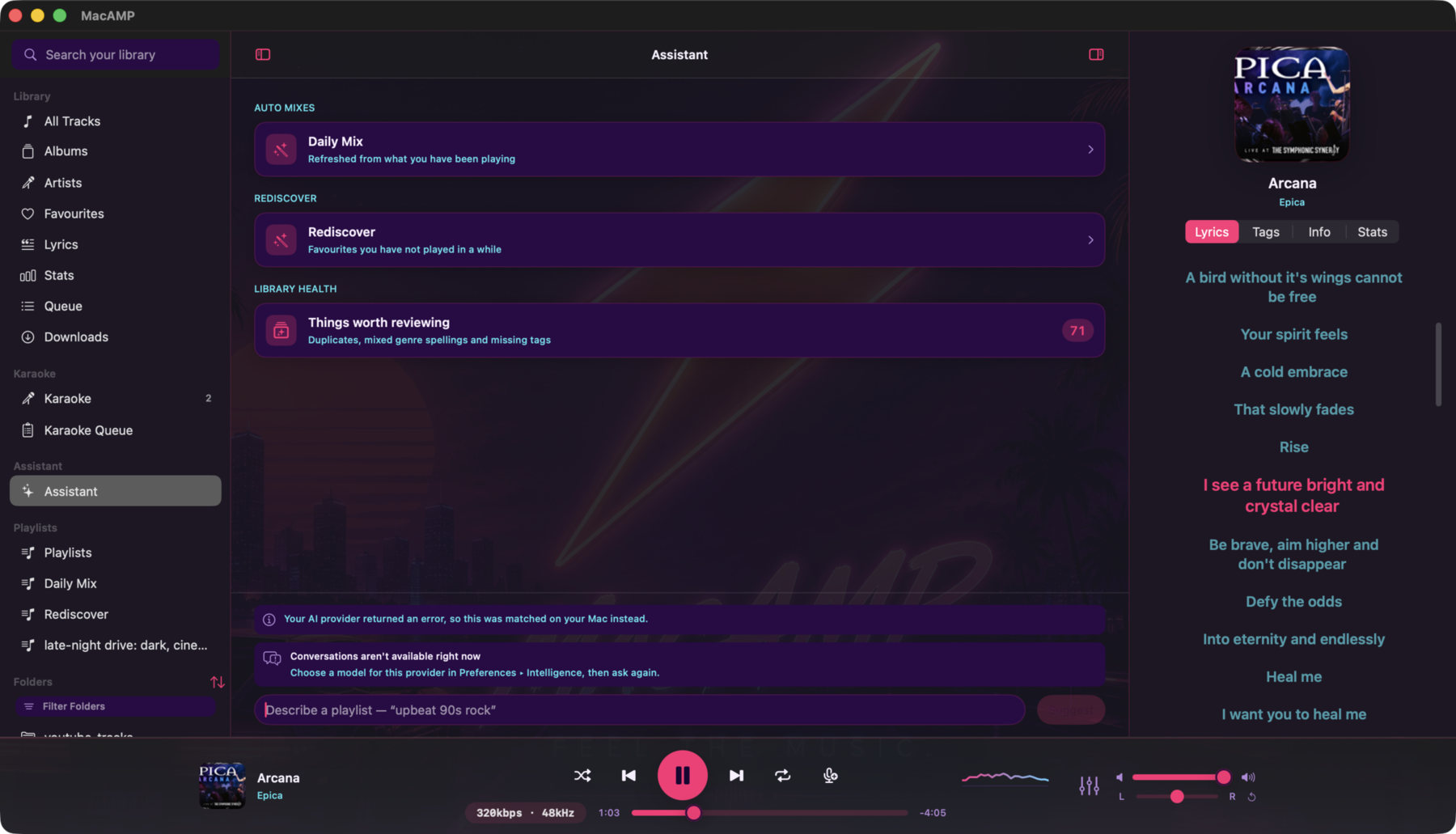
Library Health
When the Hygiene feature bundle is on, a Library Health card appears in the Assistant pane. It shows a summary of things worth reviewing in your library. Click the card to open the findings sheet.
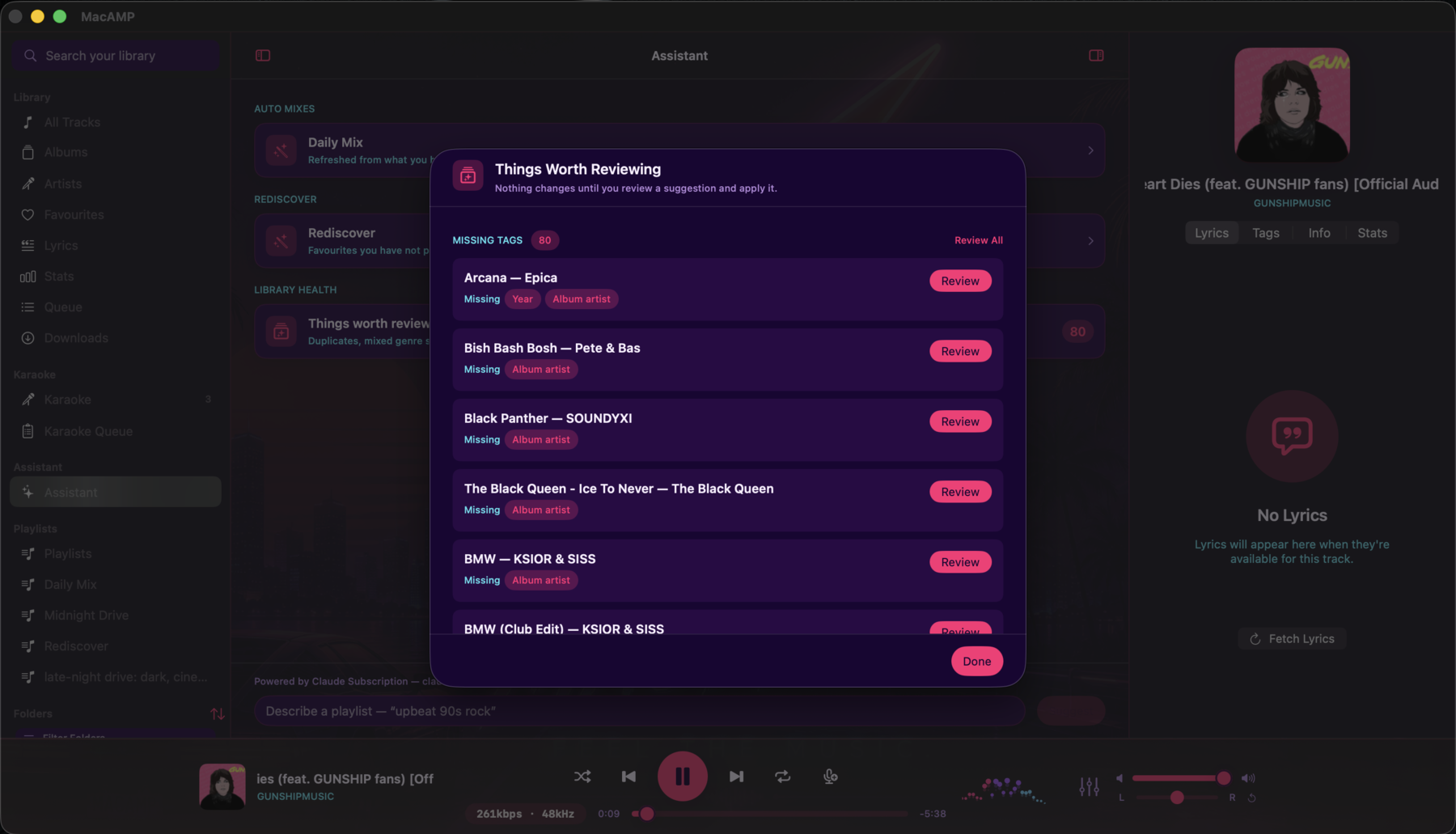
The sheet has three sections:
- Duplicates — tracks that appear more than once in a playlist.
- Genre spellings — genre names with inconsistent capitalisation or common variations ("Rock" vs "rock", "Hip-Hop" vs "Hip Hop").
- Missing tags — tracks without a title, artist, or album.
Each finding has a Review button that shows a proposal for that issue. Each section has a Review All button that proposes fixes for the whole category in one pass. Every proposal goes through the same review-and-apply flow as a playlist request — nothing changes until you click Apply.
A few things worth knowing:
- Duplicate cleanup doesn't delete files. When MacAMP removes a duplicate, it removes one copy from the playlist membership. The file stays in your library. The finding may remain in the list with no Review button — that means there's nothing left for MacAMP to change in that playlist, even though two copies of the song still exist on disk.
- Review All can take two passes for playlists with multiple duplicate groups. MacAMP fixes one group at a time, re-checks after the apply, and the second group appears on the next pass.
Choosing a provider
Open MacAMP > Settings > Intelligence. The Provider section sits below the master toggle. The picker lists None (built-in matcher) and five providers:
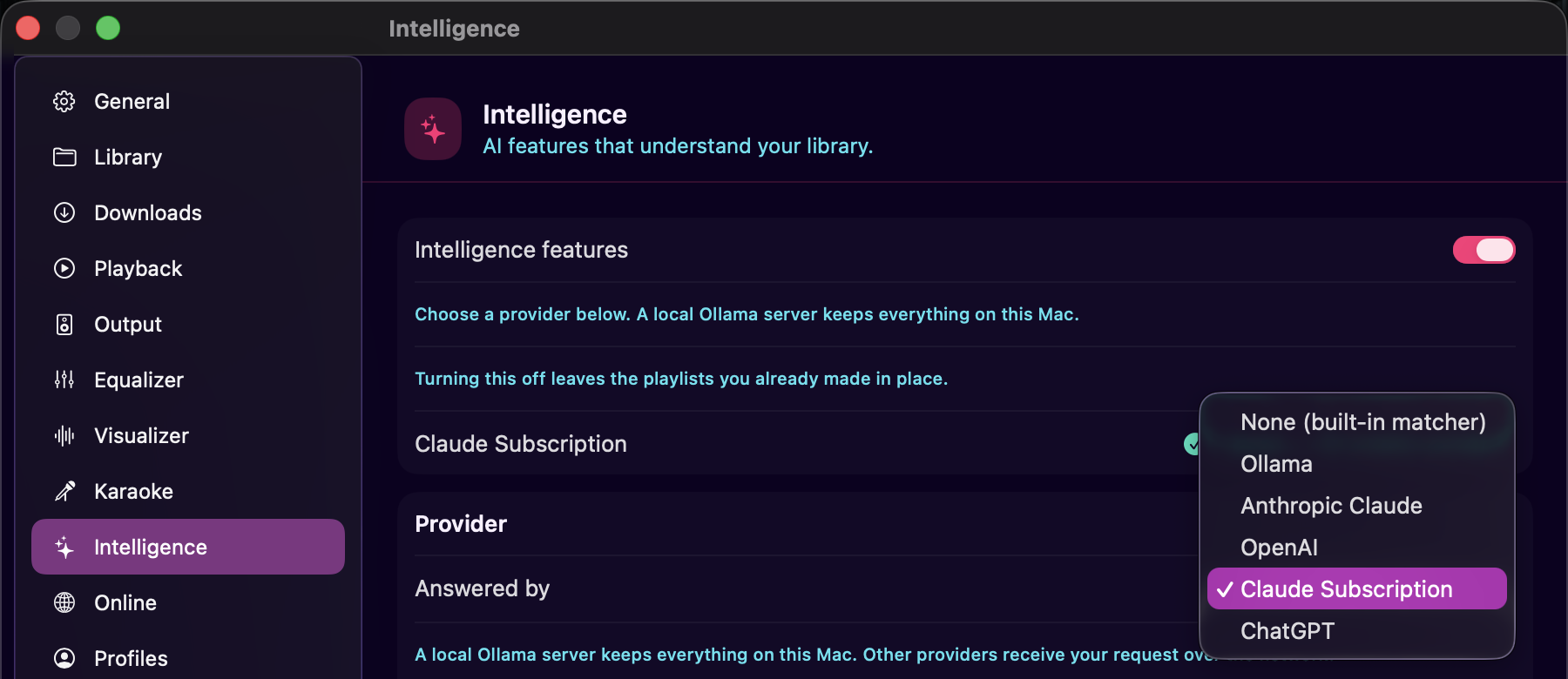
| Provider | What it needs | What leaves your Mac |
|---|---|---|
| Ollama | A running Ollama server | Nothing, if the server runs on this Mac. Otherwise the setup consent payload + library browsing during chat (see above) |
| Anthropic Claude | An Anthropic API key | Setup consent payload + library browsing during chat |
| OpenAI | An OpenAI API key | Same as Claude |
| Claude Subscription | A Claude Pro or Max plan | Same as Claude |
| ChatGPT | A ChatGPT subscription | Same as Claude |
Switching the picker takes effect immediately — no relaunch needed.
Upgrading from an older version? Apple Intelligence is no longer offered as a provider and will be removed completely in a future update. If you had it selected, the picker now shows None (built-in matcher): requests keep working, matched on your Mac without a language model, until you choose one of the providers below.
Ollama
Enter the host address of your Ollama server (default:
http://127.0.0.1:11434). Ollama running locally keeps everything on your Mac, so
there's no consent prompt. It's the most private way to use the assistant. A remote host (including Ollama Cloud at https://ollama.com)
requires the consent prompt first. If your Ollama server requires an API key
(bearer token), enter it in the setup sheet. API keys are stored in your Keychain,
not in preferences files.
Anthropic Claude and OpenAI
Click Set Up… to enter your API key. MacAMP validates it with a live model-list call — if the key works, the model picker fills with the available models. Your key is stored in the Keychain.
Claude Subscription
Click Sign In… to log in with a Claude Pro or Max account. If you already have the Claude CLI (Claude Code) installed and signed in on this Mac, MacAMP detects and reuses that login automatically — you'll see "Signed in via Claude CLI" in the status row and a Stop Using CLI Session button. Clicking it stops MacAMP from using the CLI session for the rest of the current launch; it doesn't sign you out of the CLI itself. A relaunch finds the CLI session again unless you sign into MacAMP directly, at which point MacAMP uses its own session.
ChatGPT
Click Sign In… to log in with a ChatGPT subscription. MacAMP opens your browser for the sign-in, then listens on a local port for the callback.
The setup consent prompt
The first time you save or connect any provider that sends data to a server, MacAMP shows a disclosure sheet. It lists exactly what would leave your Mac for a single structured request:
- Your request, up to 600 characters.
- Up to 64 genre names from your library, as the answer vocabulary.
- Up to 50 of your most-played artist names, with play counts.
No audio, no files, no artwork, no lyrics, and no listening history beyond the top-artist list are ever sent through this path.
Click Accept and Save to proceed. Click Cancel and nothing is sent; until you accept, MacAMP's built-in matcher answers on your Mac.
Once accepted, you can remove a provider at any time by clicking Set Up… and choosing Remove.
Model picker
Once a provider is connected and responding, a model picker appears below the status row. Automatic lets the provider choose; picking a specific model pins that model for all subsequent requests through that provider. Click Refresh to update the model list.
Audio analysis
Preferences > Intelligence > Audio Analysis is an opt-in background pass that
extracts tempo, energy, and brightness from your tracks. This data feeds the
Reorder by Energy playlist action and the sample_tracks tool that the AI
can call to find tracks by mood.
The section shows how many tracks have been analysed. Click Analyze Library to begin a background pass over your library — MacAMP analyses tracks at low priority while you keep listening. Click Cancel to stop it. Analysis runs entirely on your Mac; no audio leaves the device.
Tracks added after an analysis pass aren't analysed automatically. Run another pass to pick them up. Re-analyze Library discards cached results and measures everything again; a confirmation dialog warns that this decodes every audio file.
External access (MCP server)
MacAMP can expose your library tools to external agents — for example, a desktop AI client or a custom script — through a local MCP (Model Context Protocol) server. See External Access for the full setup guide.
Troubleshooting
Chat isn't available in the Assistant pane
A chat conversation requires a connected provider with the library-browsing consent accepted. Without one, the text field still works for single-shot requests. Check:
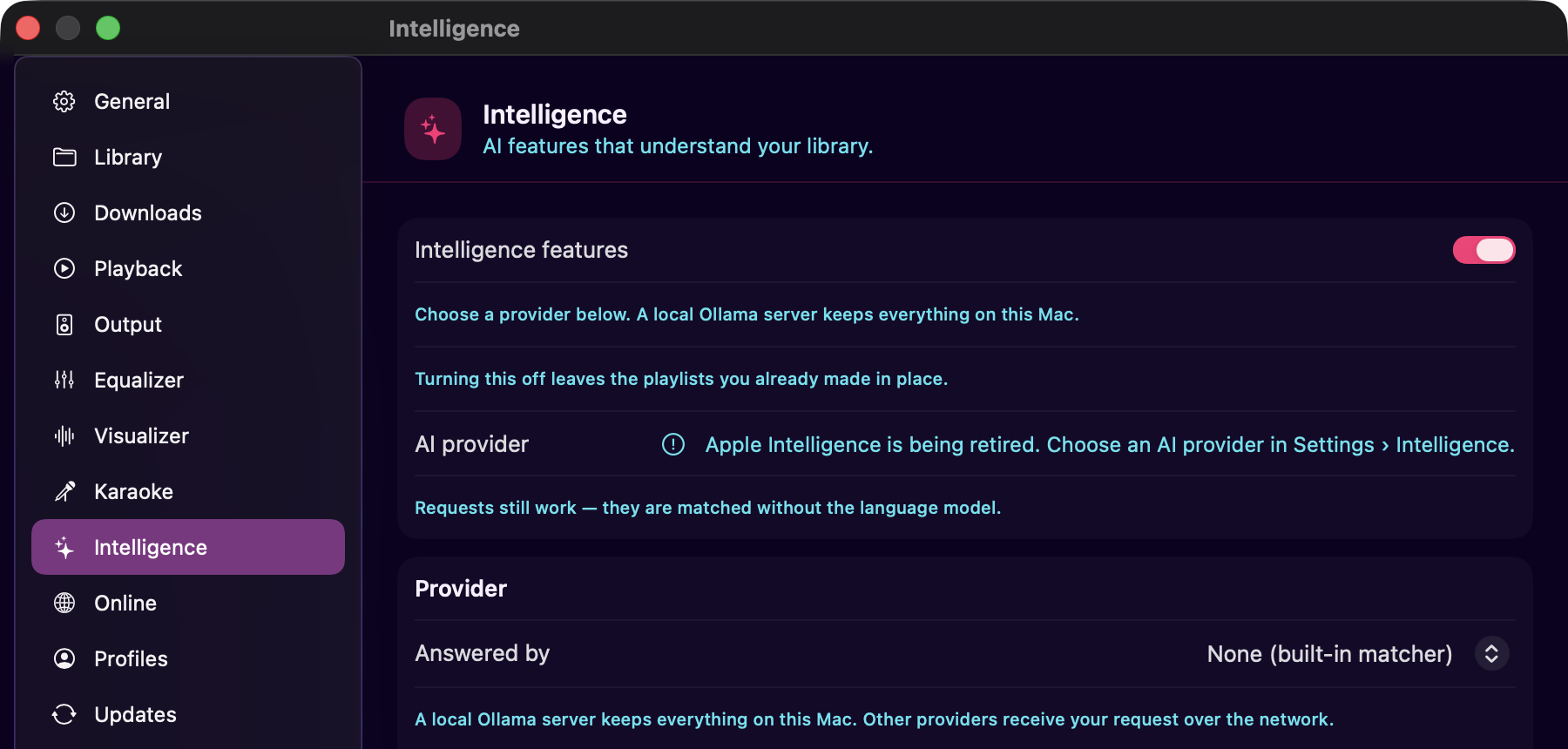
- No provider yet — pick one in Settings > Intelligence > Provider. A local Ollama server is the quickest free option.
- Consent declined — if you've chosen a provider and the browsing consent sheet appeared but you clicked Cancel, the conversation path is blocked for this pane visit. Navigate away and back, then accept the disclosure.
- No model selected — if your provider shows "Automatic" in the model picker but nothing has been selected, the cloud path can't start. Pick a specific model in Settings > Intelligence.
The model called a tool I didn't expect
The model decides which tools to call based on your message. If it called
list_genres when you asked for "fast tracks", that's normal — it's checking your
library's genre vocabulary before constructing a sample. Tool-activity rows show
what was called but not the raw results; they're there to give you a sense of what
the model was doing.
The conversation seems to have forgotten earlier turns
Every model has a limited context window, and smaller local models have less of it. When the thread gets long, MacAMP condenses older turns to fit — the model may not recall the exact wording of something said many turns ago, though the key results (genres listed, tracks found) stay in the thread. If you need the model to act on something specific from earlier, mention it again in your next message.
I asked for a playlist and nothing happened
MacAMP shows an inline error banner whenever a request fails, so "nothing happened" shouldn't occur. If you don't see a banner, check that the assistant pane is fully loaded and that the NL Creation feature bundle is on in Settings > Intelligence.
The error banner says "nothing matched"
Your request didn't match any tracks in your library. Try a broader description, or check that your library is fully scanned (Settings > Library).
The error banner says my provider is unreachable
Check that the provider's service is accessible:
- Ollama — make sure the Ollama server is running and the host address in Settings is correct.
- Anthropic Claude / OpenAI — check your internet connection and that your API key is still valid (click Set Up… to re-enter it if needed).
- Claude Subscription / ChatGPT — your session may have expired. Click Sign In… to sign in again.
If the provider fails, MacAMP falls back to its built-in matcher on your Mac and notes that it did so in a notice beside the proposal.
Claude Subscription doesn't pick up my CLI login
MacAMP looks for the Claude CLI's credentials at the standard location in your home directory. If the CLI is installed but MacAMP doesn't detect it:
- Make sure you're signed into the CLI (
claudein Terminal should show your account). - Relaunch MacAMP — it probes for the CLI session at startup.
If you've signed into MacAMP directly, that session takes precedence over the CLI session. Sign out (click Set Up… then Remove) to go back to CLI detection.
"Reorder by Energy" is greyed out
The action needs enough tracks in the playlist to have audio analysis data. Run a full analysis pass from Settings > Intelligence > Audio Analysis > Analyze Library, then try again. If only a few tracks lack analysis, the action may still work with partial data and skip the unanalysed ones.
ChatGPT sign-in opens a browser tab but then nothing happens
Make sure no firewall or privacy tool is blocking loopback connections on ports 1455 or 1457. MacAMP listens on one of those ports for the sign-in callback.
Downloads
Download audio from YouTube and other sites straight to a folder of your choice. How to paste links, manage the queue, decide whether finished downloads join your library, configure output format and quality, and keep the download engine up to date.
External Access (MCP Server)
How to let external AI agents browse your library and file playlist proposals through MacAMP's built-in MCP server.