
Now-Playing Surfaces
The macOS right panel (four tabs), the Queue sidebar section, the menu-bar mini player, Control Center, and the iOS lock screen.
macOS — right panel
Use Toggle Right Panel in the toolbar to open the inspector. It has four tabs:
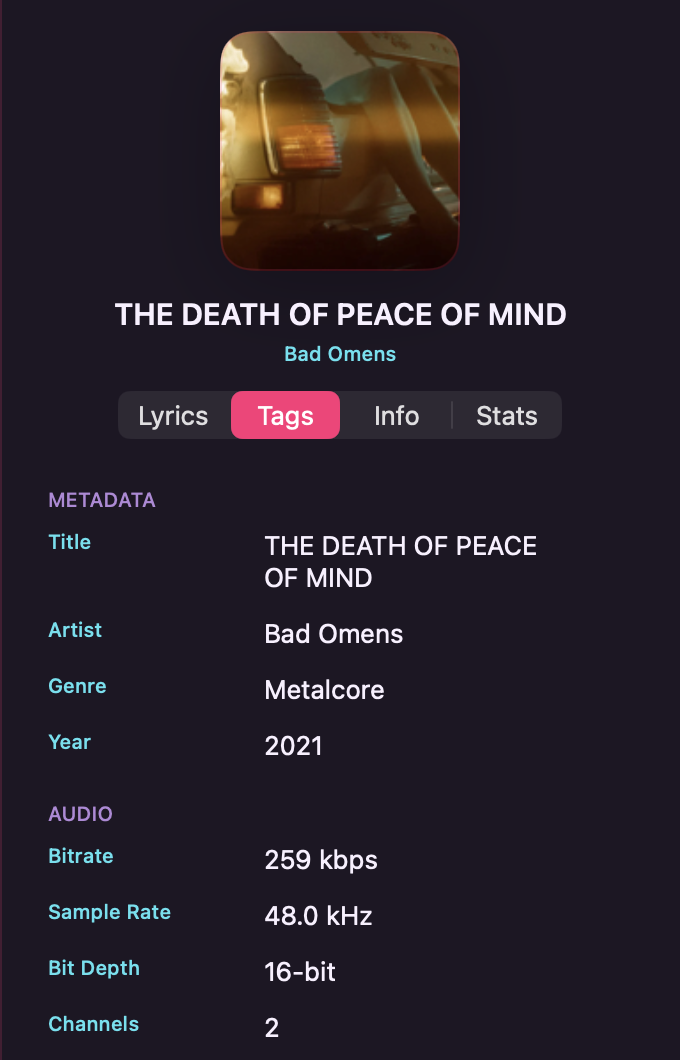
| Tab | What it shows |
|---|---|
| Lyrics | Synced or plain lyrics for the current track. See Lyrics for details. |
| Tags | Editable metadata fields for the current track (title, artist, album, genre, year, track number, and more). |
| Info | Artist biography and album notes fetched from MusicBrainz and Wikipedia (requires online data to be enabled). |
| Stats | Listening statistics for the current track. Always shows play count and full-listen count. When the track has recorded play history (v15 event log), a History block appears with last played, first played, total time listened, and skip count. After three full listen passes — or once one passage has been heard three or more times — a Replay Map curve shows which parts of the track you return to most. |
Click any tab to switch. The panel remembers your last-selected tab across sessions.
macOS — Queue sidebar section
The play queue lives in the Queue section of the sidebar, below Stats. Click it to open the full-width queue screen.
The queue screen shows every track waiting to play, in order. You can:
- Reorder — drag any row to a new position.
- Play immediately — double-click a row to jump to that track.
- Remove — right-click a row and choose Remove from Queue, or select multiple rows and remove them together.
- Clear — click Clear in the header to remove all tracks from the queue at once.
- Karaoke actions — when karaoke mode is on, each row shows the same karaoke status badge as the track lists. Click the inline mic icon to schedule a karaoke version, or right-click for the full karaoke context menu.
The Queue section is macOS-only. On iOS, the queue is accessible from the Now Playing screen.
macOS — menu-bar mini player
A music note icon lives in the macOS menu bar at all times. Click it to open the mini player popover.
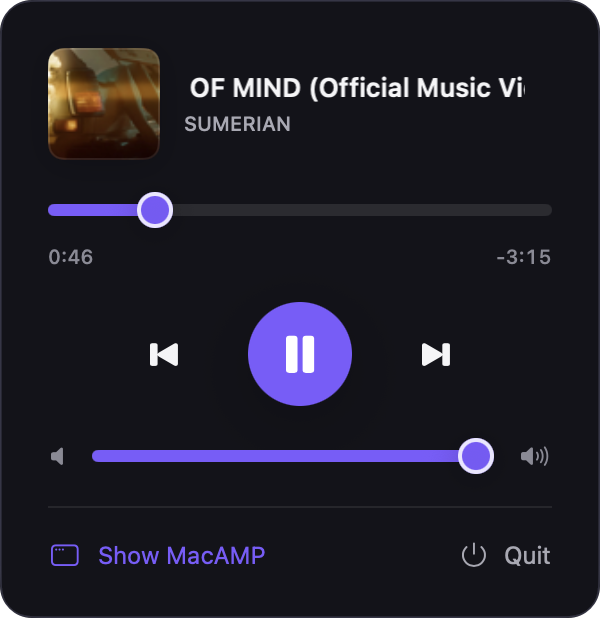
The mini player shows:
- Album art thumbnail (56×56 pt).
- Track title and artist (or "Not Playing" when idle).
- A seek scrubber with elapsed and remaining time read-outs.
- Previous / Play-Pause / Next transport buttons.
- A volume fader.
- A footer with Show MacAMP (brings the main window forward) and Quit.
The mini player reflects the current playback state while the main window is closed.
Show MacAMP
Click Show MacAMP in the mini player footer to bring the main window to the front. If the window was closed, it reopens.
macOS — Control Center
MacAMP registers with the system MPNowPlayingInfoCenter, so the macOS Control Center's Now Playing tile shows the current track, artwork, and transport controls. You can play, pause, skip, and seek from Control Center without switching to MacAMP.
Hardware media keys (play/pause, next, previous) work system-wide while MacAMP is running.
iOS — lock screen and Control Center
MacAMP registers with MPNowPlayingInfoCenter and MPRemoteCommandCenter. While a track is playing:
- The lock screen shows album art, title, artist, and a seek scrubber.
- Transport buttons (previous, play/pause, next) work from the lock screen.
- The Control Center Now Playing card shows the same information.
These surfaces update automatically when the track or playback state changes.
Background audio keeps playing when you leave the app or lock the device, and the lock-screen controls stay live.
Not available
MacAMP does not currently ship a home-screen widget, a Dynamic Island Live Activity, or a StandBy now-playing view on either platform. Now-playing information reaches the system exclusively through Control Center / the lock screen (MPNowPlayingInfoCenter) as described above.