
Playlists
Creating and managing playlists, smart playlists, and importing/exporting M3U and PLS files.
Regular playlists
Playlists are ordered collections of tracks you assemble manually.
macOS
Playlists appear inline in the sidebar under the Playlists section — click the disclosure triangle to expand and see individual playlist names. Click a playlist name to open it in the content pane.
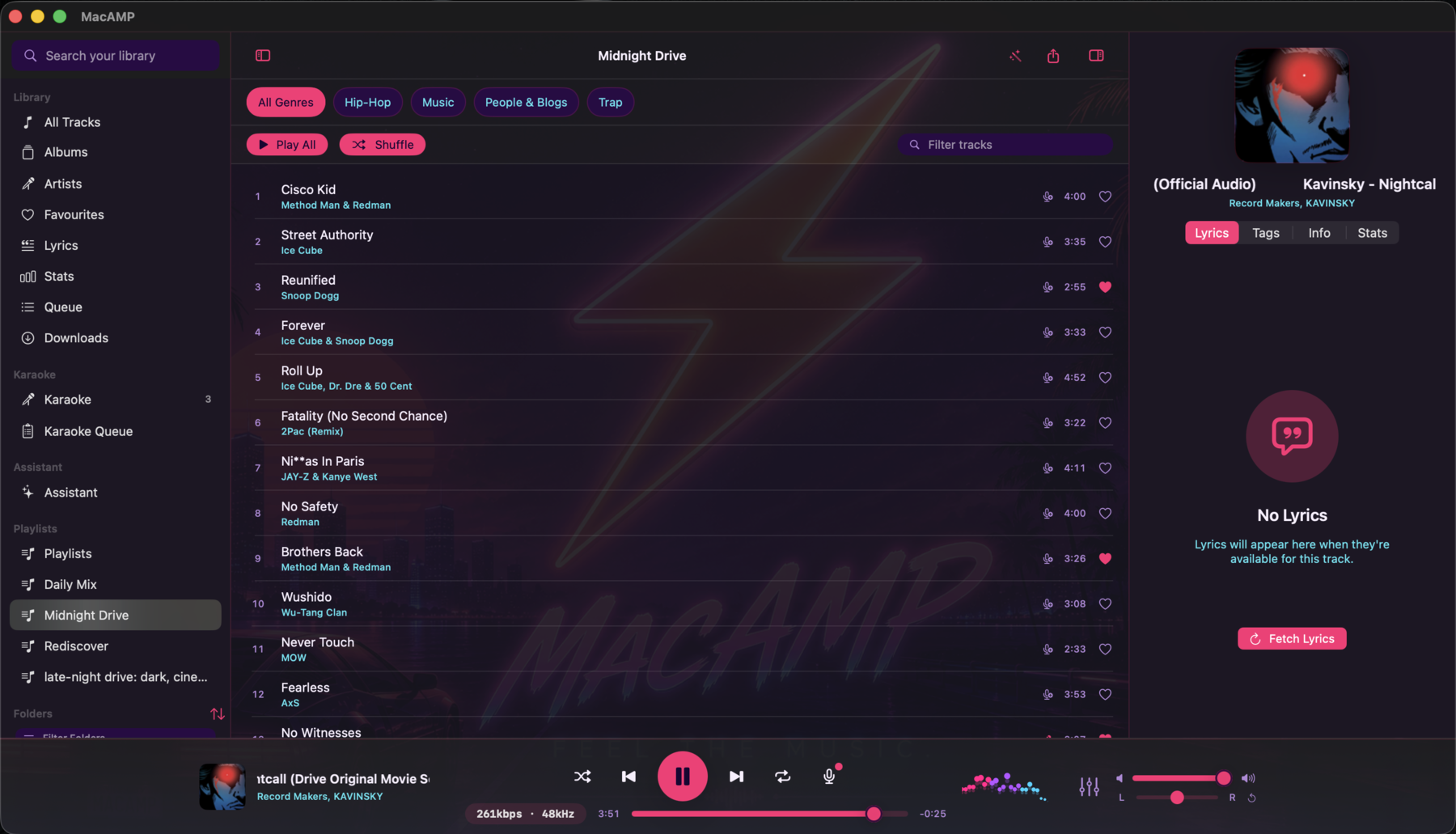
Right-click a playlist in the sidebar for the context menu:
- Rename… — edit the playlist name inline.
- Delete — permanently remove the playlist.
To add tracks to a playlist, right-click one or more tracks in the library browser and choose Add to Playlist, then select the target playlist from the submenu.
iOS
Tap the Playlists tab (music note list icon) to open the playlists browser. Each row shows the playlist name, a smart-playlist badge (gear icon) for smart playlists, and the track count on the right.

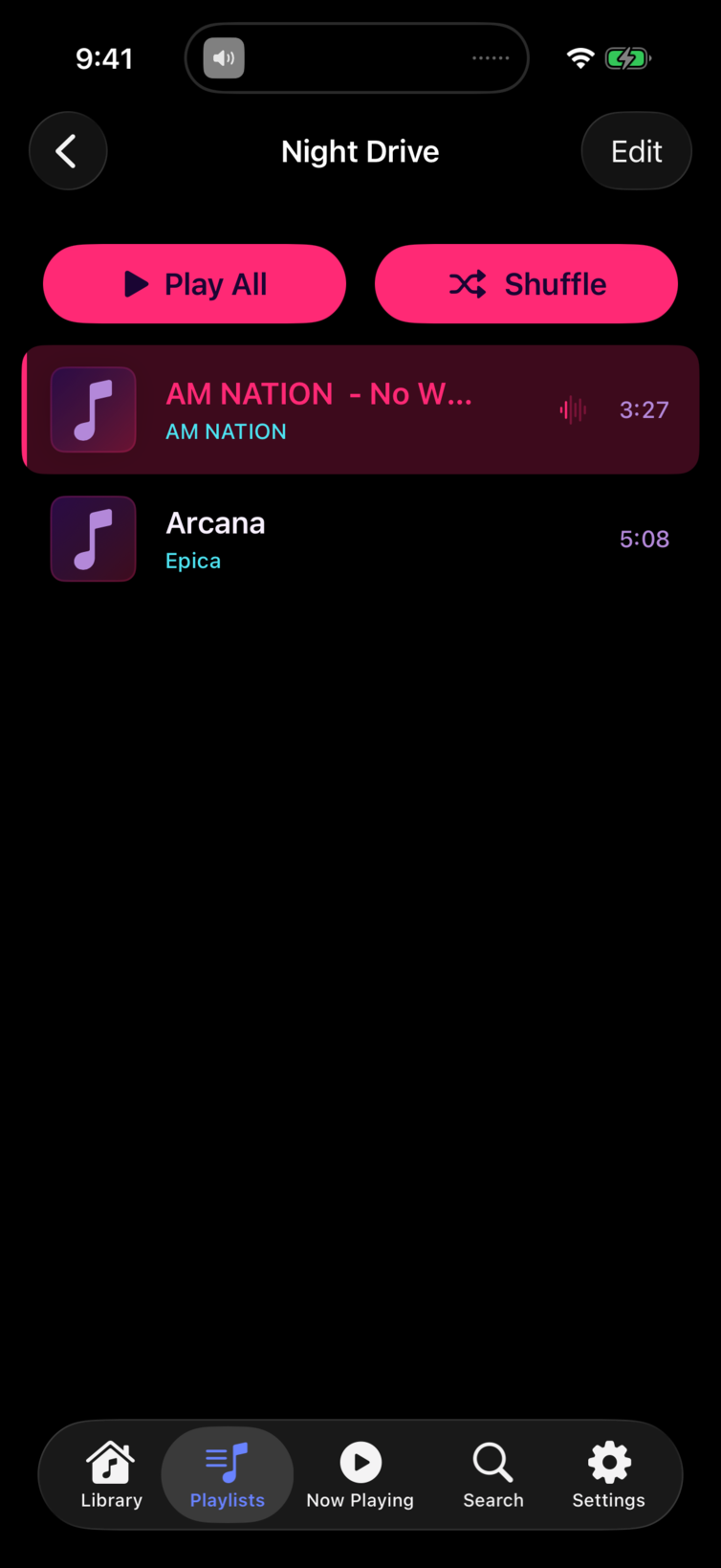
The list is keyset-paginated — scroll to the bottom to load more playlists.
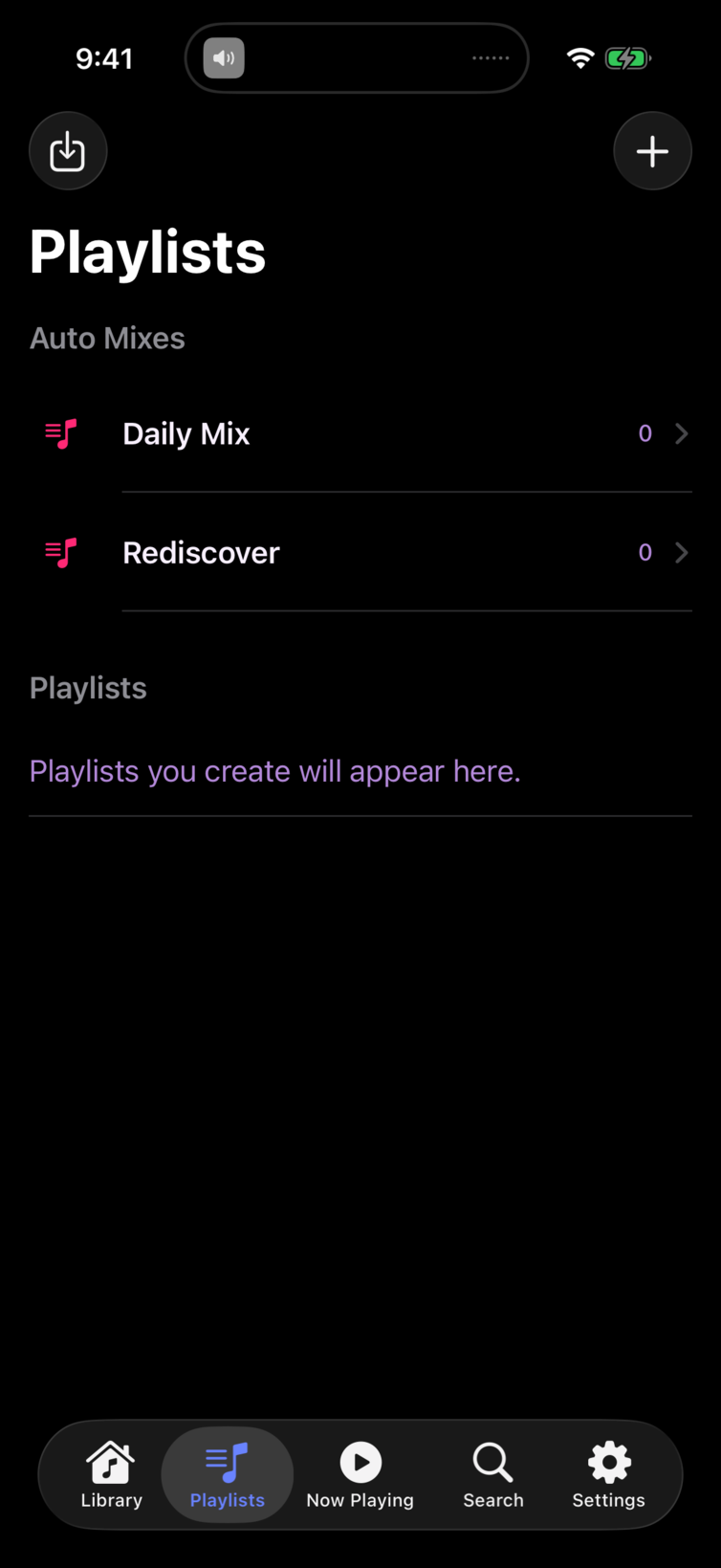
Smart playlists
Smart playlists are rule-based: MacAMP populates them automatically based on criteria you define (genre, play count, date added, rating, etc.). The rules are stored as JSON in the database and evaluated at query time, so the playlist always reflects the current library state.
On macOS, click Smart Playlists in the sidebar to open the smart playlists view. The left pane lists your smart playlists; click one to see its auto-generated track list on the right.
Smart playlists appear in the same list as regular playlists on iOS, distinguished by a gear icon badge.
M3U and PLS import/export
MacAMP can import and export playlists in the two most common interchange formats.
Import
Drag an .m3u, .m3u8, or .pls file onto the MacAMP window (macOS) or use the document picker (iOS). MacAMP resolves each path against the library and creates a new playlist with the matching tracks. Tracks not already in the library are imported automatically.
Export
Right-click a playlist in the sidebar (macOS) or long-press a playlist row (iOS) and choose Export. Pick M3U or PLS format and a save location. The exported file uses relative paths where possible so it's portable across machines.
Queue vs. playlist
The queue is the live playback order — what's playing now and what comes next. A playlist is a saved collection. You can load a playlist into the queue by double-clicking it (macOS) or tapping it (iOS), which replaces the current queue with the playlist's tracks.