
Karaoke Mode
Remove vocals from your tracks and sing along. How to enable karaoke mode, create karaoke versions on demand, pick a quality, manage the cache, find ready tracks, remove karaoke versions, and what the current limitations are.
Karaoke mode removes the vocals from your tracks so you can sing along. Create a karaoke version on demand. Once the instrumental is ready, you can switch between it and the original during playback.
macOS only. Karaoke mode is available in macOS builds that include the separation model. See Limitations.
Turning karaoke mode on
- Open MacAMP > Settings (or press ⌘,).
- Select the Karaoke section.
- Toggle Karaoke mode on.
Once the toggle is on, a mic button appears in the player bar, to the right of the repeat button. Turning karaoke mode on does not start rendering anything by itself — you choose which songs to prepare (see below).
To turn karaoke mode off, flip the same toggle. The mic button disappears and MacAMP goes back to playing the original audio.
Creating a karaoke version (on demand)
MacAMP only prepares the songs you ask it to. There are three ways to start:
- From a track list (inline). When karaoke mode is on, every track without an instrumental yet shows a small mic + icon in its row. Click it to schedule that track — no need to play it or open a menu first. The icon is available in the library, playlists, favourites, the play queue, album detail, and the stats view.
- From the player bar. When the current track has no instrumental yet, the mic button shows a + badge ("Create karaoke version"). Click it to start preparing the instrumental in the background. A progress ring fills as the render runs; when it finishes, the button switches to the ready state.
- From any track list (menu). Right-click a track — or a multi-track selection — and choose Create Karaoke Version. The menu item only appears when karaoke mode is available.
Rendering runs one track at a time in the background, so you can queue several up and keep listening while they process. The render queue shows everything in progress and lets you manage it.
The render queue
When karaoke mode is on, a Karaoke Queue section appears in the sidebar, alongside the Karaoke section. Each row shows a count — how many tracks are ready to sing (Karaoke) and how many are rendering or waiting (Karaoke Queue) — so you can see the backlog at a glance. Open Karaoke Queue to manage everything MacAMP is preparing.
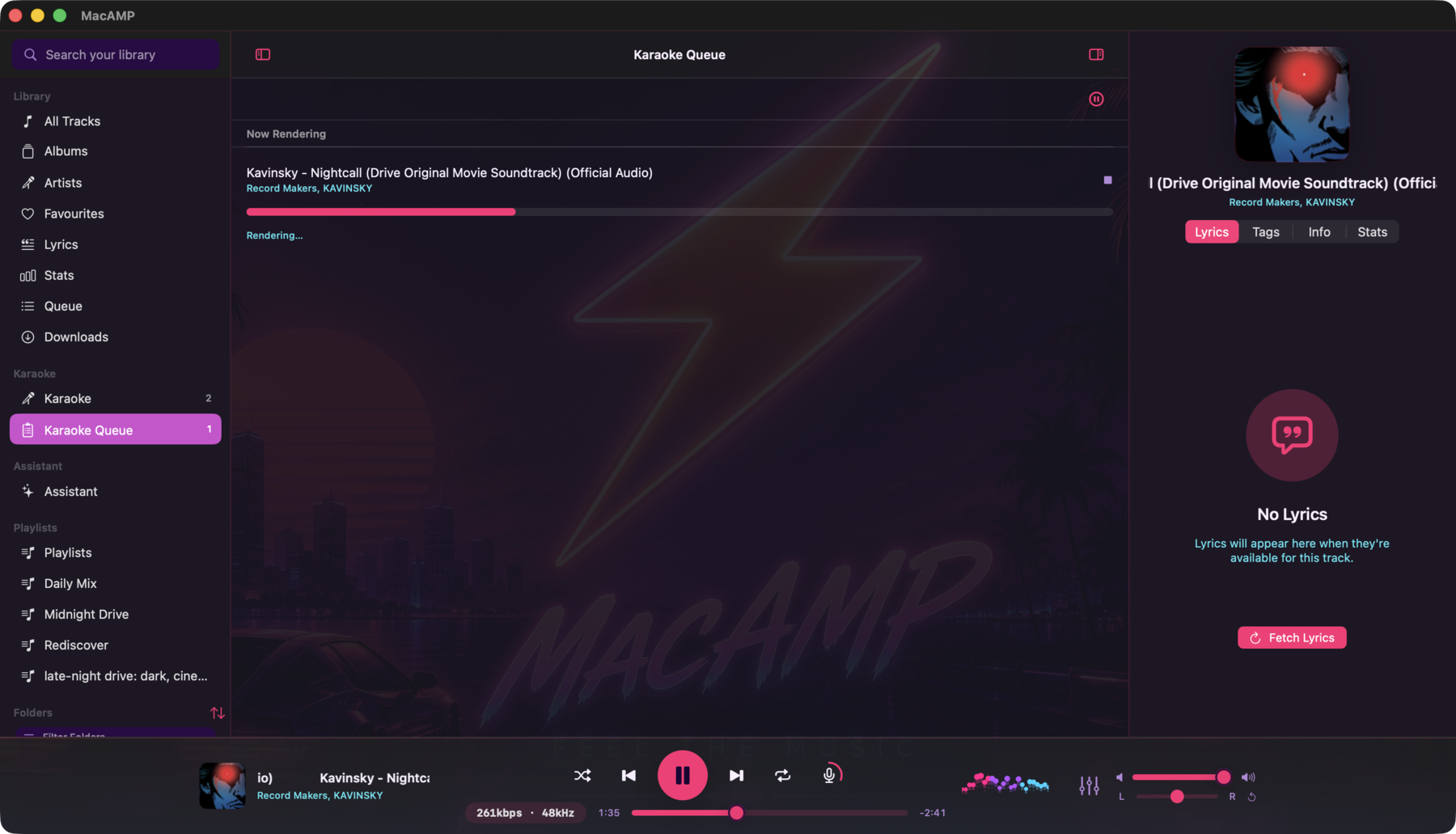
- Now rendering. The track being processed sits at the top with a progress bar that fills as its render runs. MacAMP prepares one track at a time. Press Stop on this row to cancel it — the track returns to the pending list and the queue pauses, so it doesn't jump straight to the next song.
- Up next. Scheduled tracks wait below in the order they'll run. Drag a pending track to reorder it, press Start now to move it to the front and render it immediately (preempting whatever is rendering), or right-click > Remove to take it out of the queue. You can't remove or reorder the track that's already rendering — stop it first.
- Pause / resume. The button in the top-right reflects the queue's state — a pause icon while a render is running (press to pause) and a play icon otherwise (press to resume). Pausing lets the current render finish, then stops starting new ones; the pending list is kept. Pause is per session — it resets when you relaunch MacAMP.
MacAMP keeps you posted as both an in-app message and a macOS notification: it confirms "Added to karaoke queue" when you schedule a track, tells you as each track finishes, and once more when the whole queue is done — so you can schedule a batch and walk away. The first time it posts a system notification, macOS asks permission; if you decline, the in-app messages still appear.
The mic button
The mic button in the player bar shows what karaoke mode is doing for the current track.
| Button appearance | What it means |
|---|---|
| Not visible | Karaoke mode is turned off in Settings. |
| Mic icon, greyed out | Karaoke is on but not available on this build (see Limitations). Hover over the button to see why. |
| Mic icon with a + badge | No instrumental yet. Click to create one on demand. |
| Mic icon + progress ring | MacAMP is preparing the instrumental for the current track. The ring fills as the render progresses. |
| Mic icon, ready (accent dot) | The instrumental is ready. Press to switch to karaoke playback. |
| Mic-slash icon, accent color | Karaoke is active — you're hearing the instrumental. Press to switch back to the original. |
Pressing the button while the instrumental is ready switches playback. There is a brief pause while MacAMP loads the new audio stream.
Finding your karaoke tracks
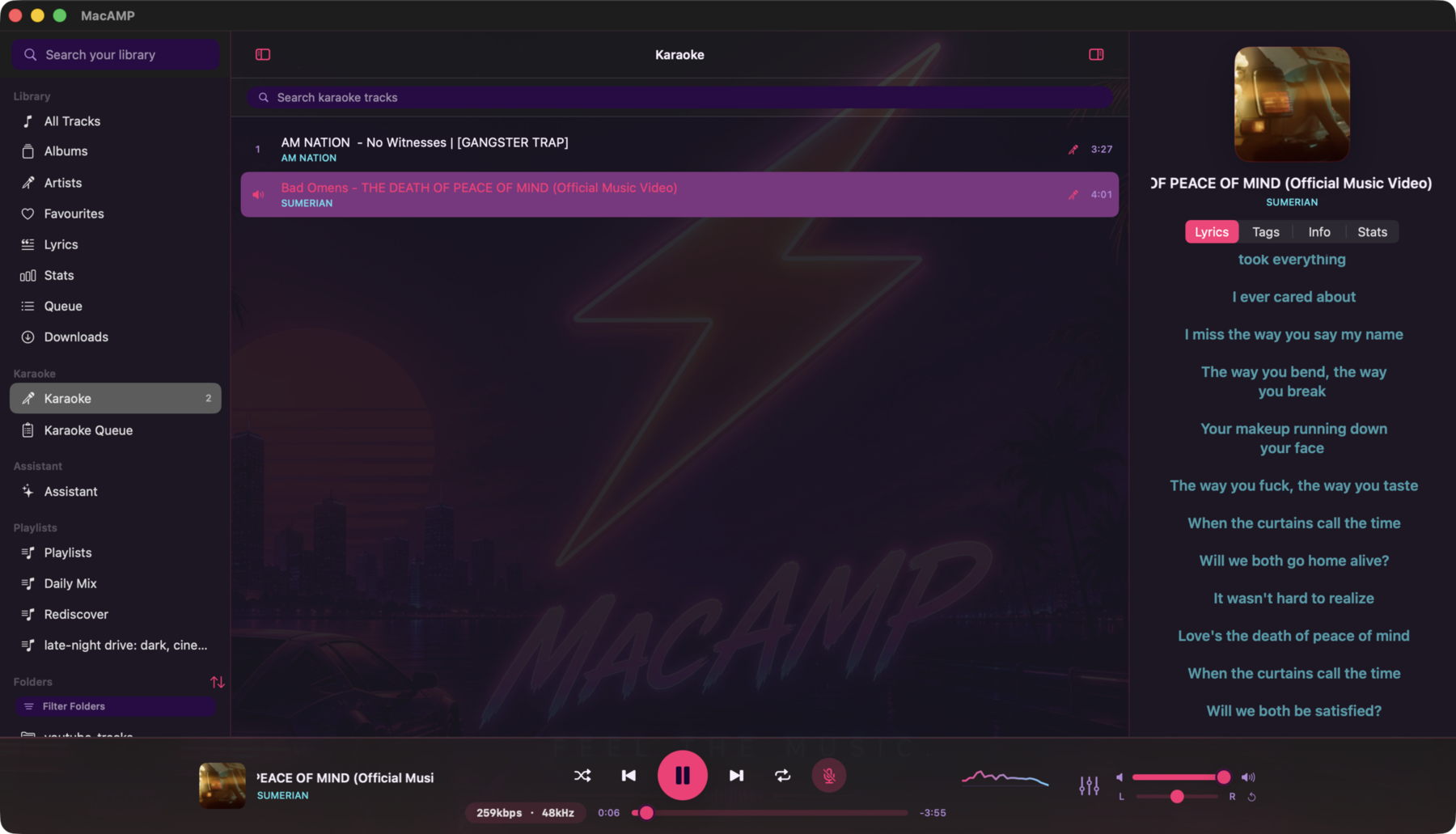
- Row badge. In every track list, a track with a ready instrumental shows a small mic badge ("Karaoke version ready"). A track that is currently rendering shows a progress ring ("Creating karaoke version"), and a track waiting in the render queue shows a clock — click it to remove that track from the queue. These badges stay consistent across every list, so a song's karaoke status looks the same wherever you see it.
- Karaoke sidebar section. When karaoke mode is available, a Karaoke section appears in the sidebar. It lists every track in the current profile that has a ready instrumental. Use the search field at the top to filter the list by title or artist. Double-click a row to play it. The list updates as renders finish and is scoped to the active profile.
Removing a karaoke version
To delete a cached instrumental and free up space, right-click a track in any list and choose Remove Karaoke Version. You can select multiple tracks and remove their karaoke versions in one action.
A few things to know:
- In-use instrumentals are protected. If the track whose karaoke version you're removing is currently playing as karaoke, MacAMP keeps that instrumental until playback moves on. The removal applies to everything else in your selection.
- The action is immediate. There's no undo. If you want the karaoke version back, create it again from the mic button or the context menu.
- MacAMP tells you what happened. After a removal, a brief message confirms how many versions were removed. If one was kept because it was in use, the message says so.
You can also clear the entire cache at once from Settings > Karaoke > Clear Karaoke Cache.
Choosing the quality
Open Settings > Karaoke > Instrumental quality:
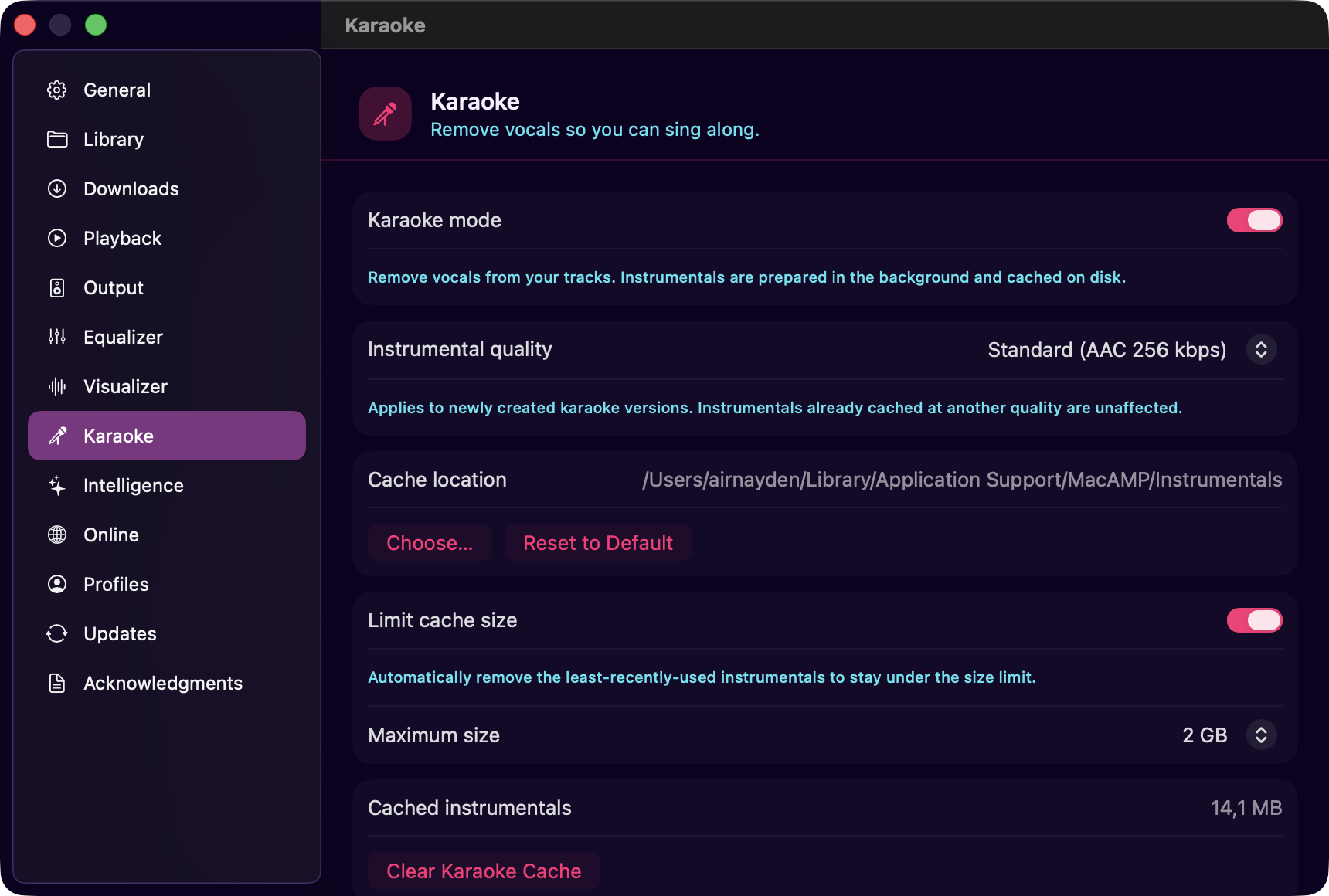
- Standard (default) — 256 kbps AAC. Smaller files that are transparent for karaoke playback, so more instrumentals fit in the cache before anything is removed.
- High — 24-bit Apple Lossless (ALAC). Byte-exact reference quality, at the cost of much larger files.
The quality setting applies to newly created karaoke versions. Instrumentals you have already rendered are not re-encoded when you change it.
Managing the cache
Cached instrumentals are stored, by default, in
~/Library/Application Support/MacAMP/Instrumentals/. Everything about the cache
lives in Settings > Karaoke:
- Cache location. Click Choose... to store instrumentals in a different folder, or Reset to Default to go back. MacAMP moves the existing cache to the new folder. A folder that overlaps one of your music library folders (in either direction) is rejected, so the cache is never scanned as part of your library.
- Limit cache size. Turn this on to cap the cache and let MacAMP prune it automatically. Pick a maximum of 1, 2, 5, or 10 GiB (2 GiB by default). When the cache exceeds the cap, the least-recently-used instrumentals are removed first. Turn the limit off to keep every instrumental until you clear the cache by hand.
- Cached instrumentals. Shows the current cache size, with a Clear Karaoke Cache button that deletes all cached files.
Clearing the cache doesn't turn karaoke mode off — you can re-create any karaoke version on demand the next time you want it.
How it works
MacAMP uses an AI model (Mel-Band Roformer) to separate the vocals from the music. This runs entirely on your Mac — nothing is sent to the internet.
MacAMP processes the track in sections and saves the finished instrumental as a
cached .m4a file in AAC or ALAC, depending on your quality setting. The
instrumental is ready for playback after the render finishes.
When you switch a song to karaoke, MacAMP swaps in the cached instrumental below the track itself — the artwork, ReplayGain, Now Playing info, and gapless playback all keep the original song's identity. Only the audio you hear changes.
Limitations
Hi-res audio is played at 44.1 kHz in karaoke mode. The AI model was trained at 44.1 kHz. If your source file is at a higher sample rate (88.2, 96, 176.4, or 192 kHz), MacAMP resamples it to 44.1 kHz for the instrumental version. Your original file is never modified, and original playback is unaffected.
Karaoke turns itself off on a track that isn't ready. If playback moves to a song that has no cached instrumental — a new track in the queue, or one whose cache was cleared or evicted — karaoke switches off automatically and you hear the original. Create that track's karaoke version (from the mic button or the context menu) to sing along to it.
There's a brief gap when you toggle mid-song. MacAMP pauses while it loads the new audio stream.
The separation model ships with standard macOS releases. iOS builds and macOS builds packaged without the model cannot create instrumentals. See Acknowledgments for model details and the project owner's recorded redistribution confirmation.
Lyrics
Embedded lyrics, .lrc files, LRCLIB online fetch, synced karaoke-style highlighting, and the Lyrics sidebar library for browsing every song whose lyrics are already in your library.
Downloads
Download audio from YouTube and other sites straight to a folder of your choice. How to paste links, manage the queue, decide whether finished downloads join your library, configure output format and quality, and keep the download engine up to date.