
Settings and Preferences
All configurable options in MacAMP on macOS and iOS.
macOS — Preferences window
Open MacAMP > Settings (or press ⌘,) to open the Preferences window. It opens at 860×580 points by default and is user-resizable (minimum content size 800×520; window chrome adds height). Drag any edge or corner to resize; panes expand to fill the available width.
Choose among thirteen sections in the sidebar: General, Library, Downloads, Playback, Output, Equalizer, Visualizer, Karaoke, Intelligence, Online, Profiles, Updates, and Acknowledgments.
General
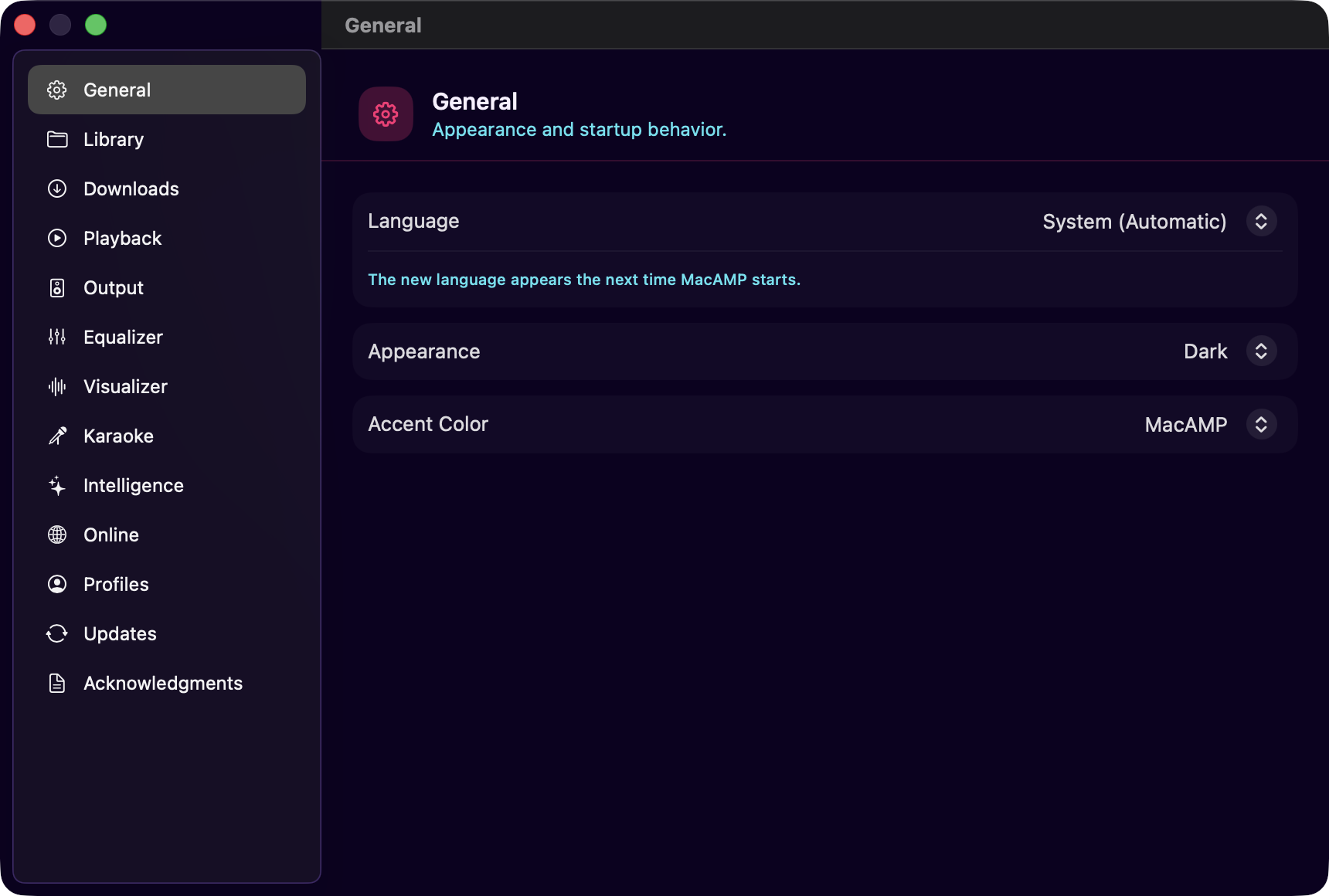
| Setting | Options | Default |
|---|---|---|
| Language | System (Automatic) / English / Български / Deutsch / Español / Français / Italiano / Русский | System (Automatic) |
| Appearance | System / Light / Dark | System |
| Accent Color | MacAMP | MacAMP |
Language sets the interface language. System (Automatic) follows the macOS language setting. The change applies after a restart; after choosing a language, a button offers to relaunch MacAMP.
Appearance forces a color scheme regardless of the system setting. System follows macOS Light/Dark automatically.
Accent Color selects the interface theme. This build offers the MacAMP theme.
Library
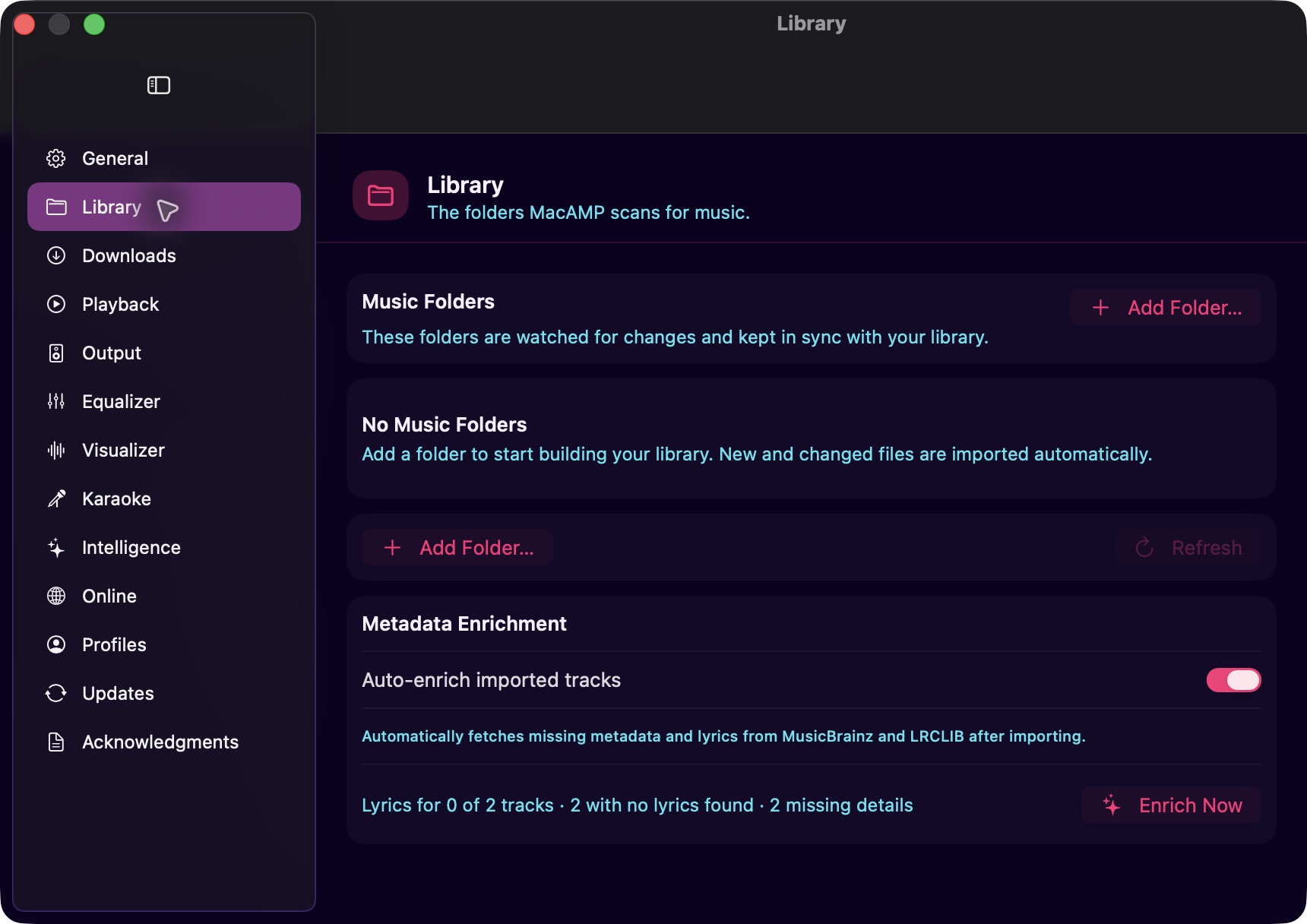
Manage the folders MacAMP watches for music. See Importing Music for full details.
- Add Folder — open a folder picker to add a new watch root.
- Refresh — re-probe access status for all listed folders.
- Each folder row shows its path, access status badge, and a remove button.
Playback
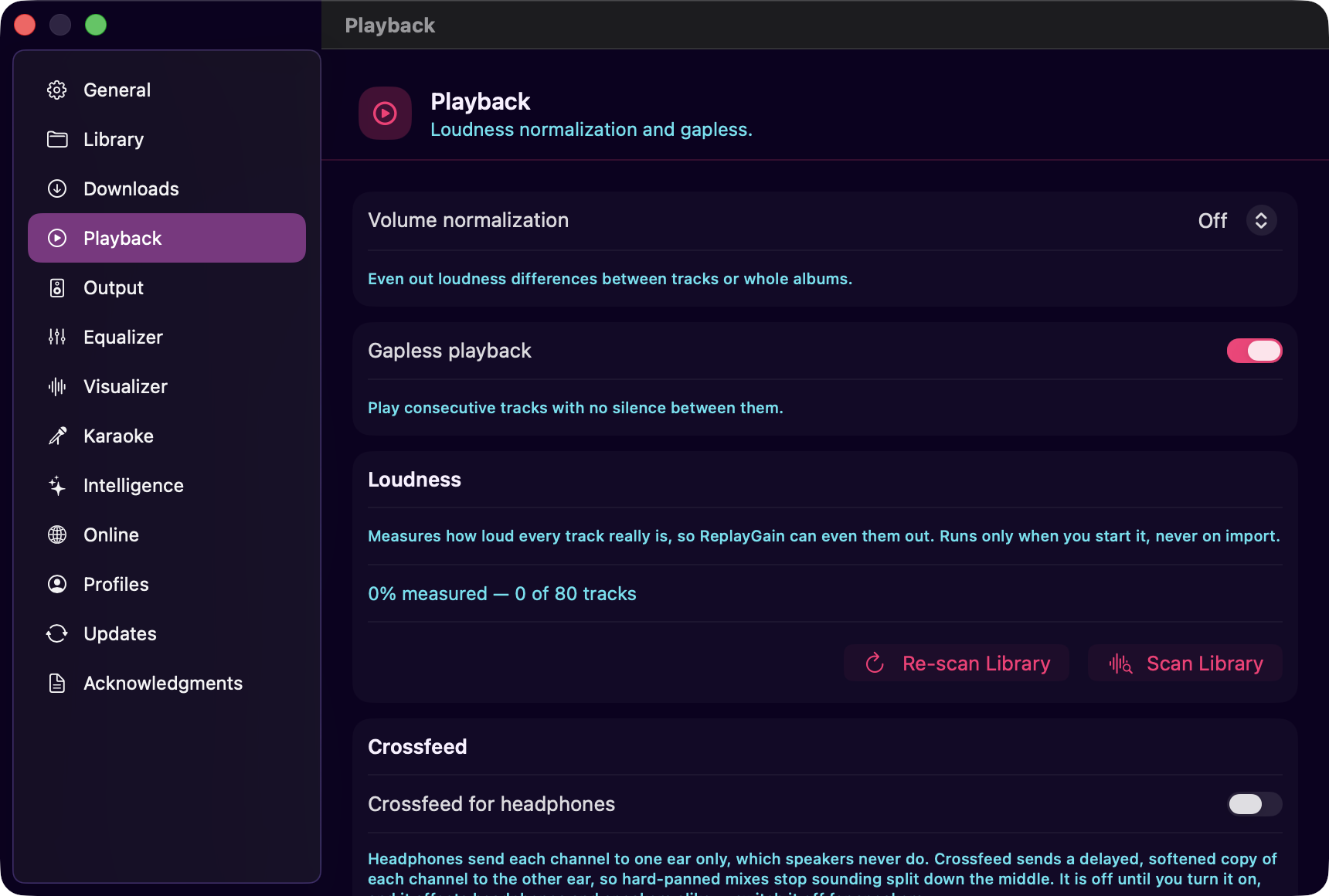
| Setting | Options | Default |
|---|---|---|
| ReplayGain | Off / Track / Album | Off |
| Gapless | On / Off | On |
| Crossfade | (disabled) | Off |
ReplayGain sets the normalization mode applied at launch. See Equalizer and ReplayGain for details.
Gapless enables seamless playback between queued tracks.
Crossfade is shown but disabled. The current audio architecture (single-stream player) defers crossfade to a future update.
Loudness
The Loudness section measures integrated loudness (BS.1770-4) for your library. A coverage line shows how many tracks have been measured.
- Scan — starts a background loudness pass over unmeasured tracks. MacAMP never starts this automatically; it only runs when you press the button.
- Re-scan — re-measures all tracks, including ones measured before. A confirmation sheet appears first.
- While a pass runs, the section shows a progress bar, the current track filename, and Pause / Resume and Stop controls.
Two additional actions live in the track context menu (right-click in the library):
- Analyze Loudness — measures the selected tracks and stores the results. No tags are written.
- Write ReplayGain Tags… — writes the stored loudness measurements back to the audio files as standard ReplayGain tags (MP3 and FLAC only). A confirmation sheet names the exact file count before anything is written. MacAMP never writes tags automatically.
Crossfeed
The Crossfeed section controls a headphone blending stage. See Equalizer and ReplayGain for a description of what crossfeed does.
| Setting | Options | Default |
|---|---|---|
| Crossfeed | On / Off | Off |
| Preset | Default / Chu Moy / Jan Meier / Custom | Default |
| Cut frequency (Custom only) | 300–2000 Hz | — |
| Feed (Custom only) | 1–15 dB | — |
Output
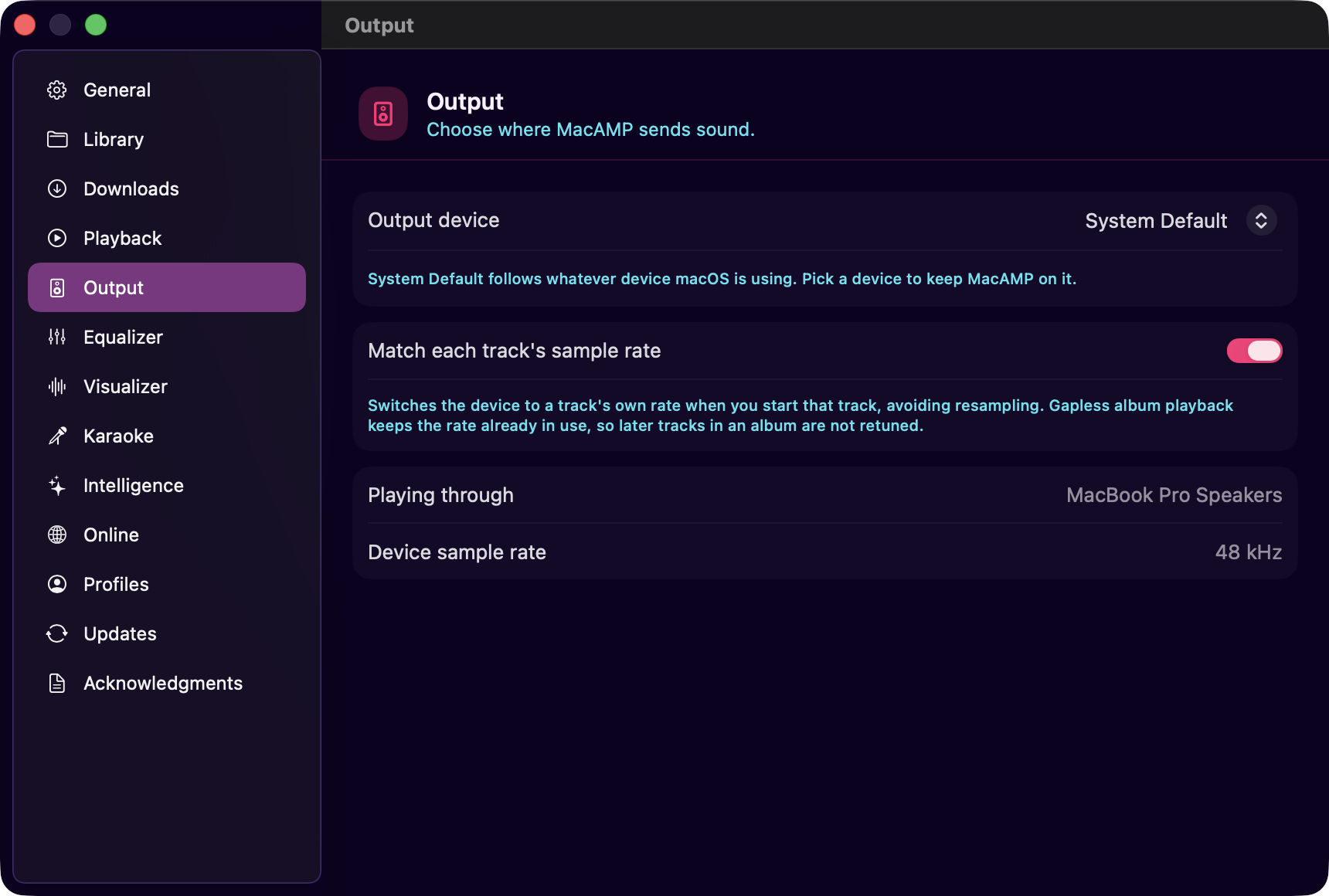
The Output pane controls which audio device MacAMP plays through and how it handles sample rates.
Device
The Output Device picker lists every available output device. Choose System Default to follow macOS automatically, or pick a specific device by name.
The selection is saved by device UID, not by position in the list, so it survives a replug or reboot. When the saved device is unplugged, the pane shows an inline notice — e.g. "MyDAC (unavailable)" — and playback falls back to the system default. Plugging the device back in restores it with no further action.
Sample rate
The Auto Sample Rate toggle (on by default) retunes the output device to match each track's native sample rate at the start of playback. This avoids the resampling step the OS would otherwise apply.
One caveat: the retune fires only on explicit track starts. During gapless album playback, MacAMP keeps the current device rate rather than retuning between tracks — interrupting the stream to change the rate mid-album would create an audible gap. If a gapless album has tracks at mixed sample rates, those tracks play at the rate set by the first track.
Current readout
The bottom section shows the device MacAMP is actually routing to right now, and that device's current nominal sample rate. These reflect the live state — they can differ from the stored selection if the chosen device is unplugged.
Equalizer
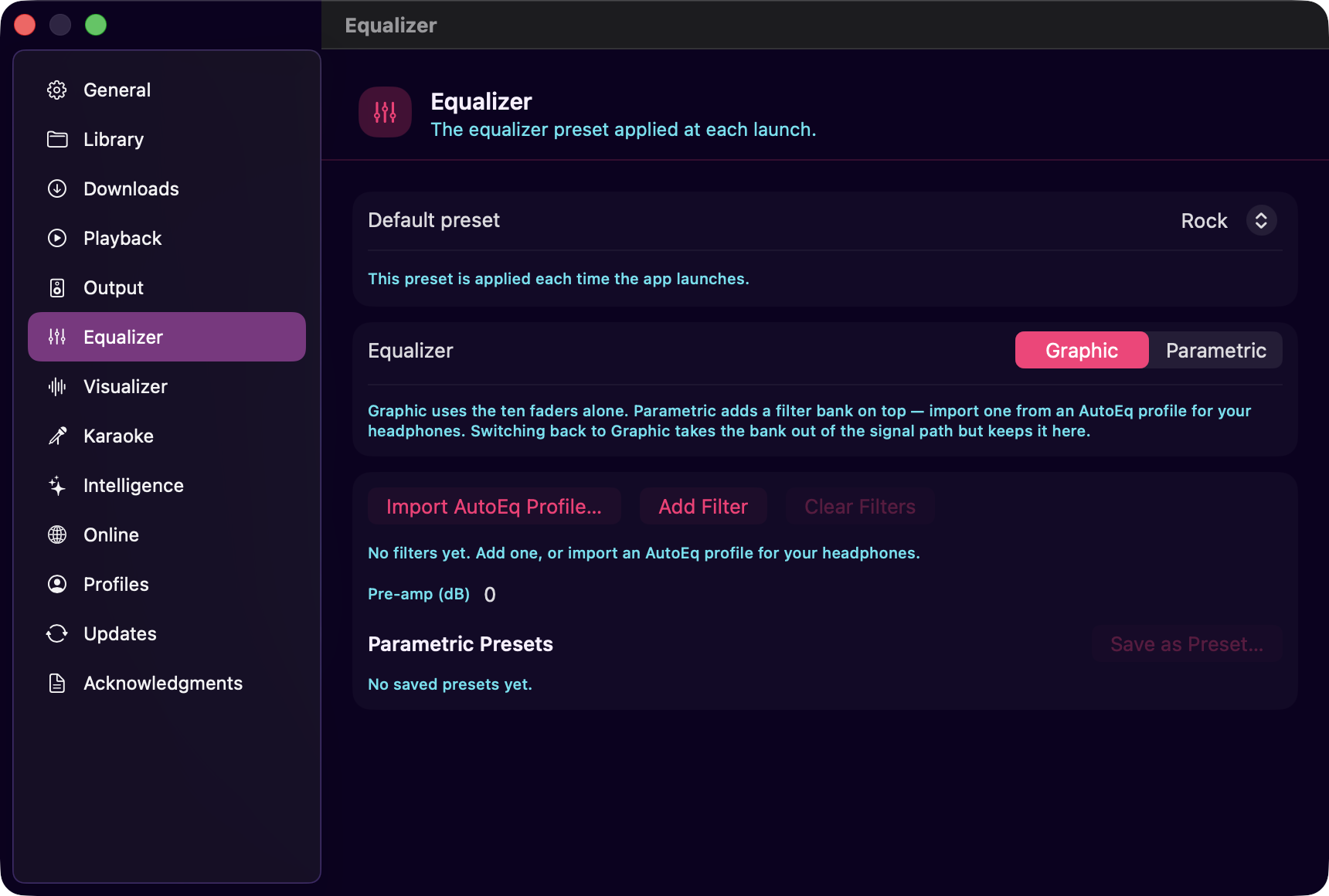
| Setting | Options | Default |
|---|---|---|
| Default Preset | Any named preset | Flat |
Sets the EQ preset applied when MacAMP launches. Changing this also applies the preset immediately to the live engine.
Visualizer
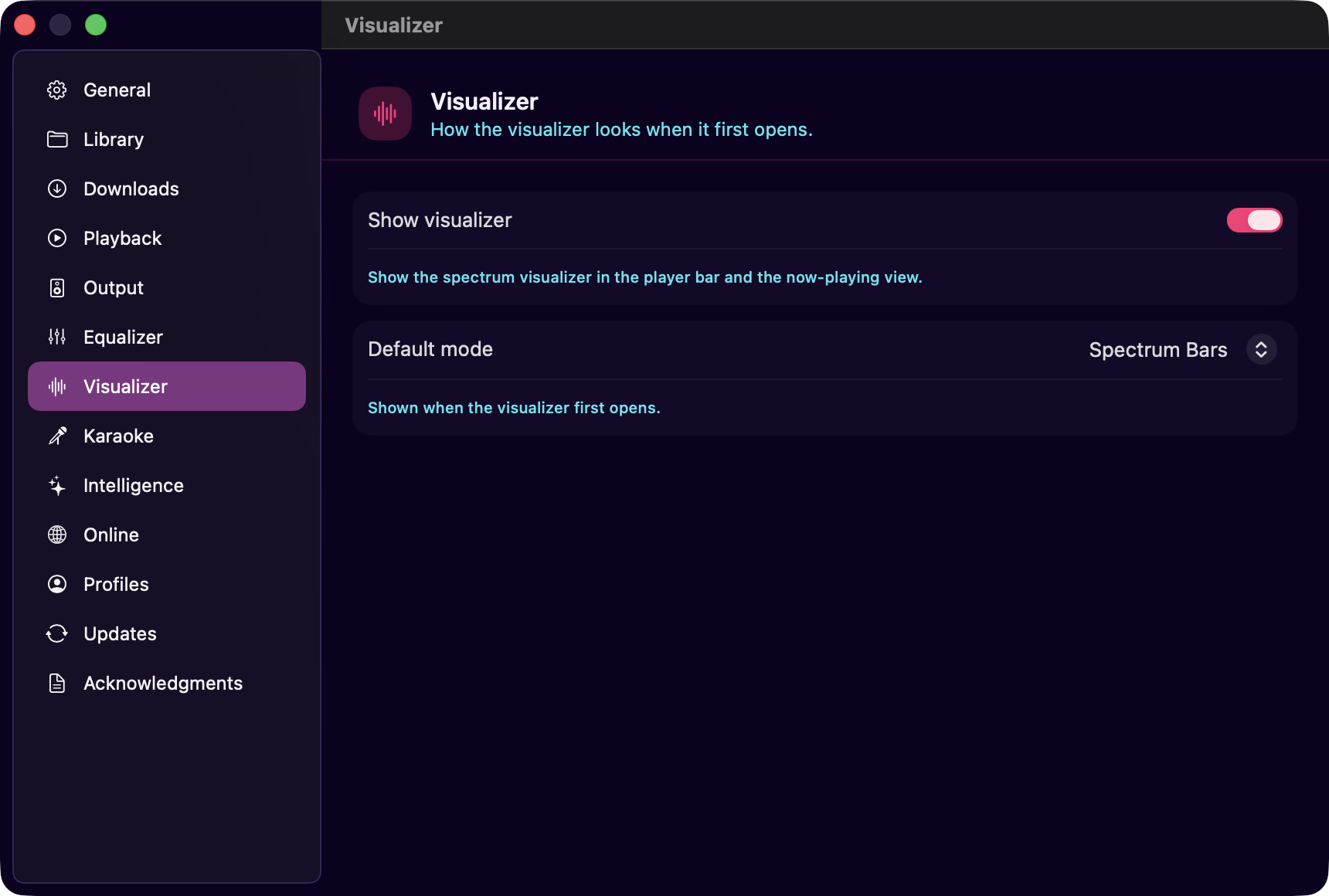
| Setting | Options | Default |
|---|---|---|
| Show Visualizer in Player Bar | On / Off | On |
| Default Mode | Bars / Oscilloscope / Particles / Aurora | Bars |
Show Visualizer in Player Bar toggles the spectrum in the player bar and the expanded player.
Default Mode sets the visualizer mode on launch and switches the current display immediately.
Karaoke
The Karaoke pane controls vocal removal. See Karaoke Mode for the full feature guide.
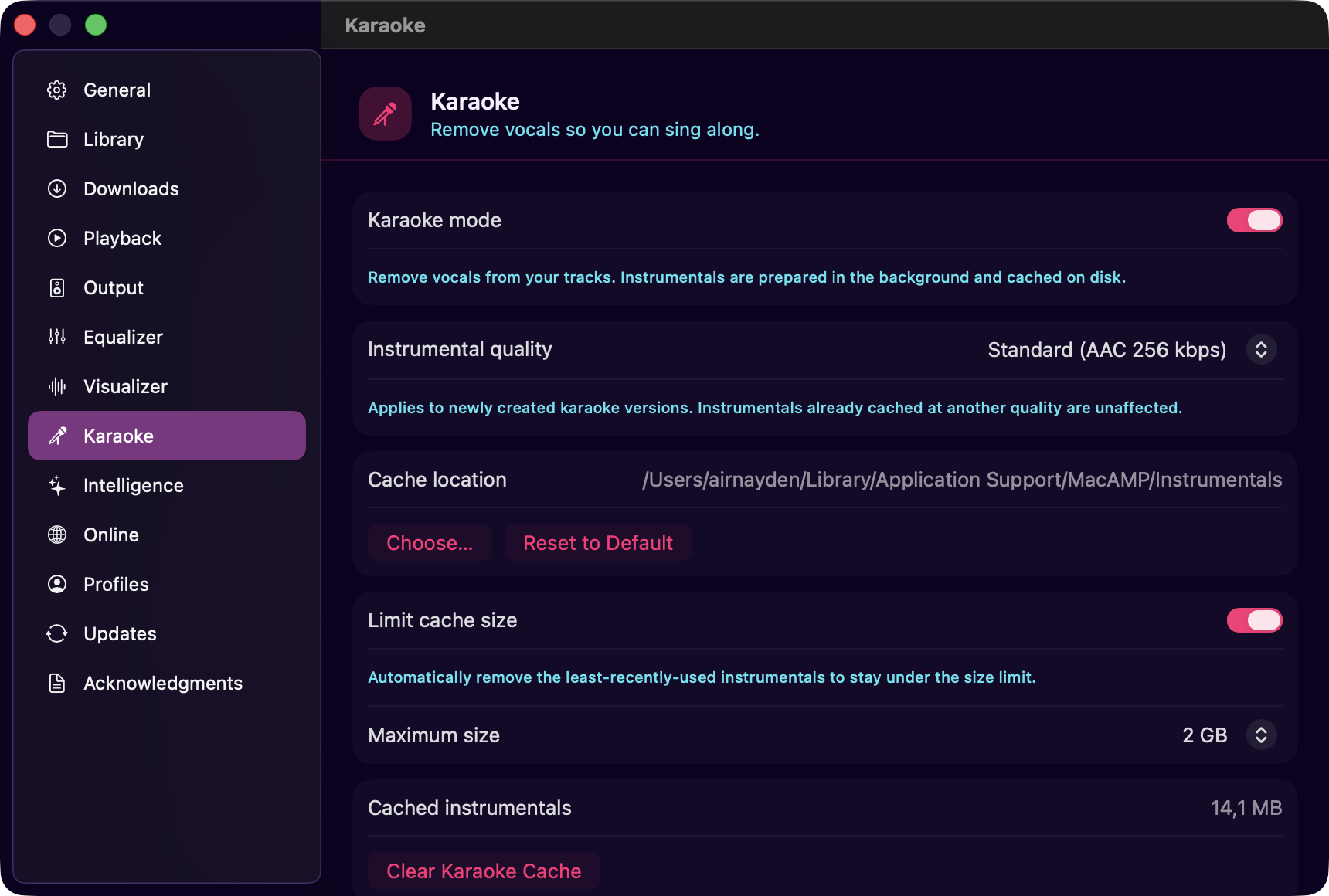
| Setting | Options | Default |
|---|---|---|
| Karaoke mode | On / Off | Off |
| Instrumental quality | Standard (256 kbps AAC) / High (24-bit ALAC) | Standard |
| Cache location | Any folder | ~/Library/Application Support/MacAMP/Instrumentals/ |
| Limit cache size | On / Off | Off |
| Cache size cap | 1 / 2 / 5 / 10 GiB | 2 GiB |
Intelligence
The Intelligence pane controls MacAMP's AI assistant and the features it powers. See AI Features for the full feature guide.
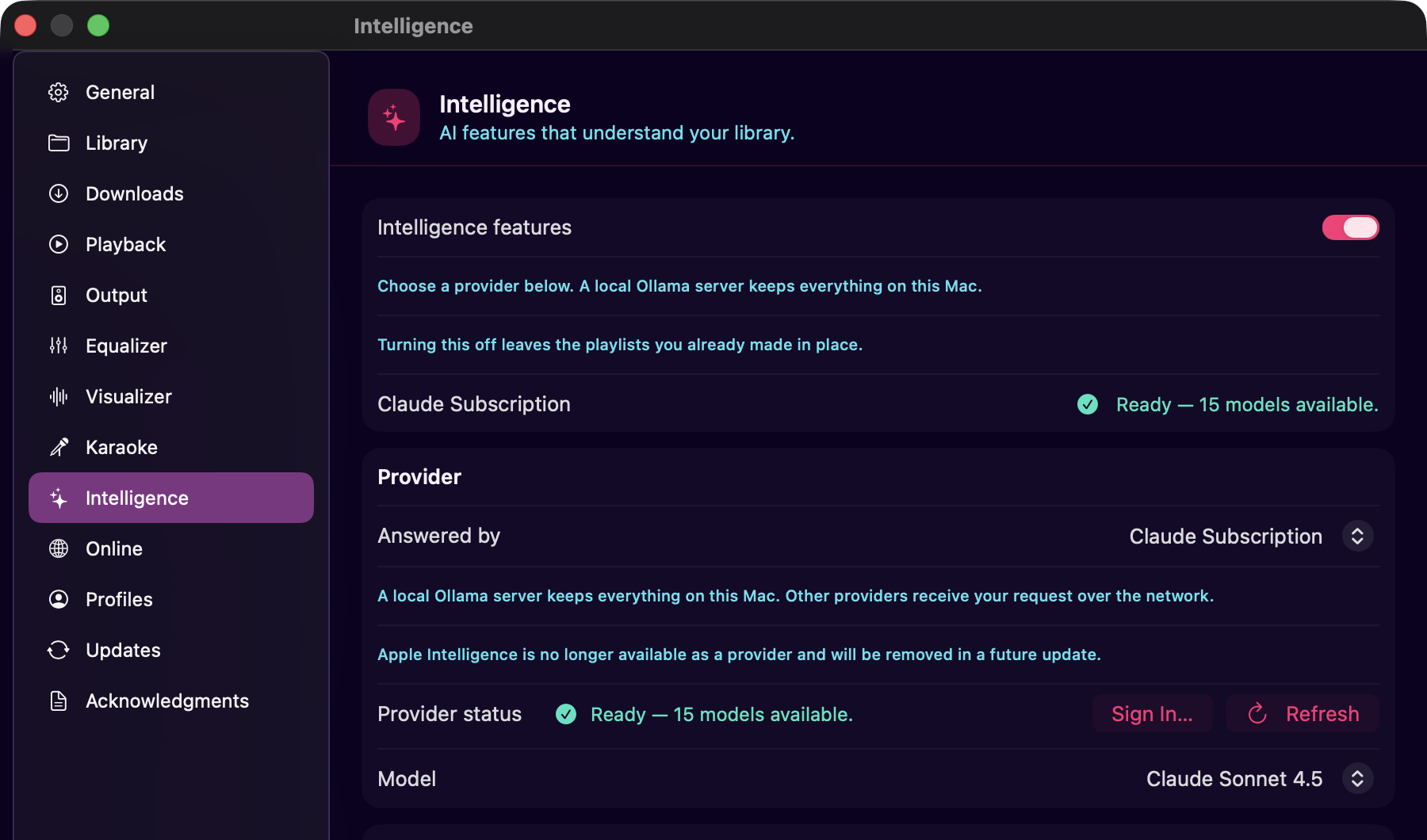
The pane has five sections:
Enable — the master Intelligence toggle. Until you connect a provider, MacAMP's built-in matcher answers single-shot requests on your Mac; multi-turn chat requires a provider with library-browsing consent.
Provider — choose who answers your requests. The picker lists None (built-in matcher) and five providers. Apple Intelligence is no longer offered and will be removed in a future update:
| Provider | Setup |
|---|---|
| Ollama | Host address (default http://127.0.0.1:11434), optional API key |
| Anthropic Claude | API key (stored in Keychain) |
| OpenAI | API key (stored in Keychain) |
| Claude Subscription | Sign in with a Claude Pro or Max account |
| ChatGPT | Sign in with a ChatGPT subscription via browser |
Switching the provider takes effect immediately. A model picker appears once a provider is connected; Automatic lets the provider choose.
Providers that send data off your Mac (everything except a local Ollama server) show a second consent sheet the first time you start a chat conversation. That sheet covers the library-browsing scope — what the model may look up during the session — and is separate from the one-time setup consent. See AI Features for the full breakdown.
Features — six individually toggleable bundles: NL Creation (assistant requests and chat), Auto Mixes (Surprise Me), Organization (Organize playlist actions), Rediscovery, Insights, and Hygiene (Library Health). All are on by default when Intelligence is enabled; turn any off to hide that feature.
Playback Control — lets the in-app assistant start and stop playback, skip tracks, and read what's currently playing. On by default. Turn it off for a read-only assistant that can search and propose playlists but never touch the player.
| Setting | Options | Default |
|---|---|---|
| Playback Control | On / Off | On |
Audio Analysis — opt-in background pass that extracts tempo, energy, and
brightness from your tracks. Powers Reorder by Energy and the sample_tracks
tool the AI uses for mood-based requests. Shows library coverage and a
Start / Re-analyze / Cancel control.
External Access — the built-in MCP server that lets external AI clients browse your library and file proposals for review inside MacAMP. Off by default; requires a one-time disclosure before first use. See External Access for the full guide.
| Setting | Options | Default |
|---|---|---|
| Allow external access | On / Off | Off |
| Allow control access | On / Off | Off |
| Port | Any valid port | 46114 |
Online
| Setting | Options | Default |
|---|---|---|
| Online data | On / Off | On |
| Online lyrics | On / Off | On |
| Auto-enrich on import | On / Off | On |
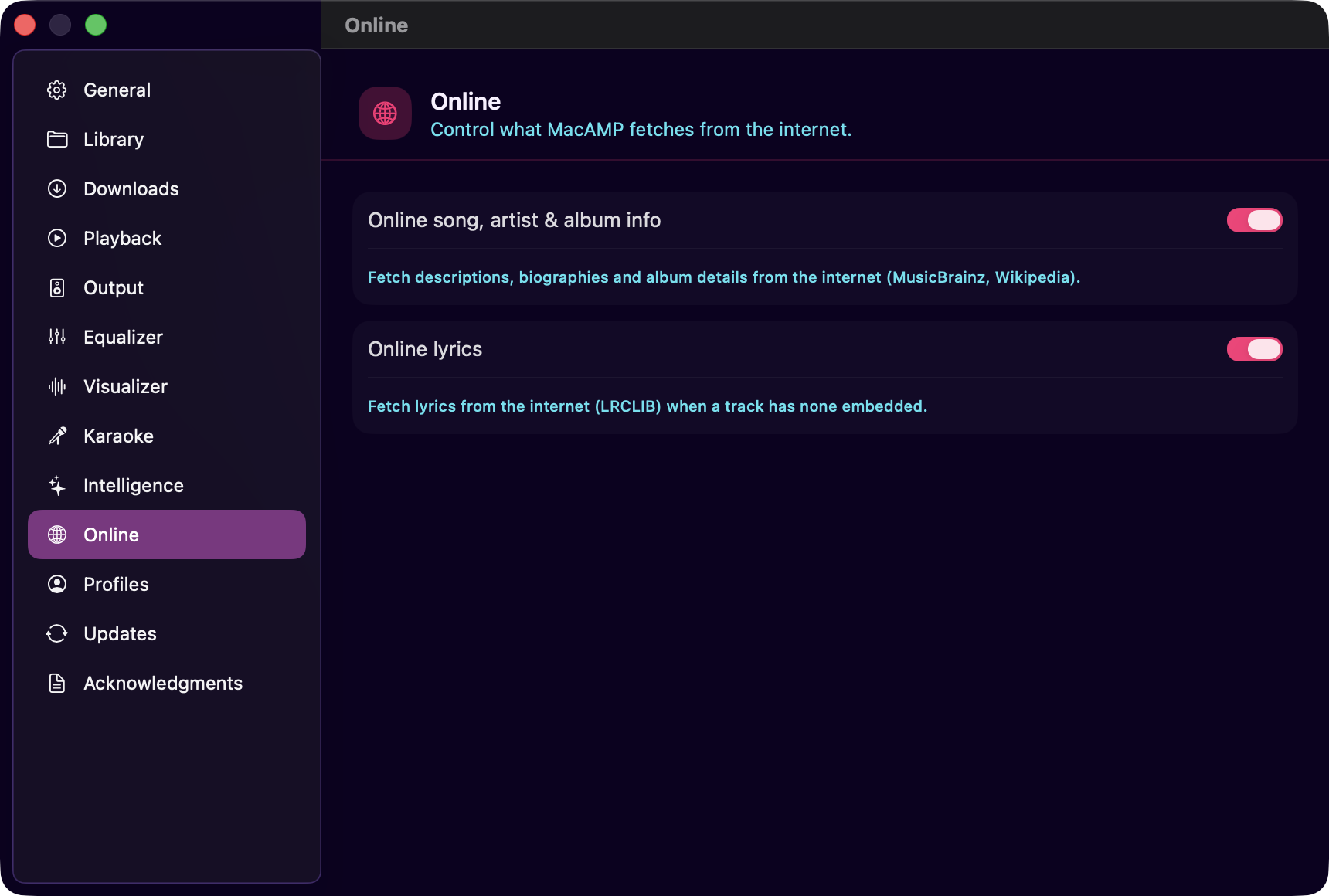
Online data enables background enrichment (artist bios, album notes from MusicBrainz and Wikipedia). Turning it off also disables online lyrics.
Online lyrics controls whether MacAMP queries LRCLIB when no local lyrics are found. Offline sources (embedded tags and .lrc files) are always tried first regardless of this setting.
Auto-enrich on import starts the enrichment service automatically after a library scan completes.
Profiles
Manage per-profile libraries and listening stats. Each profile has its own library roots, favourites, play history, and replay heatmaps.
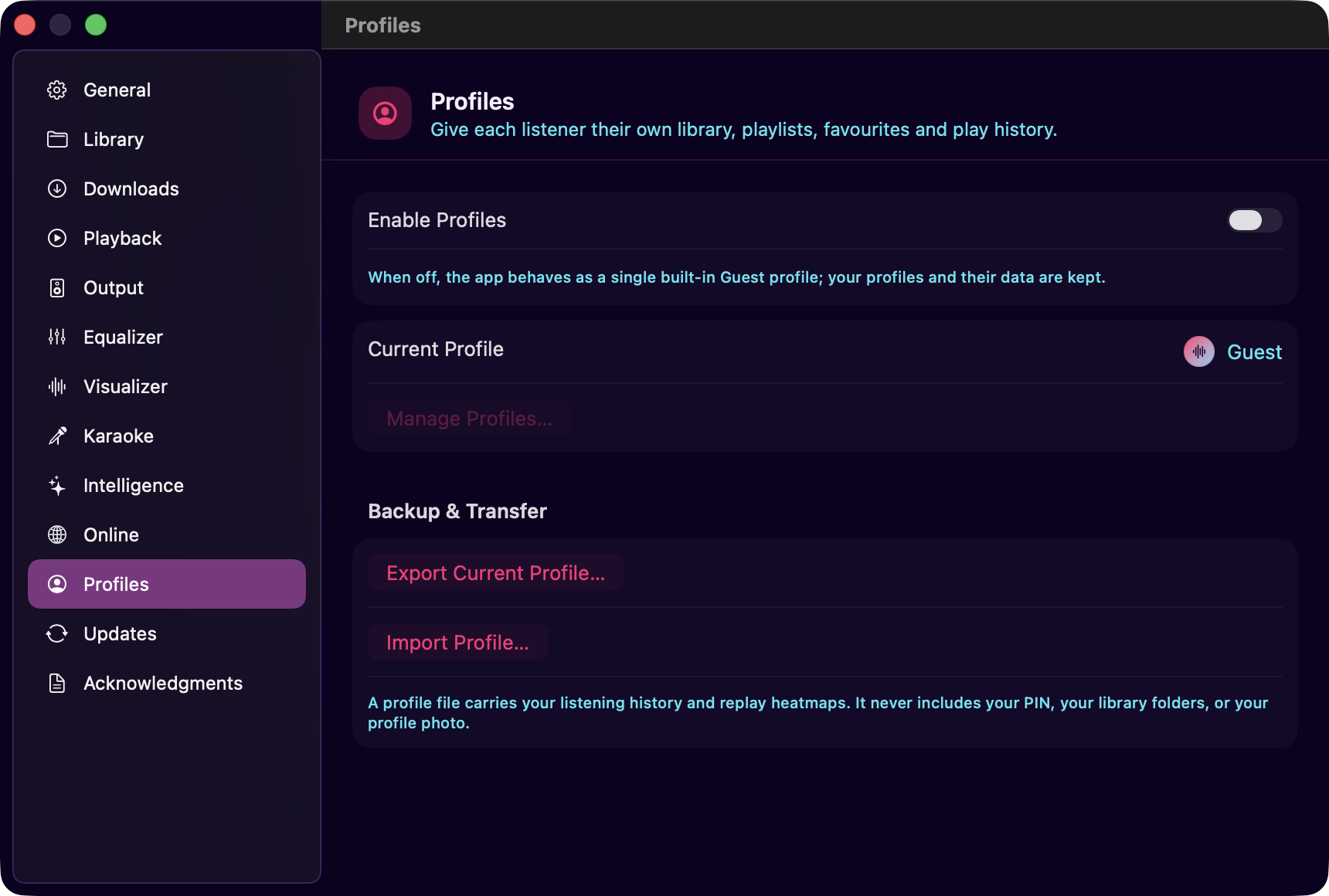
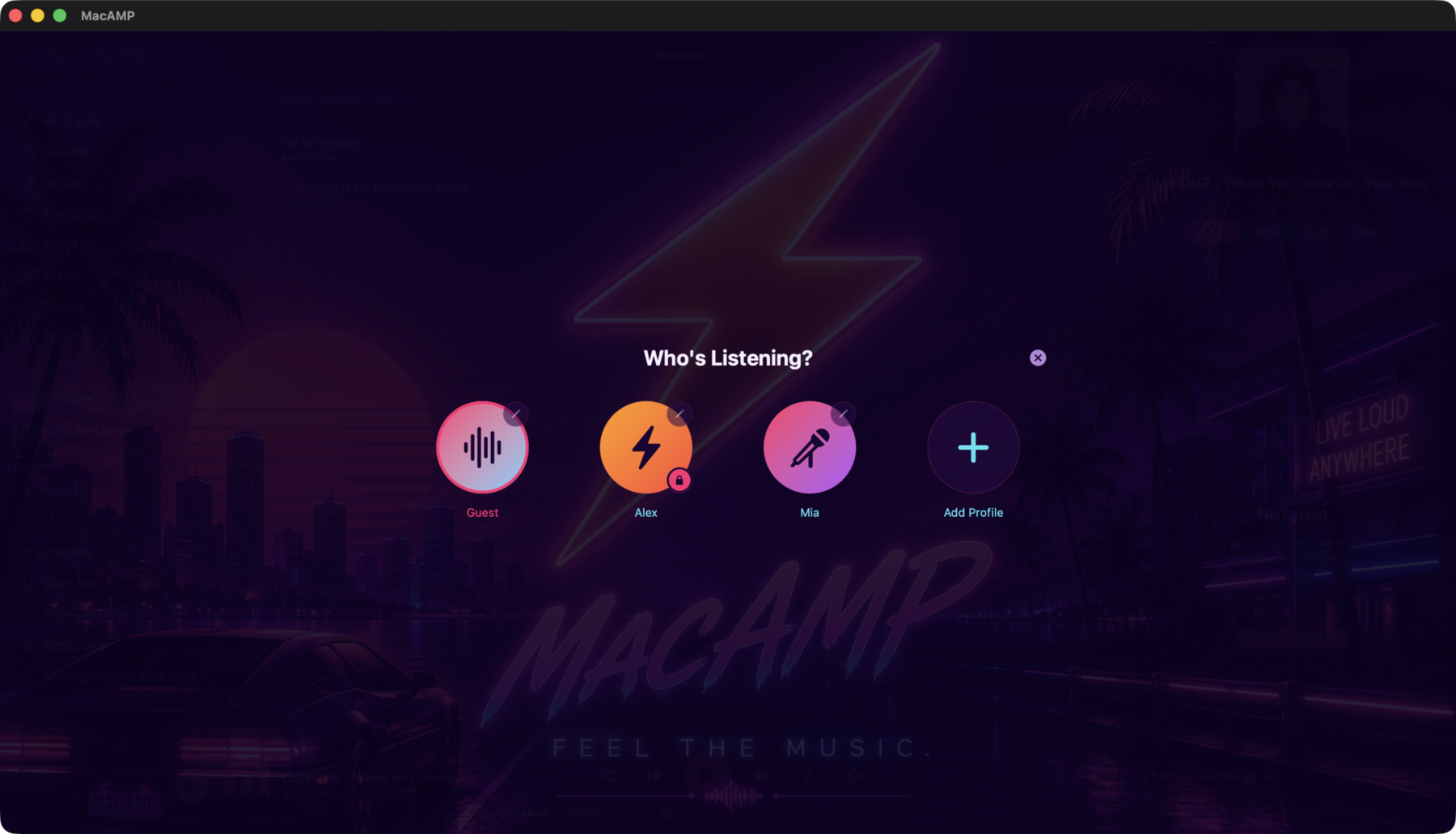
- Create Profile — add a new profile with a name and optional avatar.
- Switch Profile — click a profile row to make it active.
- Export Profile — save a
.macampprofilearchive containing the profile's stats, favourites, and optionally its settings and EQ presets. See Listening Stats for details. - Import Profile — load a
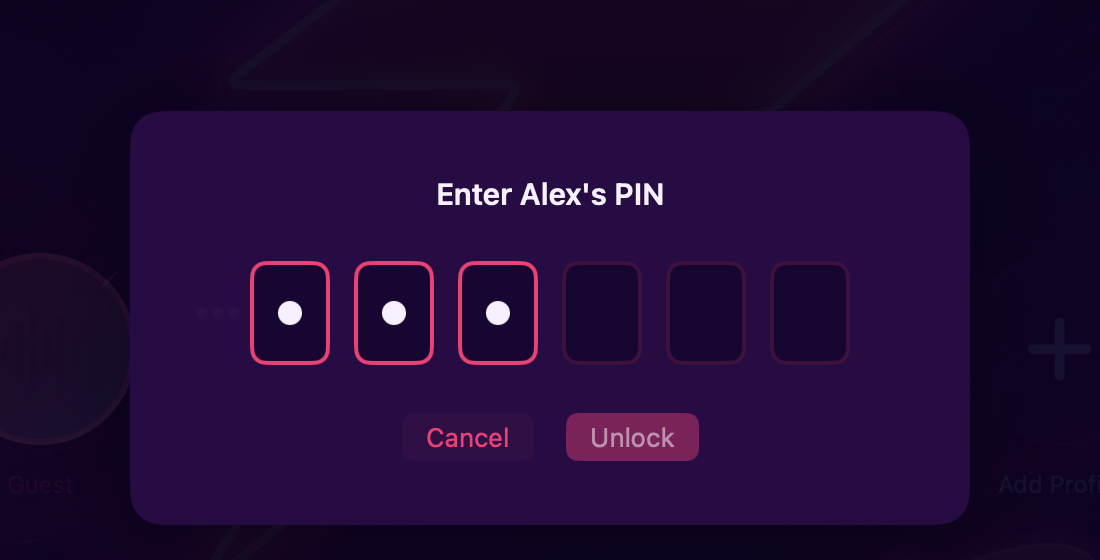
.macampprofilefile as a new profile. - PIN — set a short PIN to gate switching away from a profile (soft child-proofing; no recovery if forgotten).
Updates
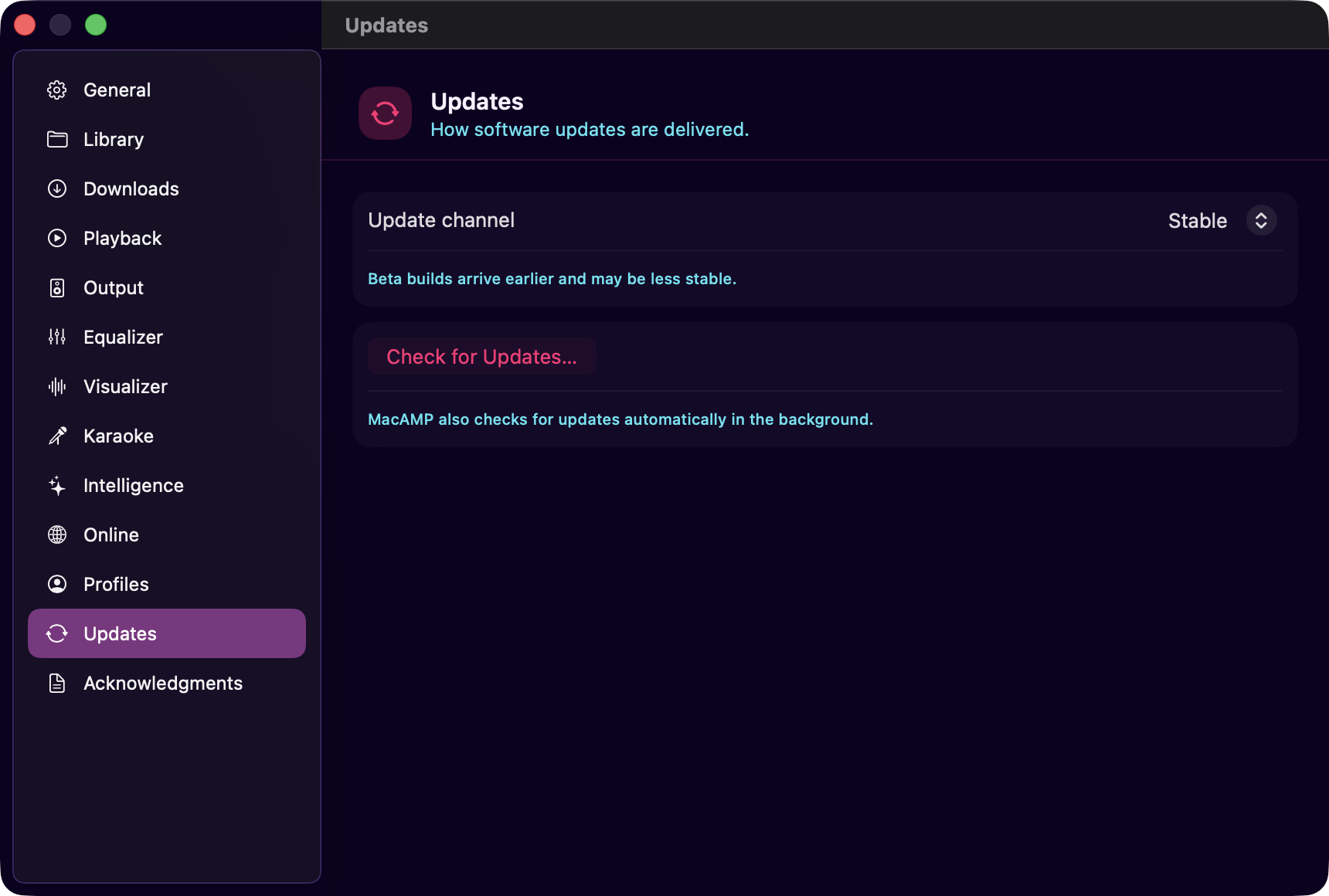
How software updates are delivered. macOS only — macampiOS has no public release yet.
| Setting | Options | Default |
|---|---|---|
| Update channel | Stable / Beta | Stable |
Update channel — Stable offers finished releases only. Beta additionally offers pre-release builds: newer features, more rough edges. Switching back to Stable stops offering betas; it does not downgrade a beta you already installed.
Check for Updates… runs a check right now and reports the outcome either way, including "you're up to date" and network errors. The button greys out only while a check is already in flight. MacAMP also checks automatically in the background — that runs silently unless there's something to install.
Every update is cryptographically signed and verified before it installs; anything that fails verification is discarded. See Install and First Open for the full update story.
Acknowledgments
Lists the open-source libraries bundled with MacAMP, with their licenses. The list includes the projectM section only in the DMG build.
iOS — Settings screen
Tap the Settings tab (gear icon) to open the settings screen.
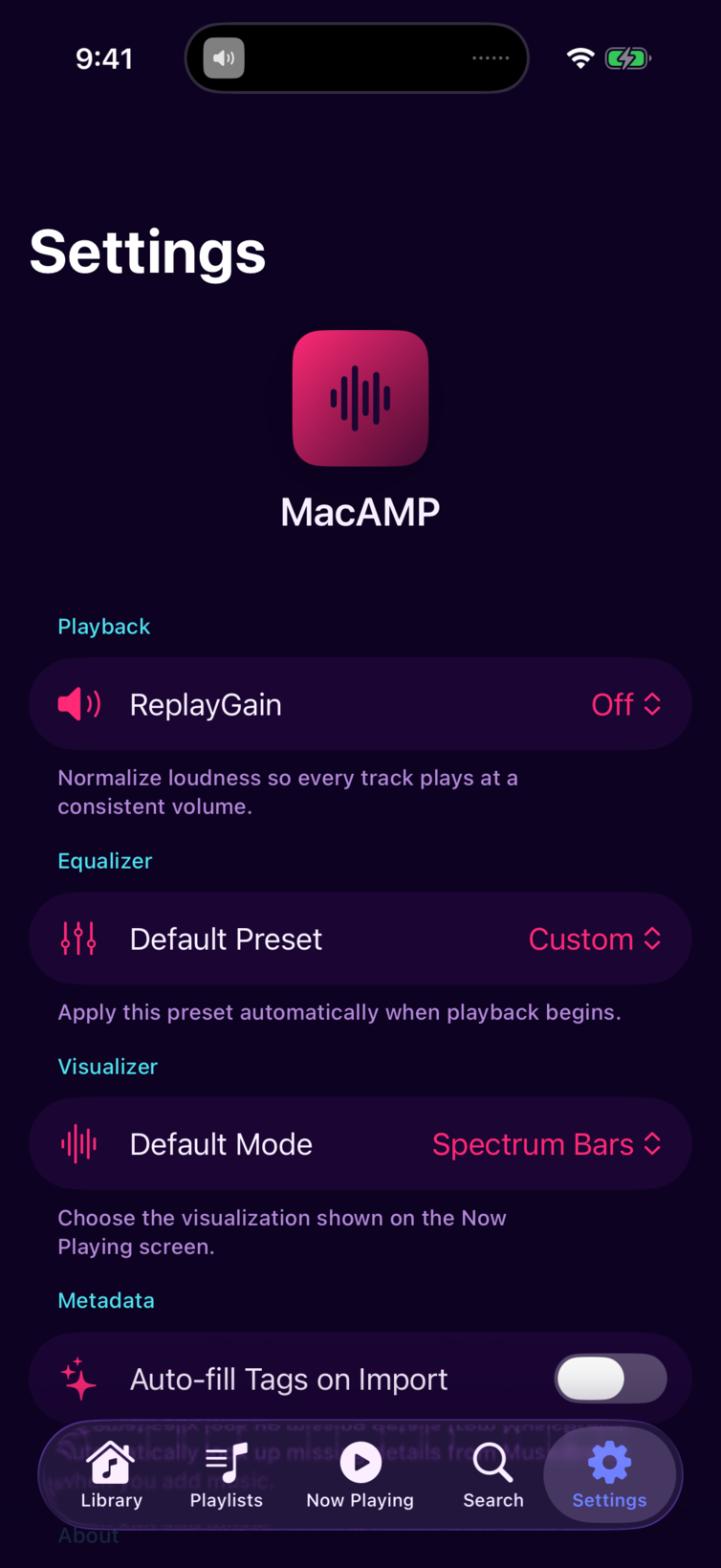
Playback
| Setting | Options | Default |
|---|---|---|
| ReplayGain | Off / Track / Album | Off |
Equalizer
| Setting | Options | Default |
|---|---|---|
| Default Preset | Any named preset / Custom | Flat |
Visualizer
| Setting | Options | Default |
|---|---|---|
| Default Mode | Bars / Oscilloscope / Particles / Aurora | Bars |
Metadata
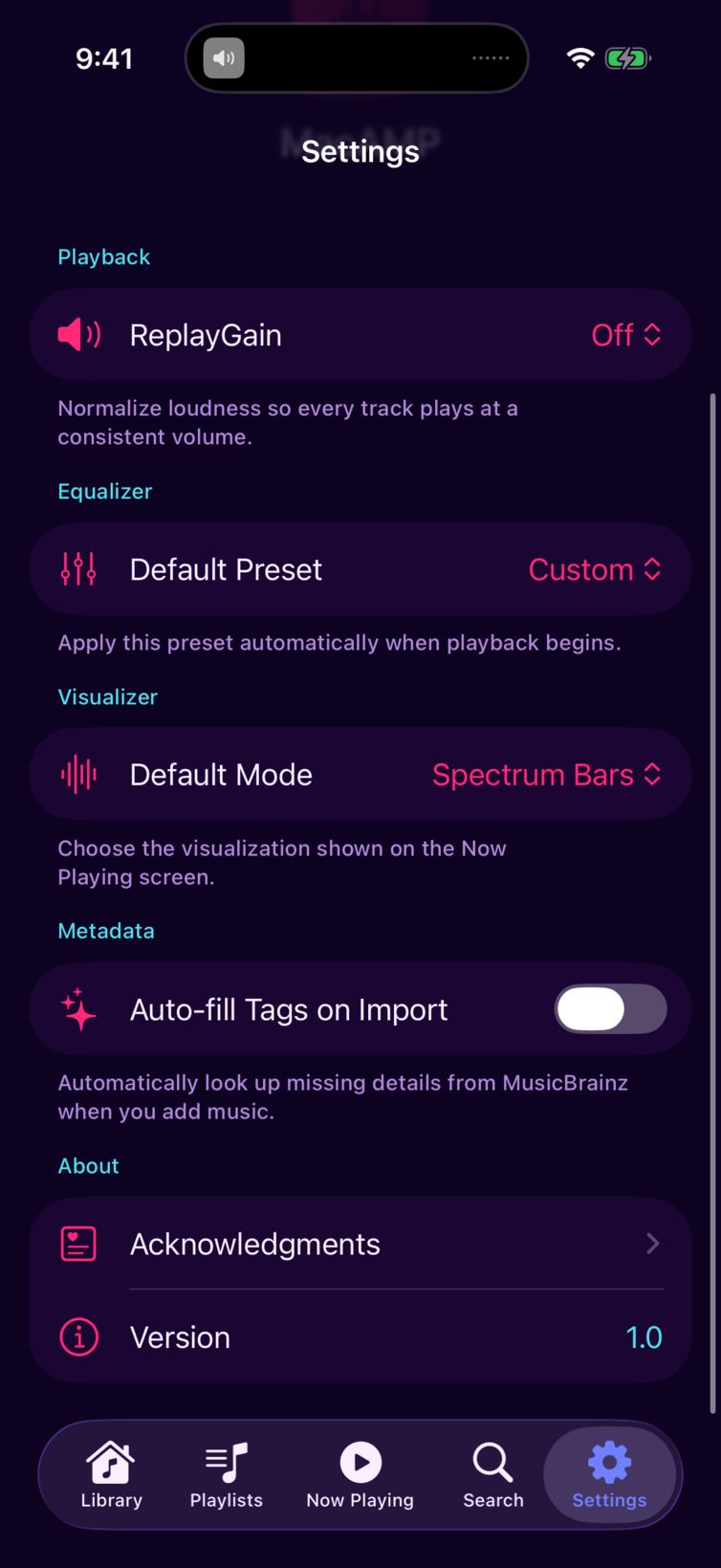
Auto-fill Tags on Import is off by default. When enabled, new imports can fetch missing tags and lyrics from online services. While enrichment runs, this section shows a progress count and bar.
About
Shows the MacAMP version number and a link to the Acknowledgments screen listing bundled open-source libraries.
The following features are macOS only and have no equivalent in the iOS app: output device picker, auto sample rate, loudness scanning and tag writing, crossfeed, and parametric EQ.