
External Access (MCP Server)
How to let external AI agents browse your library and file playlist proposals through MacAMP's built-in MCP server.
MacAMP includes a local MCP server (Model Context Protocol) that lets external programs — desktop AI clients, custom scripts, automation tools — browse your library metadata and file playlist proposals for review inside the running app.
macOS only. The MCP server is part of the macOS build. It is not available in the iOS app.
Intelligence must be on. External access requires the master Intelligence toggle to be enabled, because the only thing an external agent can write is a proposal, and proposals are reviewed in the Assistant pane — which doesn't exist when Intelligence is off.
Enabling the server
- Open MacAMP > Settings > Intelligence.
- Scroll past the Provider section to External Access.
- Toggle Allow external access on.
- The first time you enable it, a disclosure sheet explains what external programs can see. Read it and click Accept to proceed.
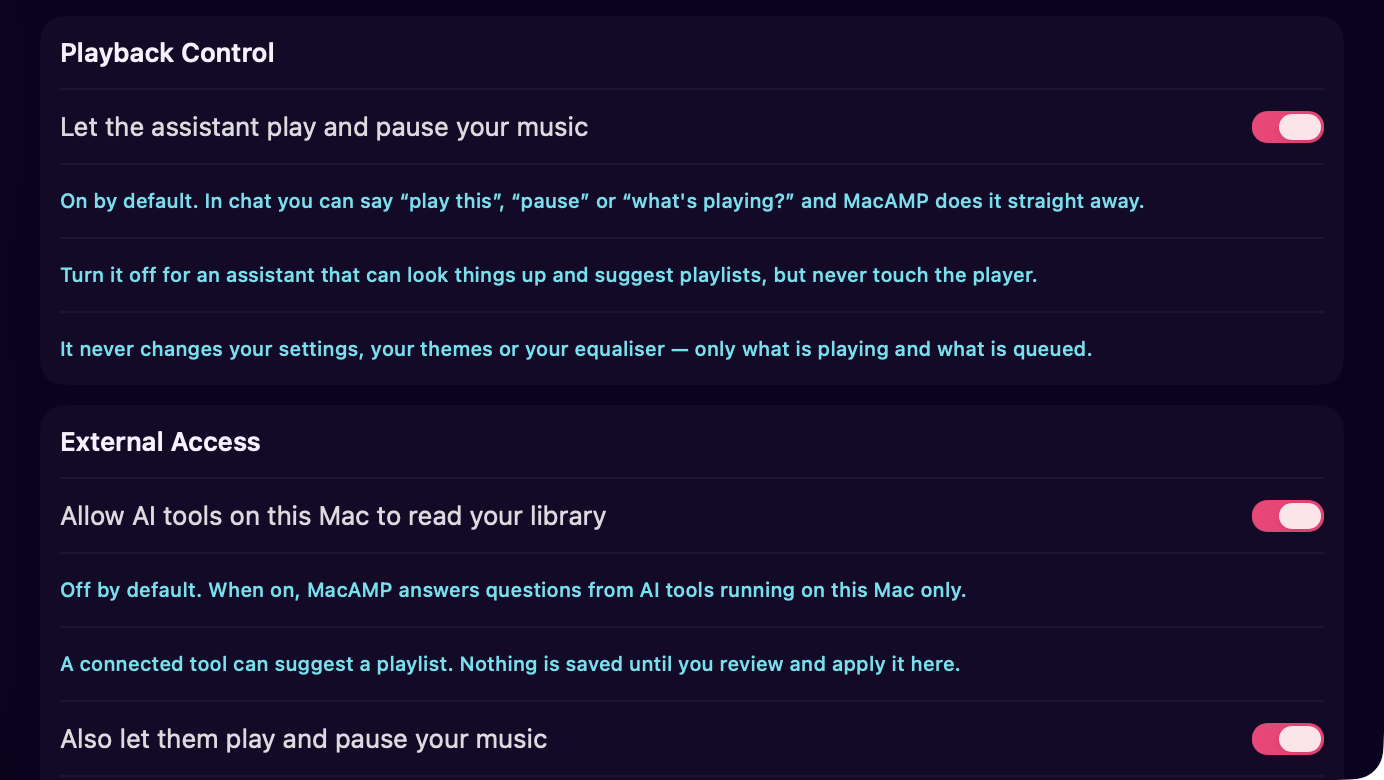
Once enabled, a status row shows the address external clients should connect to
(http://127.0.0.1:46114 by default).
The server is off by default and stays off across relaunches until you explicitly turn it on.
The disclosure
Before the server starts for the first time, MacAMP shows a disclosure that's different from the one you saw when setting up a cloud provider.
The key difference: MacAMP cannot identify which program is connected. Any program running as your user account on this Mac can connect while the toggle is on. The sheet says this in plain terms so you know what you're allowing.
What an external agent can access is the same set of library tools the in-app cloud connectors use, but with higher per-result caps (up to 100 rows per lookup, up to 16 KB of text per tool result). File paths are never included — that guarantee is identical across every path.
Connecting a client
The server speaks MCP over streamable HTTP
on loopback. The server name is MacAMP. It advertises ten metadata tools by
default; when the Playback Control grant is on (see
Playback control access below), four control tools
are added for a total of fourteen.
Older clients that send the MCP 2025-06-18 or earlier spec version are served without any changes on your end — the server negotiates the protocol version down automatically.
Generic configuration
{
  "mcpServers": {
    "macamp": {
      "url": "http://127.0.0.1:46114"
    }
  }
}
Most MCP-compatible clients accept a configuration file in this shape. Check your client's documentation for the exact file location.
Claude Desktop
In ~/Library/Application Support/Claude/claude_desktop_config.json:
{
  "mcpServers": {
    "macamp": {
      "url": "http://127.0.0.1:46114"
    }
  }
}
Restart Claude Desktop after saving. You should see a MacAMP entry in the available tools list.
Inspector (for testing)
The official MCP inspector lets you browse and call tools interactively without a full client:
npx @modelcontextprotocol/inspector http://127.0.0.1:46114This opens a browser UI where you can call any tool and inspect the response.
Custom port
If port 46114 is already in use, change it in Settings > Intelligence > External Access > Port. The status row updates to show the new address. There is no automatic fallback to another port — if the configured port is taken, the status row says so and the server doesn't start.
What external agents can do
External agents have access to the same ten library tools the in-app assistant uses. The tools cover:
- Searching your tracks by title, artist, or album text.
- Listing genre counts across your library.
- Getting track details by ID, including metadata and audio features (tempo, energy, brightness — where analysis has run).
- Listing and reading playlists by name and membership.
- Sampling tracks filtered by genre, year range, tempo range, or energy range.
- Checking your listening stats for a chosen time window (7 days, 30 days, 12 months, or all time).
- Filing a playlist proposal for review inside the MacAMP app.
Result sizes are higher than in-app: up to 100 rows per lookup, up to 16 KB of text per result. File paths are never included in any result, on any tool, at any result size.
When the Playback Control grant is on (see below), four additional tools become available: read the current playback state, start playing tracks by ID, queue tracks, and send transport commands (play, pause, next, previous, stop). Those four tools are not present in the tool list at all when the grant is off — a client that names one gets an unknown-tool error that enumerates only the ten it was offered, so the control tools can't be guessed from the error.
The tool list doesn't send listChanged notifications because the list doesn't
change at runtime — a profile switch changes which tracks are visible, not which
tools exist.
Playback control access
By default, external agents can only read your library and file proposals. Taking the transport is a different kind of action: an unnamed local process can start or stop your music without any further confirmation. That's why the control grant has its own toggle, off by default.
To enable it:
- Open MacAMP > Settings > Intelligence.
- Scroll to External Access.
- Turn on Allow control access.
When this toggle is on, the four control tools (get_playback_state,
play_tracks, queue_tracks, transport) appear in the tool list alongside the
ten metadata tools. Turning it back off removes them immediately — the next
tools/list call returns ten again.
The control tools act immediately on your player, not as proposals. Every response states what actually happened, because the player's state is what matters — not what the tool intended. A track ID that isn't in the active profile's library is refused by name; a partially valid list plays what it can and names what it skipped.
Settings (EQ, theme, preferences) stay off-limits at every tier. There is no tool that mutates a MacAMP setting.
What external agents cannot do
- Write anything directly to your library. The only write tool is
propose_playlist, which files a proposal into the review queue. Nothing is applied until you open the proposal in MacAMP and click Apply. - Control playback by default. The four playback-control tools are absent unless you turn on Allow control access in Settings. That toggle is off by default.
- Change any setting. Theme, EQ, and preferences are permanently off-limits.
- Read file paths. Every result is built by a rendering layer that never
touches
filePathfields. This is verified by automated privacy tests on every build. - Access audio data, artwork, or lyrics.
- Reach anything outside the loopback interface. The server binds to
127.0.0.1only. Nothing on the network or another machine can connect, even if your firewall allows it.
Proposals from external agents
When an external agent calls propose_playlist, the proposal appears in the
Waiting for you section at the top of the Assistant pane feed. Click the card
to open the same review sheet you'd see for an in-app proposal: track list with
checkboxes, a running selected count, and an Apply button. Nothing is saved until
you click Apply.
Proposals from external agents work identically to proposals from the in-app assistant. Accepting, modifying, or discarding them requires no extra steps.
Troubleshooting
"Connection refused" when trying to connect
External access is probably off. Check the toggle in Settings > Intelligence > External Access. If it's on, check that the status row shows Running and that your client is connecting to the correct address and port.
The status row shows "Port unavailable"
Another process is using port 46114. Change the port in Settings, or identify and stop the conflicting process. MacAMP will not pick a different port automatically.
I enabled external access but don't see any proposals
The agent needs to call propose_playlist explicitly. Browsing tools (search,
list genres, sample, etc.) read your library but don't create proposals on their
own. Check your agent's configuration or script to confirm it's calling
propose_playlist with a name and a list of track IDs.
Do I need to keep a session open?
No. The server is stateless: it never issues an Mcp-Session-Id, never asks
for one, and every request stands on its own. There is nothing to keep alive,
nothing to expire, and no limit on how many clients may connect. A client that is
killed leaves nothing behind, and the next one connects as if it were the first.
Two consequences worth knowing if you are writing a client by hand:
GETandDELETEreturn405 Method Not Allowed(withAllow: POST). There is no server-sent-events stream to open, and no session to delete. Clients that send aDELETEon quit simply get a 405 and exit cleanly.- Responses are plain JSON, not SSE frames. Send
Accept: application/json— the usualapplication/json, text/event-streampair that MCP clients send is also fine.
Toggling Intelligence off stops the server
External access requires Intelligence to be on. Turning off the master Intelligence toggle also stops the MCP server — the status row in External Access reflects this. Turn Intelligence back on to restart the server (assuming External Access is still enabled).
AI Features
How MacAMP's AI assistant works, how to chat with your library, what tool-activity rows mean, how to pick a provider, and how to troubleshoot common issues. AI features are macOS only.
Listening Stats
What MacAMP tracks about your listening, how long it keeps the data, how stats survive library changes, the scrubber heat overlay, and how to export and import your stats with a profile archive.