
Importing Music
How to add your music library to MacAMP on macOS and iOS.
macOS — adding library folders
MacAMP watches folders for changes using FSEvents. Add a folder once and every new file you drop into it appears in the library automatically.
Add a folder
- Open MacAMP > Settings (or press ⌘,).
- Select Library in the Settings sidebar.
- Click Add Folder (the + button at the bottom of the pane).
- Choose a folder in the file picker and click Open.
MacAMP immediately scans the folder and imports every supported audio file it finds. A progress indicator appears in the Library pane while the scan runs.
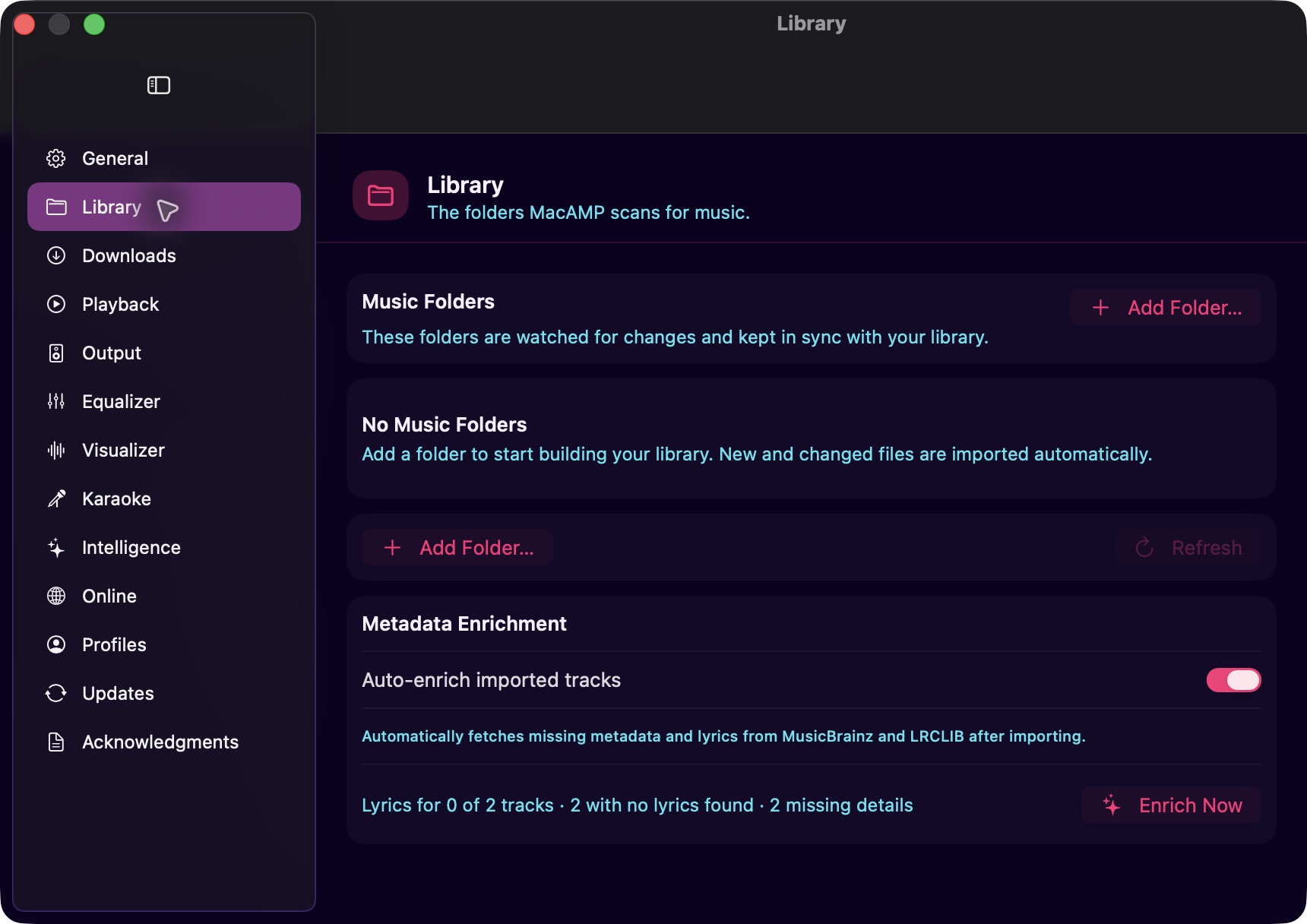
Folder access status
Each folder in the list shows a status badge:
| Badge | Meaning |
|---|---|
| Green checkmark | Folder is readable |
| Yellow triangle | macOS denied access (TCC) |
| Red X | Folder no longer exists |
If a folder shows a yellow triangle, click Open System Settings in the banner that appears, then grant MacAMP Full Disk Access or Files and Folders access under Privacy & Security.
Remove a folder
Click the trash icon next to any folder in the Library pane. MacAMP stops watching the folder and removes its tracks from your library, together with their play history and playlist entries. Your files on disk are never touched, so adding the folder again brings the tracks back as new.
If another profile still has the same folder, or the folder sits inside one that's still in your library, its tracks stay.
FSEvents live watching
Once a folder is added, MacAMP watches it with FSEvents. Drop new files into the folder and they appear in the library within a few seconds, no manual rescan needed.
iOS — document picker and bookmarks
iOS uses the standard document picker to import files and folders. MacAMP persists a security-scoped bookmark for each picked root so it can re-open the same location on future launches without asking again.
Import files or folders
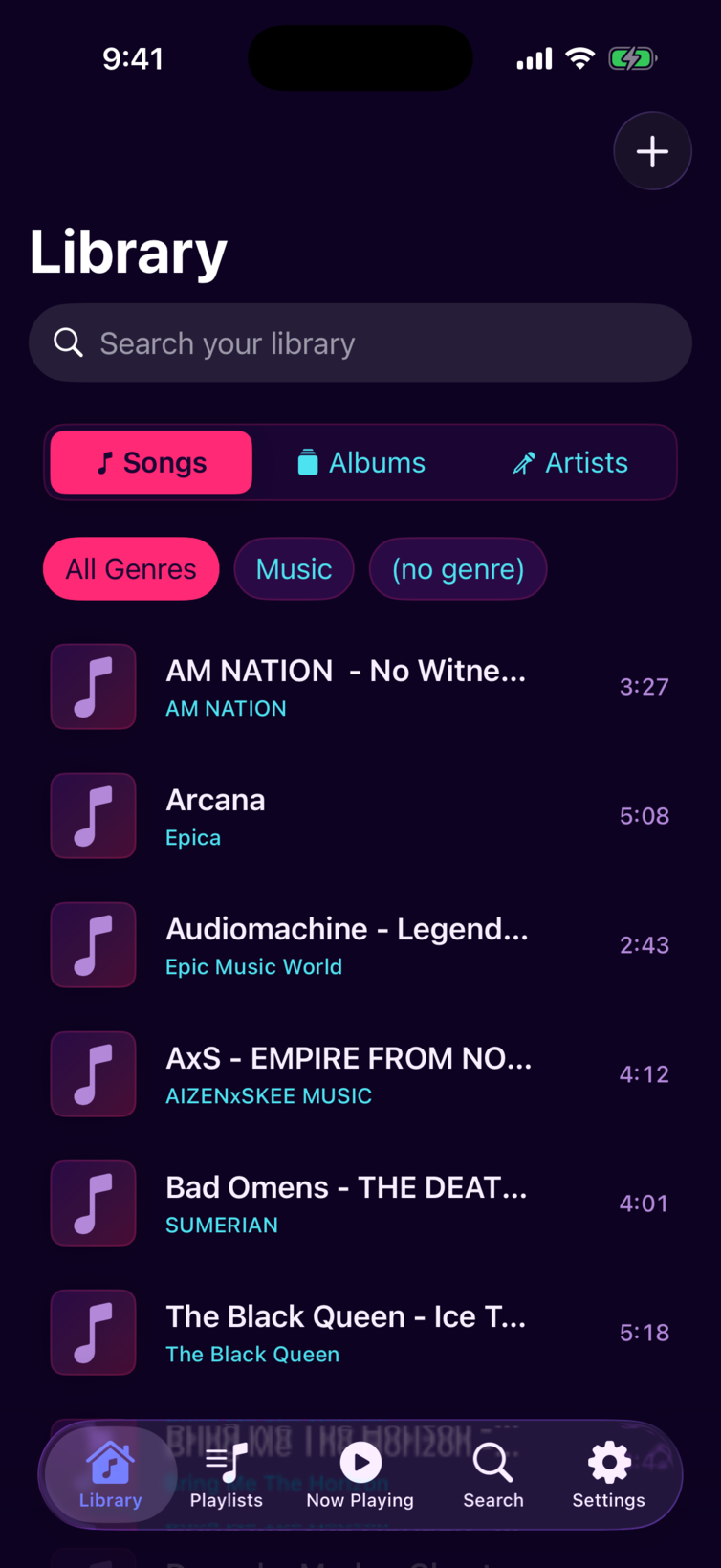
- Open the Library tab.
- Tap the + button in the top-right corner of the navigation bar.
- The system document picker opens. Navigate to your music files or a folder containing them.
- Tap a file or folder to select it, then tap Open.
MacAMP imports the selection and shows a progress indicator while scanning. You can import individual files or entire folder trees.
iCloud Drive and file providers
If your music lives in iCloud Drive or another file provider, MacAMP triggers a download for any file that isn't yet on-device before scanning it. Large libraries may take a moment while files download.
Bookmarks
MacAMP saves a security-scoped bookmark for each picked root and keeps access active while it runs. It restores that access on launch. If a provider revokes access or the location moves, select the file or folder again.
Supported import sources
- Local device storage (On My iPhone / On My iPad)
- iCloud Drive
- Any Files app provider (Dropbox, Google Drive, etc.)
- USB drives connected via the Files app (iPadOS)
Track availability
Tracks that were imported but whose files are no longer accessible show a status badge in the library:
| Badge | Meaning |
|---|---|
| Yellow triangle | File is missing (moved or deleted) |
| External drive icon | File is on an unmounted volume |
MacAMP never deletes library rows when media goes offline. The track stays in your library until you remove it. Reconnect the drive or restore the file and the badge clears automatically.
CUE sheets
A .cue sidecar file next to an audio file (a common layout for single-file album rips) tells MacAMP where each track begins and ends. When MacAMP finds a .cue file during a scan or via FSEvents, it imports each cue-defined track as its own library row with the correct title, artist, and duration from the sheet. Playback transitions between cue tracks are genuinely gapless — the disc image plays as a single continuous file.
If the audio file was already in the library before the .cue appeared — as a single whole-file entry — that original row is kept and not deleted. It becomes hidden from browsing once the cue-derived tracks take over, so existing playlist entries and favourites referencing that file continue to work.
Verifying file integrity
Right-click one or more tracks in the library and choose Verify Files… to open the integrity report. MacAMP runs two checks on each selected file:
- Checksum (FLAC only) — decodes the file and compares the output against the embedded MD5 hash. A mismatch means the stored audio data does not match what was originally encoded; a pass means the file is bit-for-bit intact.
- Spectral analysis (all files) — inspects the frequency content for the band-limiting a lossy encoder leaves behind. This is a heuristic: it flags files that look suspicious — for example, an MP3 transcoded to FLAC — but it is not proof. A file can pass the spectral check and still be a transcode; a file can fail it and be genuine lossless with natural high-frequency roll-off.
The report shows one row per file with the outcome of each applicable check. Non-FLAC files receive the spectral check only.